¶ 1Voucher
¶ Overview
The 1Voucher add-on integrates Splynx with the 1Voucher payment gateway, allowing South African customers to pay for services using prepaid vouchers.
This method enhances security and reliability, as customers are not required to enter or share credit card or other personal details online.
The add-on supports two voucher payment methods:
- 1Voucher — the standard prepaid voucher, purchased at retailers across South Africa.
- FNB Voucher — an exclusive voucher issued by FNB (First National Bank), purchased in the FNB app or at a POS terminal.
Both methods use the same Flash integration and the same credentials, so no separate account or contract is needed for FNB Voucher.
Send a request for integration to:
dylan.hunt@flash.co.za
¶ Installation
The add-on can be installed in two methods: via the CLI or Web UI of your Splynx server.
To install the splynx-1voucher add-on via CLI, the following commands can be used:
apt-get update
apt-get install splynx-1voucher
To install it via the Web UI:
- Navigate to
Config → Integrations → Add-ons:

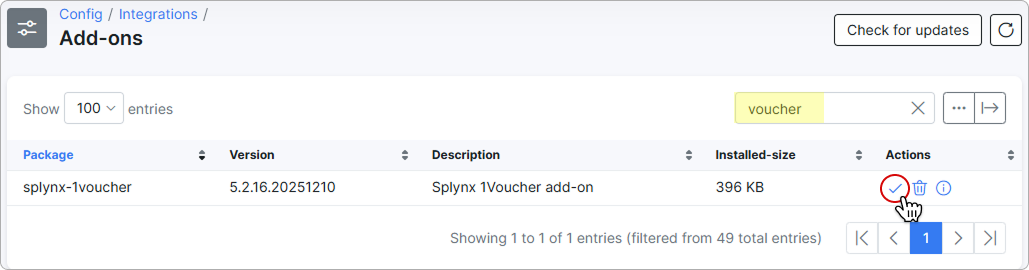
- Locate or search for the "splynx-1voucher" add-on and click on the Install icon in the Actions column:
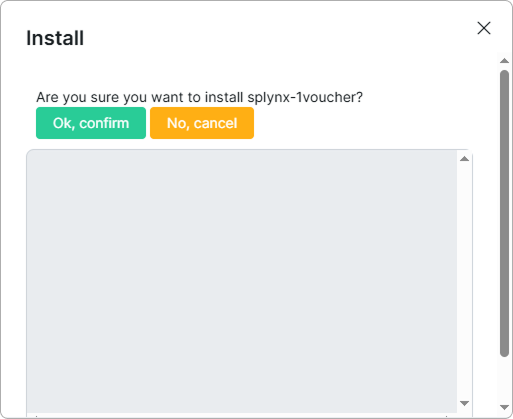
- Confirm the installation:
¶ Configuration
After the installation is successful, configure the add-on.
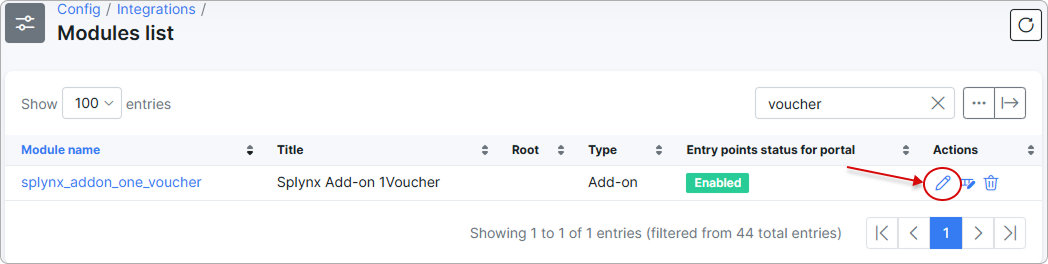
For this, navigate to Config → Integrations → Modules list:

Locate or search for the splynx_addon_one_voucher module and click the Edit (Config) icon  in the Actions column:
¶ Main information
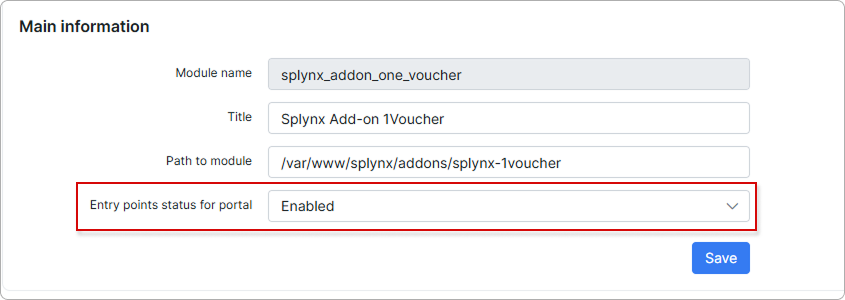
First, ensure that the entry points for the Customer portal are enabled:
¶ Common settings
Select how payments are grouped in payment statements (monthly or daily):

¶ Partner settings
Here, enter all required credentials, such as the API key, Account number, Store ID, and Terminal ID, and select the Environment (Staging or Production).
To accept FNB Voucher payments, also fill in the FNB Voucher product code field — the product code assigned by Flash for the FNB (exclusive) voucher.
Some credentials are provided as part of the integration request process.
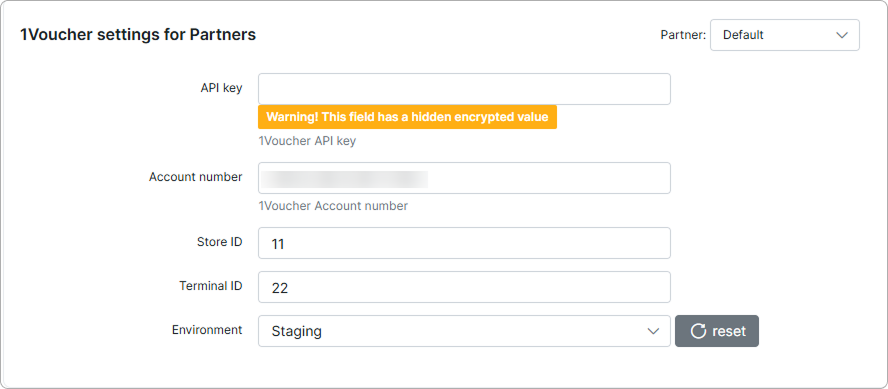
Without the FNB Voucher product code, Flash rejects FNB Voucher payments. 1Voucher payments are not affected and keep working as before.
¶ Customer payment
After the required configuration is completed on the admin side, customers can pay their invoices, top up their account balance, and pay for newly ordered products using 1Voucher or FNB Voucher.
¶ Invoices
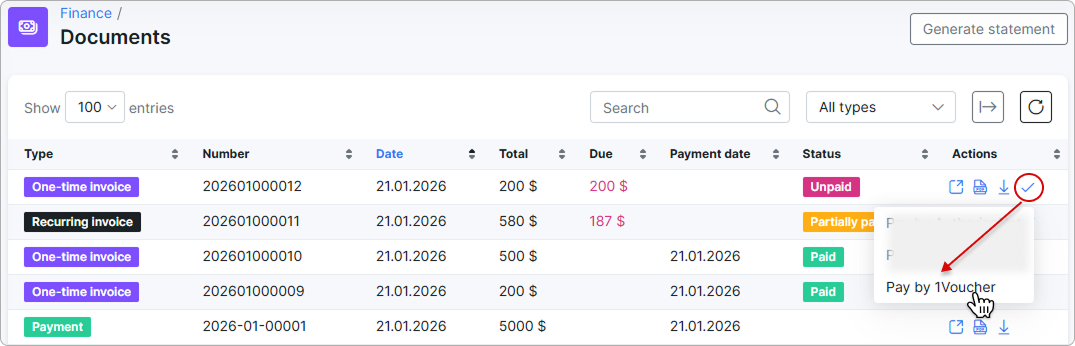
To pay an invoice using 1Voucher or FNB Voucher, the customer needs to select the necessary option next to the invoice:
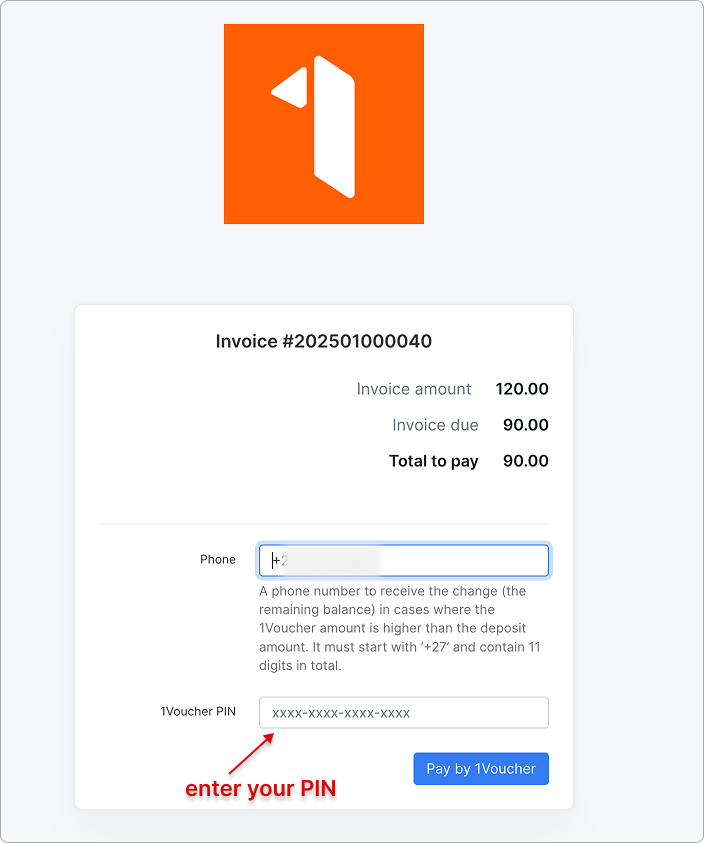
A new window appears where the customer has to enter their phone number and the 1Voucher PIN received when purchasing a voucher. Click Pay by 1Voucher to complete the payment:
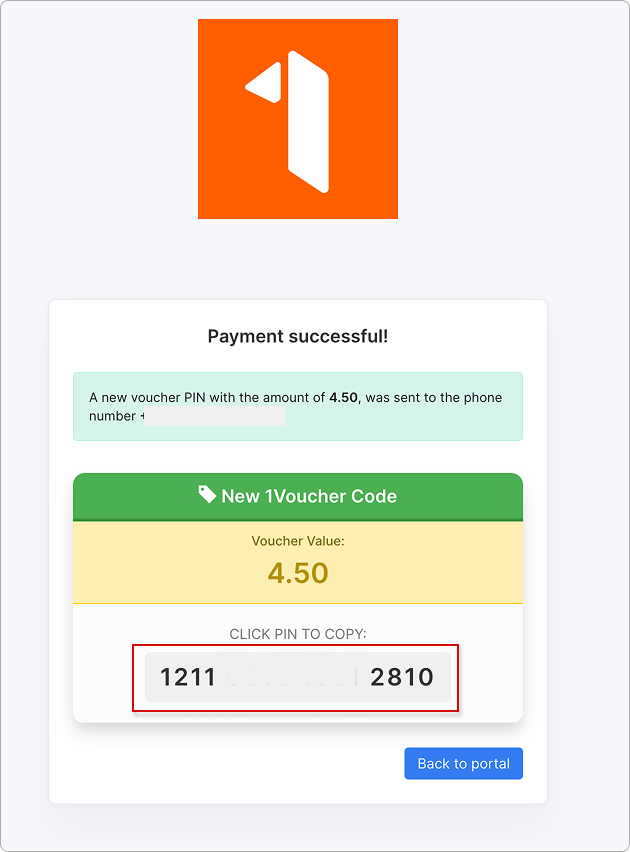
If there is a remaining balance on the customer’s voucher, the balance amount and voucher PIN are sent to the specified phone number:
¶ Account balance
To top up the account balance in the Customer portal, select the 1Voucher or FNB Voucher option from the Pay by menu:
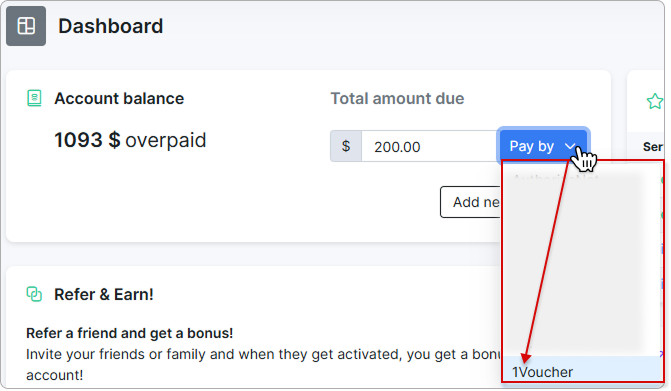
 Any remaining voucher balance is sent to the specified phone number, just as it is after paying invoices.
¶ Order products
Customers can also pay with 1Voucher when they order new products in the Customer portal.
For the gateway to appear at checkout, enable the Accept payment via payment gateway option in Config → Main → Portal (Per partner settings → Order new products). For details on the ordering flow, see Orders.
In the Checkout (cart) window, the customer selects 1Voucher or FNB Voucher as the payment method and clicks Order new product(s):
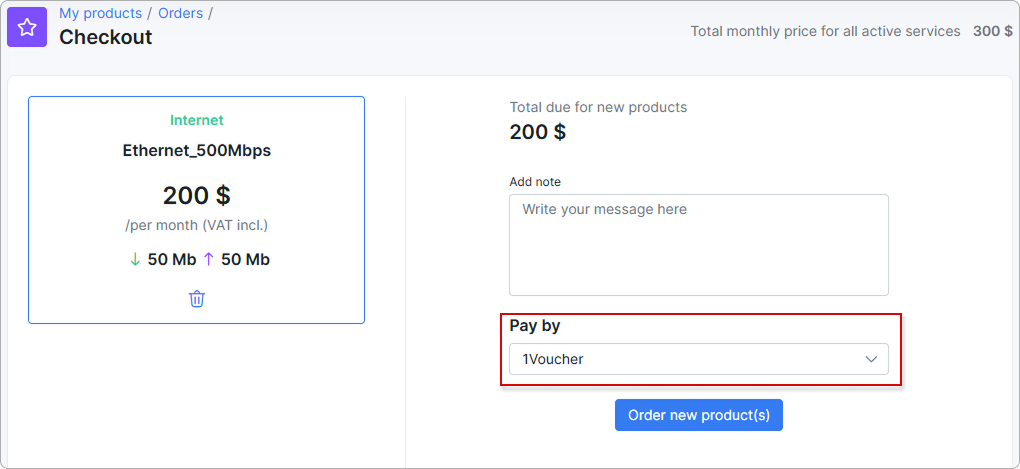
The customer then enters their phone number and the 1Voucher PIN, exactly as when paying an invoice. After a successful payment, the ordered services are activated immediately, and any remaining voucher balance is sent to the specified phone number.
¶ FNB Voucher
FNB Voucher is an exclusive prepaid voucher issued by FNB. Customers buy it in the FNB app or at a POS terminal and receive a 16-digit PIN, the same as with a standard 1Voucher.
Once the FNB Voucher product code is configured, FNB Voucher appears as a separate payment method next to 1Voucher everywhere the add-on is available — when paying invoices, topping up the account balance, and ordering new products.
The payment flow is identical to 1Voucher: the customer selects FNB Voucher, enters their phone number and the 16-digit voucher PIN, and confirms the payment.
If the voucher value is higher than the amount being paid, the difference is not lost — Splynx returns a new voucher PIN for the remaining balance and sends it to the phone number the customer entered. The customer can use that new PIN for the next payment.
Both payment methods share the same credentials and Flash account. Selecting FNB Voucher only changes which voucher type Splynx redeems — customers cannot pay a standard 1Voucher PIN through FNB Voucher, or an FNB voucher PIN through 1Voucher.