¶ File groups
¶ Overview
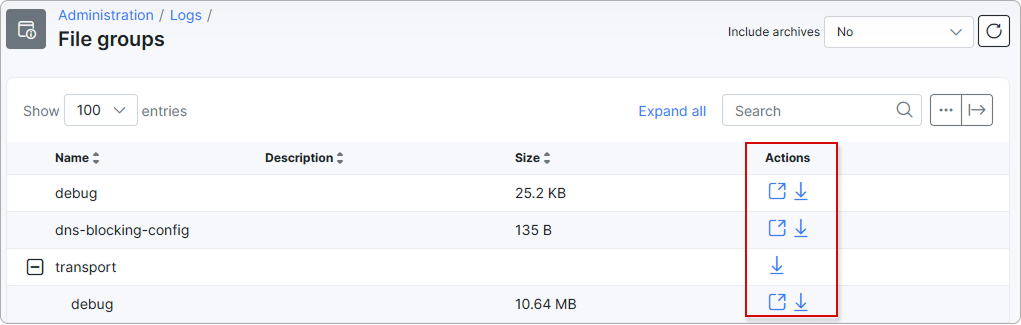
The File groups page displays system-generated log files organized in a two-level hierarchical structure.

Top-level groups (folders) can contain individual log files. Each entry shows the file name, description, and size:
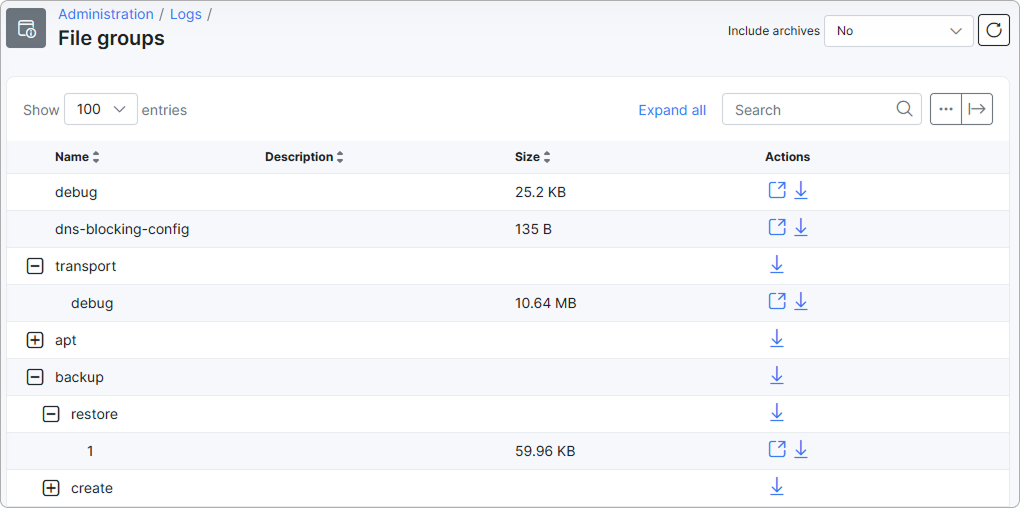
The table includes the following columns:
| Column | Description |
|---|---|
| Name | The name of the log file or group. Sortable. |
| Description | A short description of the log file. Sortable. |
| Size | The size of the file or folder. Sortable. |
| Actions | Available actions for each entry. |
¶ Details
¶ Expanding and collapsing groups
Top-level groups can be expanded or collapsed by clicking the + / − icon next to the group name. By default, all groups are expanded.
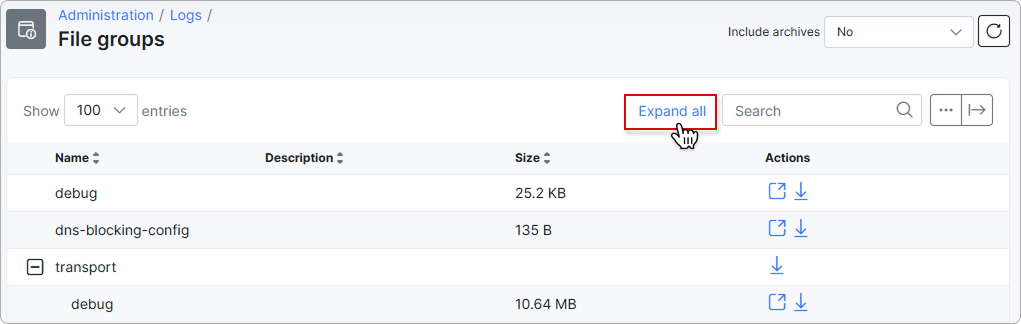
Use the Expand all / Collapse all button in the toolbar to expand or collapse all groups at once:
¶ Include archives
Over time, Splynx rotates its log files: the current log is kept as a regular file, while older entries are compressed into log archives. By default, these archives are hidden from the File groups list, so you see only the current, regular log files.
The Include archives selector in the top-right corner of the toolbar controls whether archived logs appear in the list. It is set to No by default.
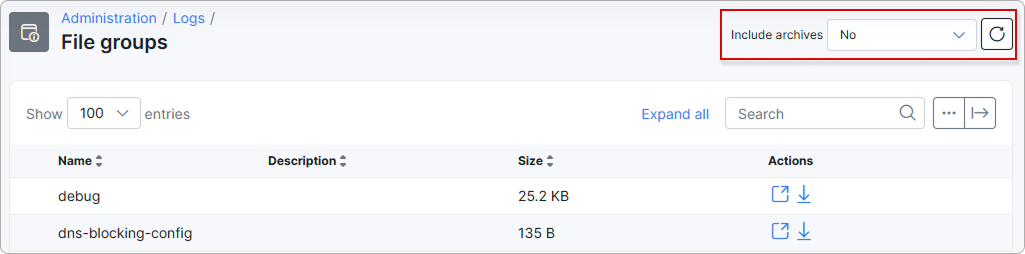
- No (default) — only regular log files are shown. Archives are hidden.
- Yes — archived logs are listed alongside the regular files in each group. Archives can be downloaded, but they cannot be viewed in the browser — the View action is available for regular log files only.
Use the refresh button next to the selector to reload the list after changing the value.
The Include archives selector affects only what is displayed in the list. A folder download always includes the full contents of the group — both regular files and archives — regardless of the selector's state.
¶ Actions
Each row has one or more action icons in the Actions column:
- View (
 ) — opens the log file content in a modal window. Available for individual regular files only (not for archives).
 - Download (
 ) — downloads the entry as a
 .tar.gzarchive named{name}-{date}.tar.gz. For a group, downloads all files within it — including archives, regardless of the Include archives selector; for an individual file, downloads that file only.
¶ Viewing a log file
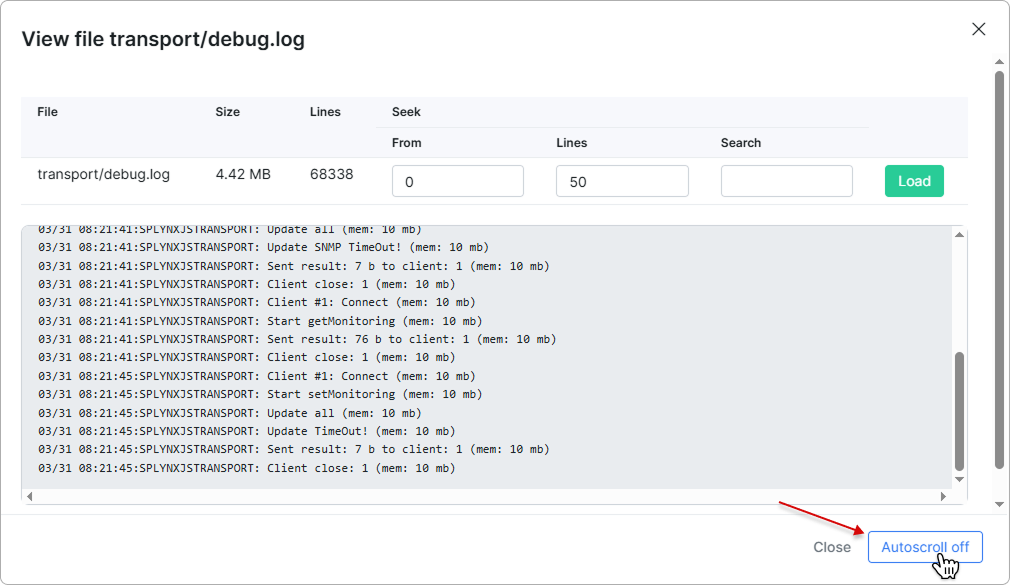
Clicking the View icon opens the View file modal, which displays the file content and provides the following:
| Field | Description |
|---|---|
| File | The name of the log file. |
| Size | The size of the file. |
| Lines | The total number of lines in the file. |
| From | The starting line number to display. |
| Lines | The number of lines to load from the starting position. |
| Search | Filter the displayed content by keyword. |
The file content is shown in a scrollable preview area below. Use the Autoscroll button to enable or disable automatic scrolling to the latest log entries:
¶ Search
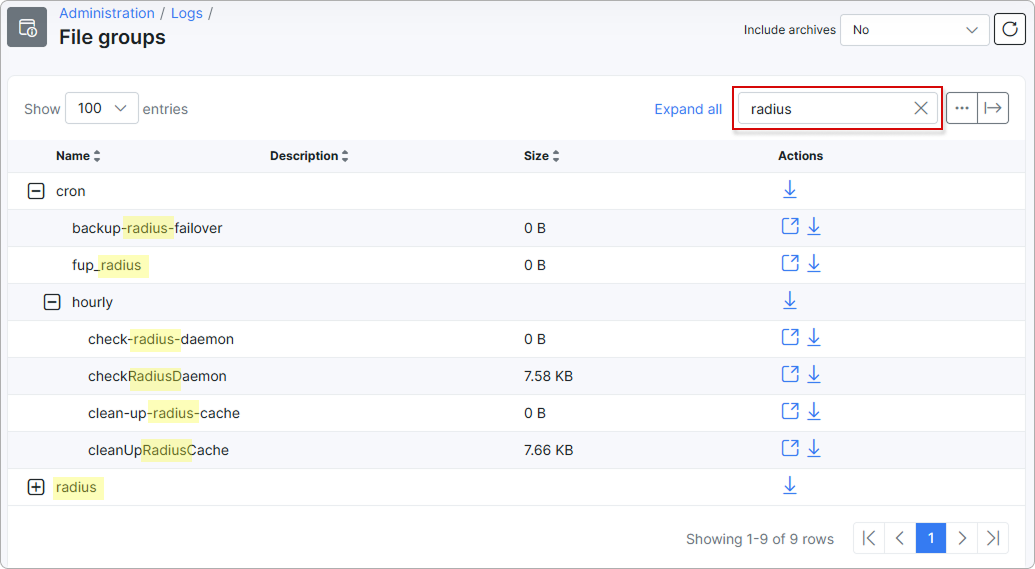
Use the Search field in the toolbar to filter entries by name. The list updates as you type.
¶ Show/Hide columns
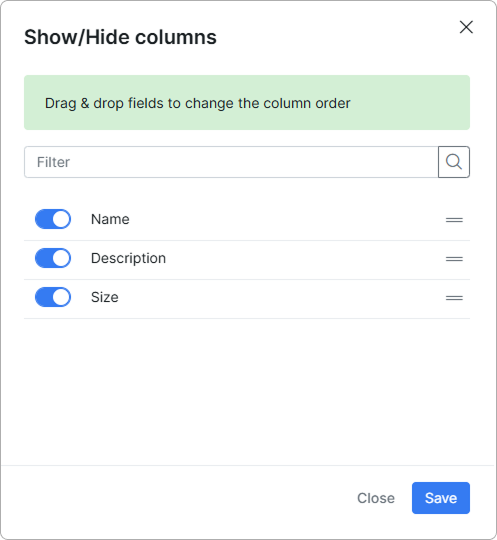
Click the ... button in the toolbar to open the Show/Hide columns panel. Toggle the visibility of the Name, Description, and Size columns, and drag and drop them to reorder:
¶ Export
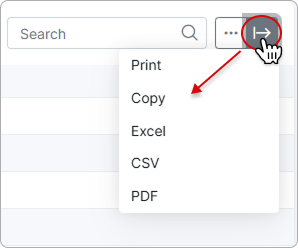
Click the |→ button in the toolbar to export the table. Available formats: Print, Copy, Excel, CSV, PDF.