¶ Splynx CommsApp
- Overview
- Download app links
- Prerequisites
- Logging in
- Navigation bar
- Tickets
- Messages
- Canned responses
- Customer information
- Account settings
- Related pages
¶ Overview
Splynx CommsApp is a mobile application for support agents who need to handle tickets and customer WhatsApp messages while away from a desktop. It mirrors the core support workflow available in Splynx web and delivers instant push notifications, so new tickets and incoming messages reach the team wherever they are.
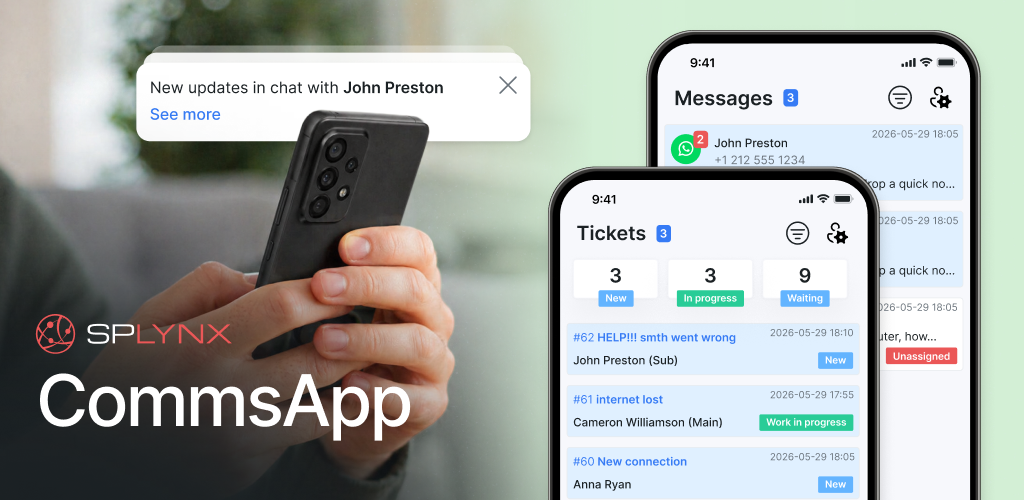
The app is available exclusively for ISP support teams using Splynx ISP management software. Agents sign in with their Splynx administrator credentials, so ticket visibility, partner access, and role permissions work exactly as they do in Splynx web.
¶ Download app links
To download the Splynx CommsApp, use the links below:


¶ Prerequisites
Before an agent can start working in the app, make sure the following is in place:
- The agent has an active administrator account in Splynx, with permissions for the Tickets module.
- The agent knows the server URL of your Splynx instance — the same address used to open Splynx web.
- To use the Messages tab, the WhatsApp integration is configured in Splynx — see WhatsApp.
- To use ready-made templates, canned responses are created in Splynx — see Canned responses.
¶ Logging in
On the login screen, fill in the following fields:
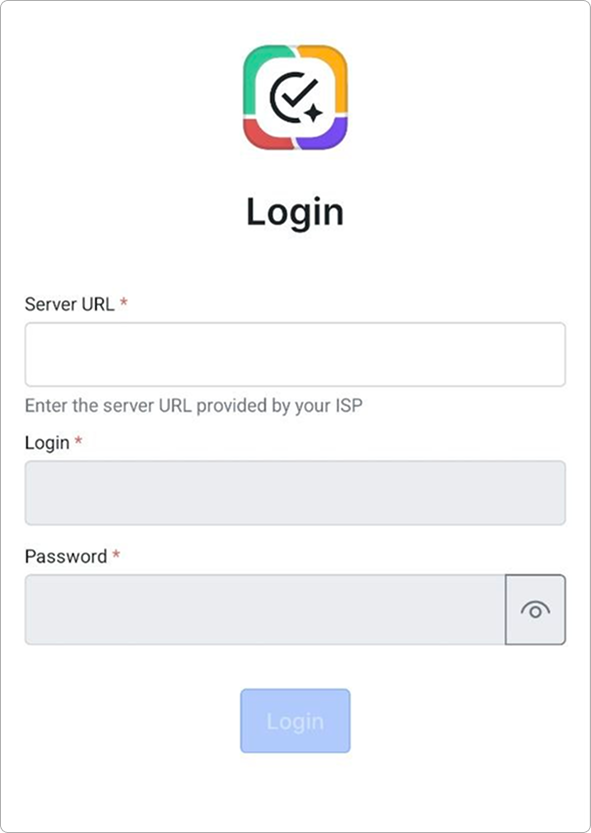
- Server URL — the address of your Splynx instance, provided by your ISP.
- Login — the administrator login (or email) used in Splynx.
- Password — the administrator password.
The Login and Password fields become active only after a server URL is entered. Tap Login to sign in.
If two-factor authentication is enabled for the account, the app asks for the one-time code from your authenticator app right after the password is accepted.
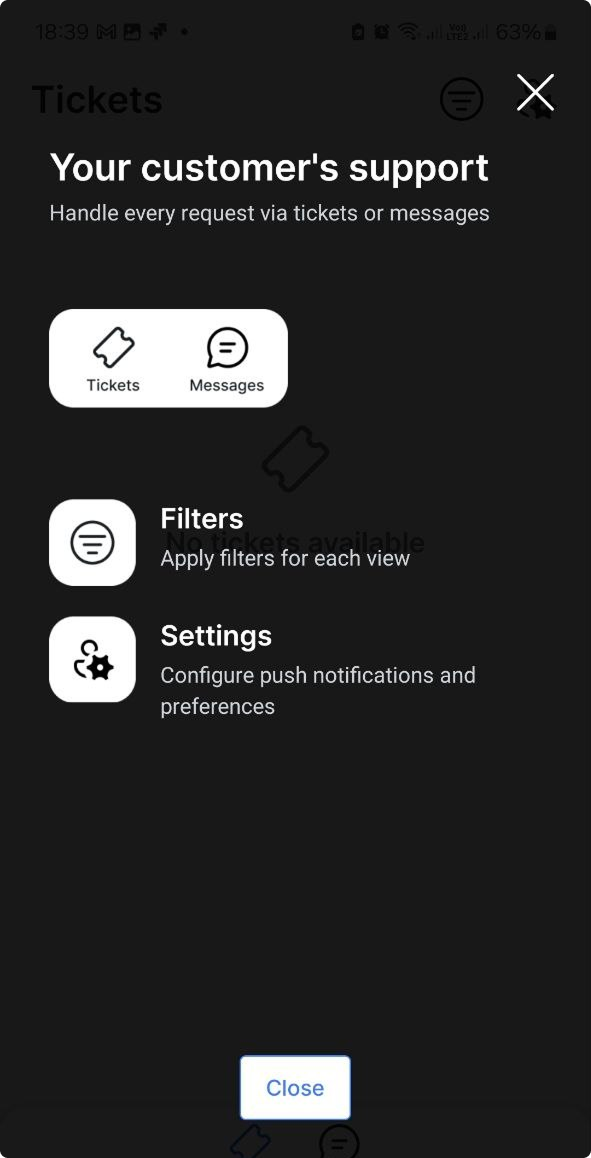
The first time a tab is opened, the app shows a short guide over the interface, pointing out the Tickets and Messages switch, the Filters icon, and the Settings icon. Tap Close to dismiss it:
¶ Navigation bar
A bottom navigation bar switches between Tickets and Messages in a single app, with unread indicators on each tab. Agents can monitor both queues without leaving the app, and respond from whichever channel the customer used to reach out.
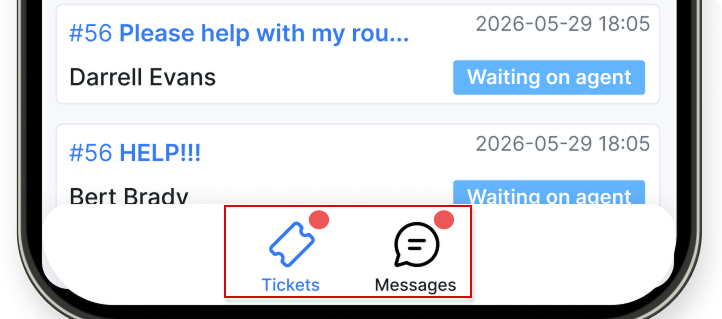
The Filters icon in the top bar applies a separate set of filters to each view, so the ticket queue and the chat list can be narrowed independently. The Settings icon opens Account settings.
¶ Tickets
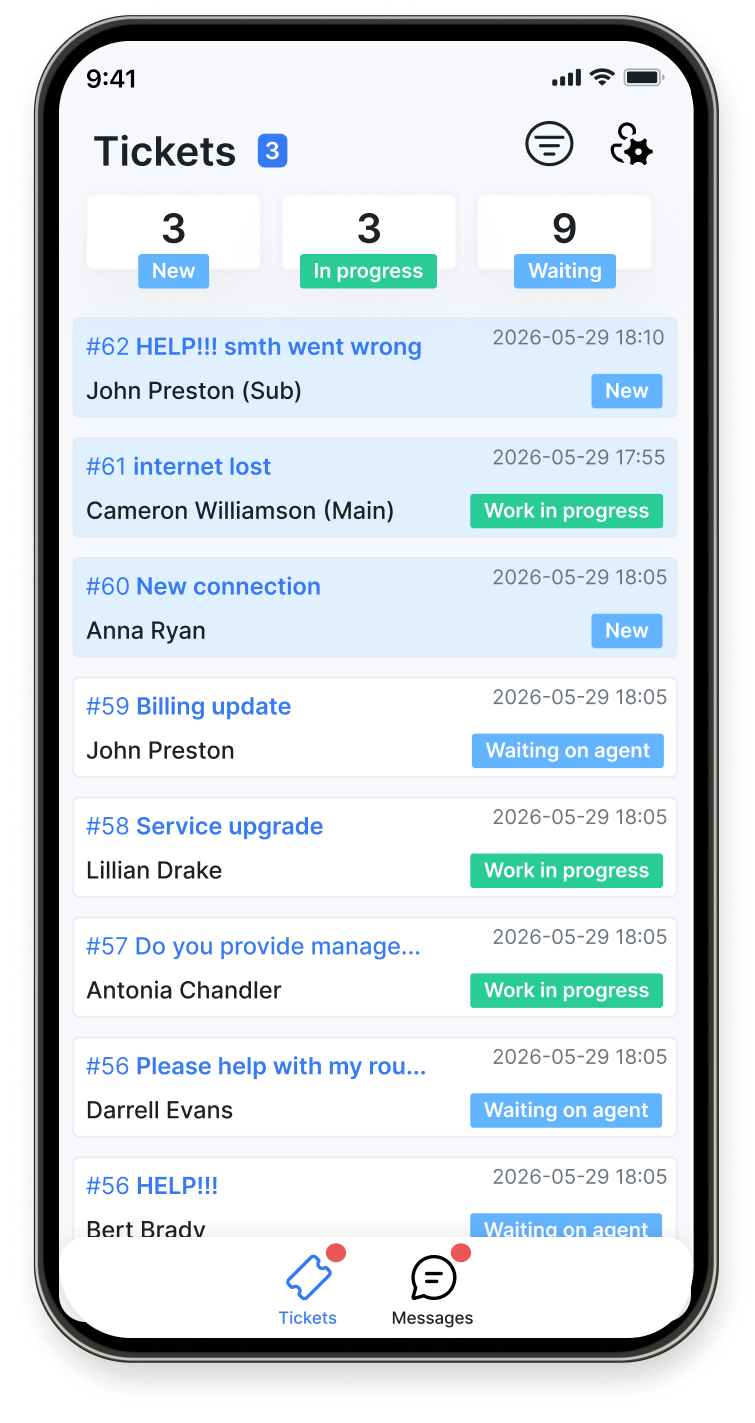
The Tickets tab shows all support tickets visible to the agent, with summary counters at the top for New, In progress, and Waiting. Each row displays the ticket number, subject, customer name with the main/sub indicator, the time of the last activity, and the current status. Tap a ticket to open it.
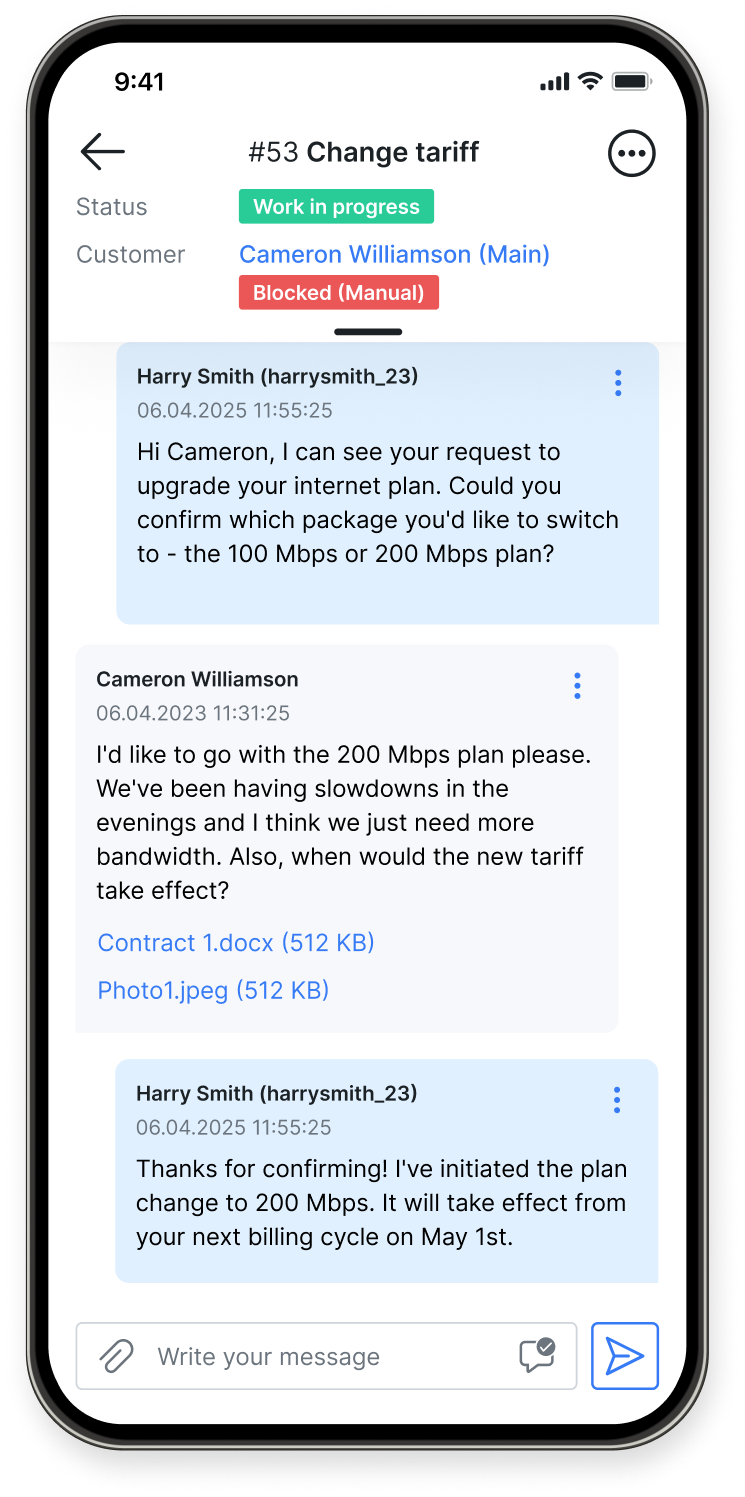
The ticket detail view shows the full conversation history, the customer name, the ticket status, and any account-level flags such as Blocked (Manual). Agents can reply, add notes, change status, and attach files from the same screen, so a ticket can be resolved end to end without switching to a desktop.
¶ Messages
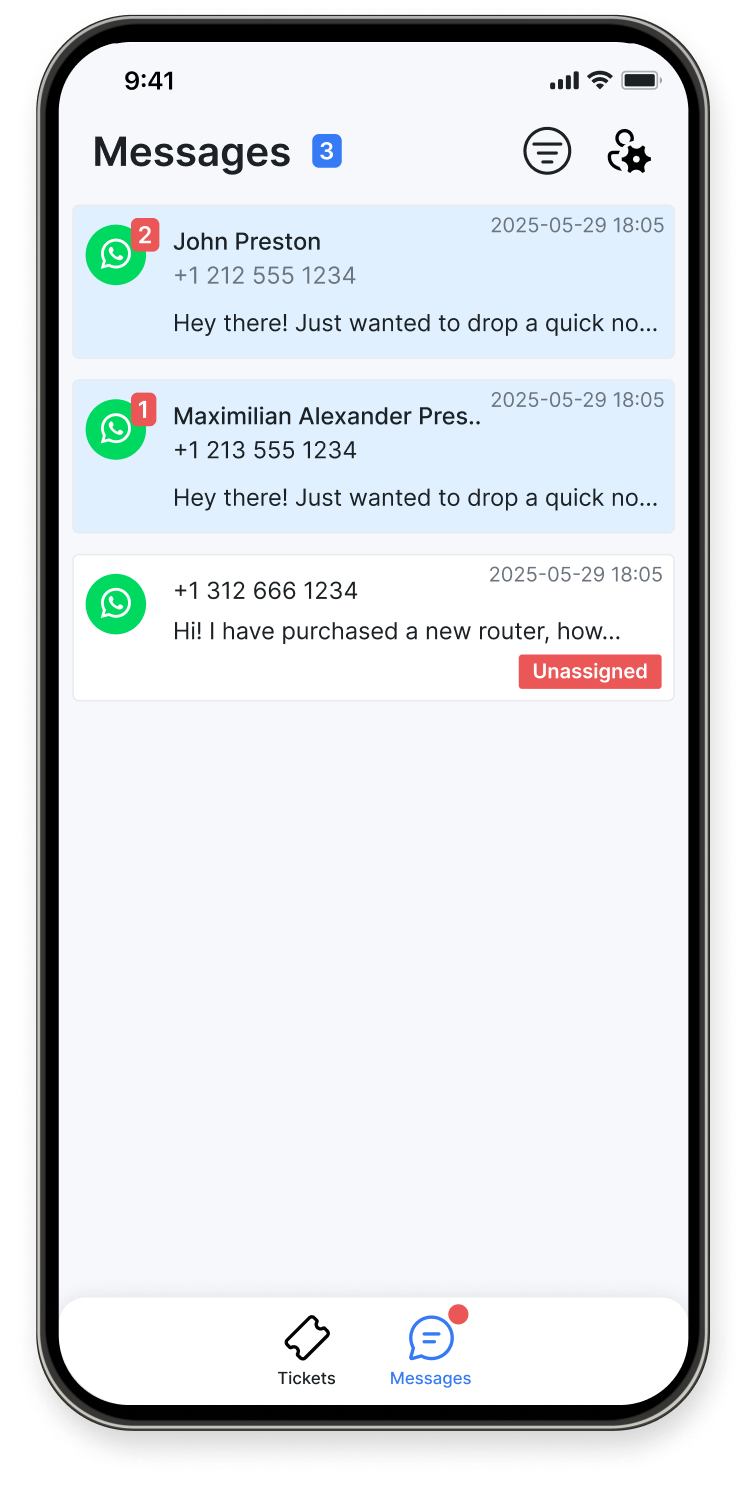
The Messages tab lists WhatsApp conversations with customers, sorted by latest activity. Each row shows the customer name or phone number, the last message preview, and the timestamp. Unread chats and Unassigned conversations are flagged with badges so they are easy to spot.
Tap a conversation to reply directly from the app. Messages flow through the same WhatsApp integration configured in Splynx, so conversation history stays in sync between the mobile app and Splynx web.
¶ Canned responses
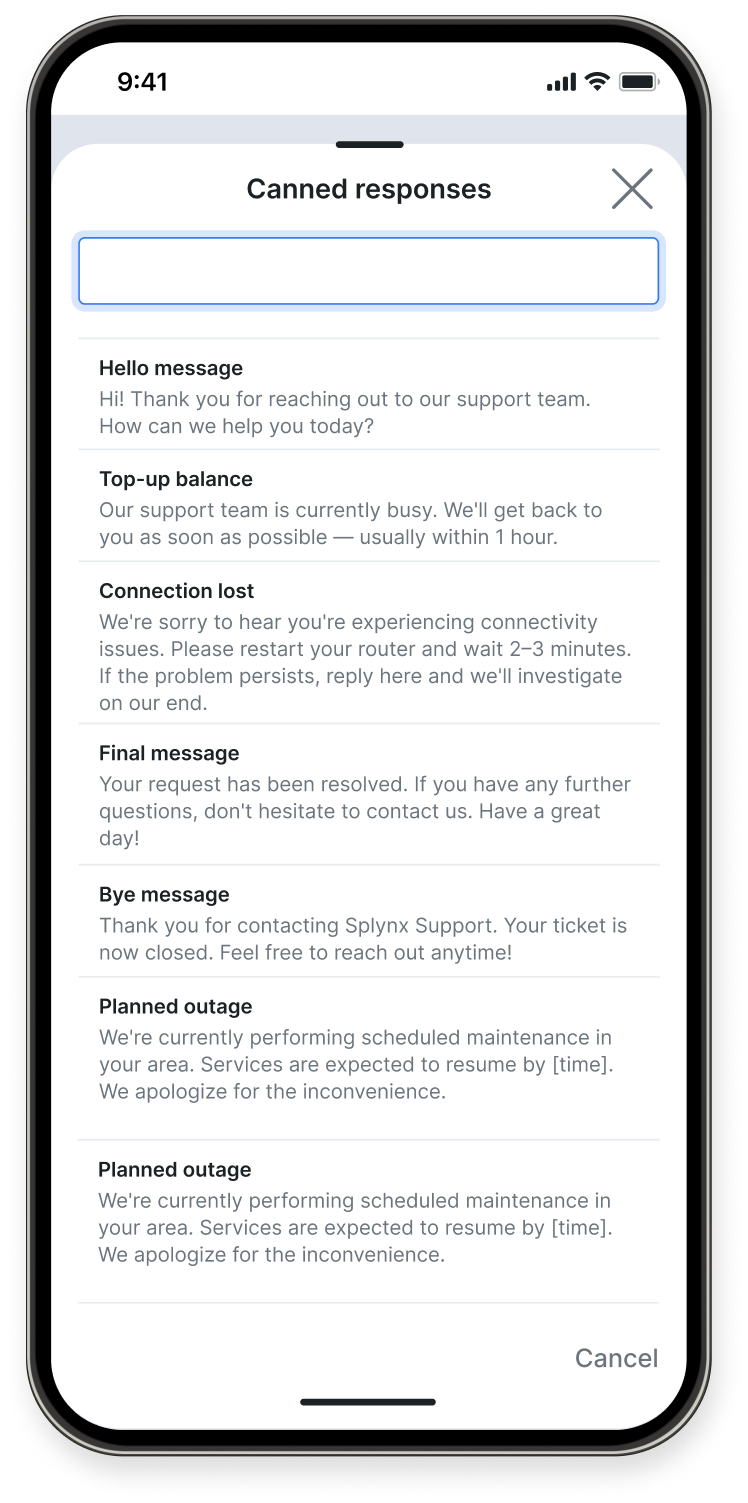
Open the Canned responses picker from any ticket or chat to insert a pre-written template into the reply. Templates are managed centrally in Splynx, which keeps wording consistent across the team and speeds up common answers — outage notices, balance reminders, resolution confirmations.
A search field at the top of the picker helps you find the right template when the list grows long.
¶ Customer information
From any ticket or WhatsApp chat, you can open the linked customer's profile and review the same details that appear in Splynx web — billing type and balance, portal credentials, labels, contact details, services with login and IP addresses, and any additional custom fields.
Tap View full information to open the customer's complete profile when more context is needed.
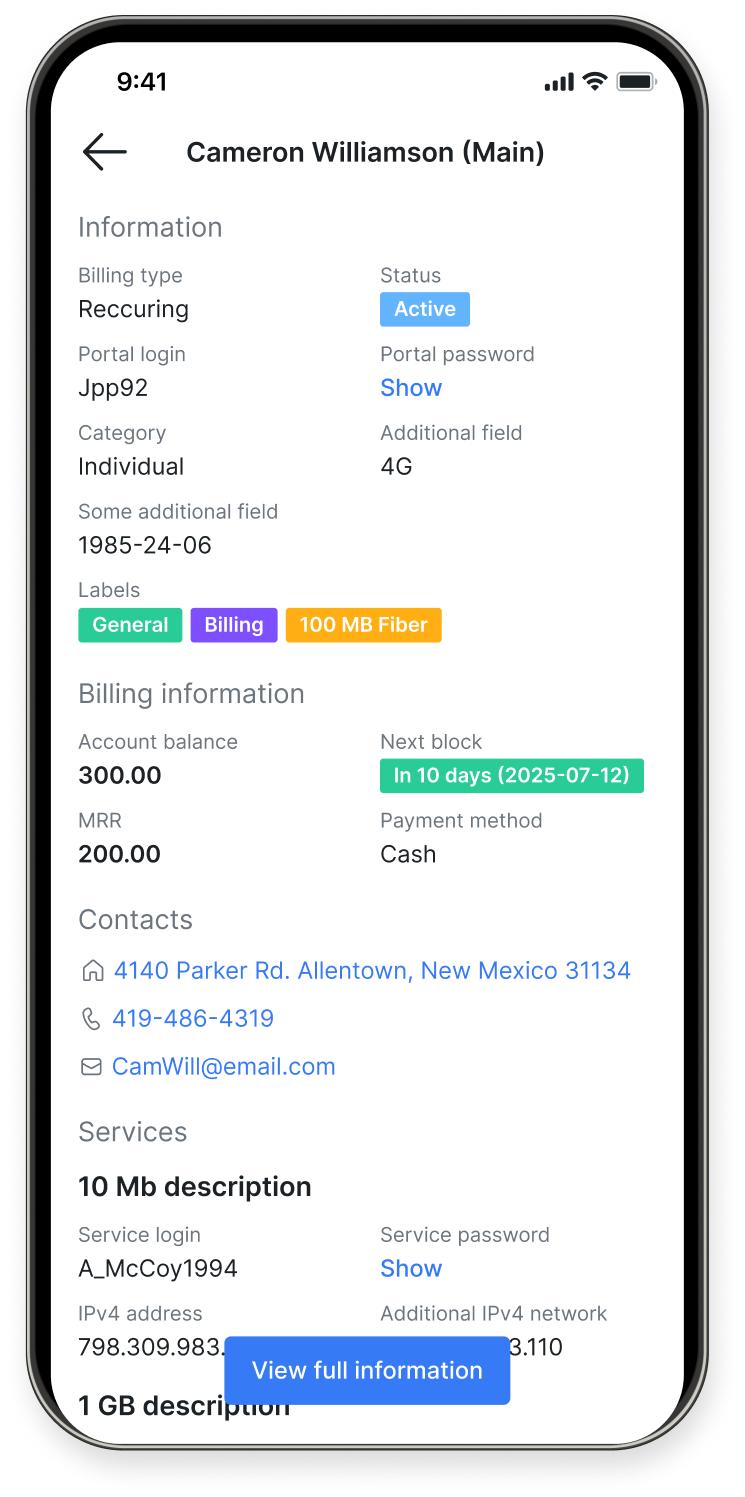
Which blocks appear on this screen is controlled by each agent in Fields settings.
¶ Account settings
Tap the Settings icon in the top bar to open Account settings:
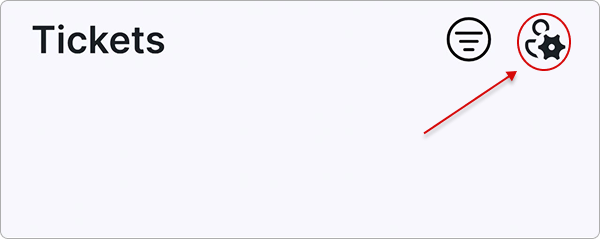
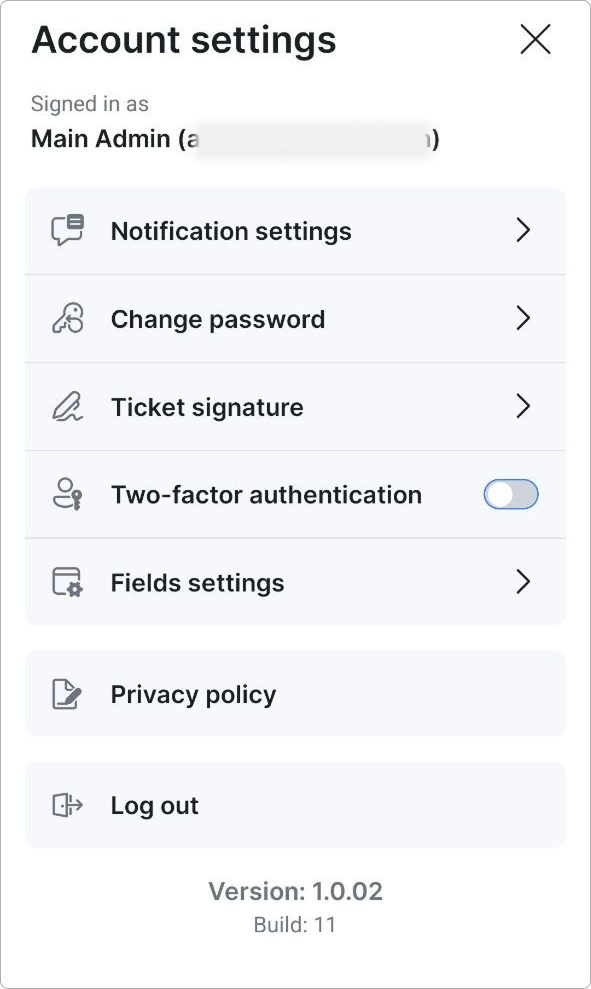
The screen shows the account you are signed in as, the personal settings available in the app, a link to the Privacy policy, and the Log out button. The app version and build number are displayed at the bottom — useful when reporting an issue to support.
¶ Notification settings
Push notifications keep agents informed about activity in their tickets and chats. Each event type can be toggled independently:
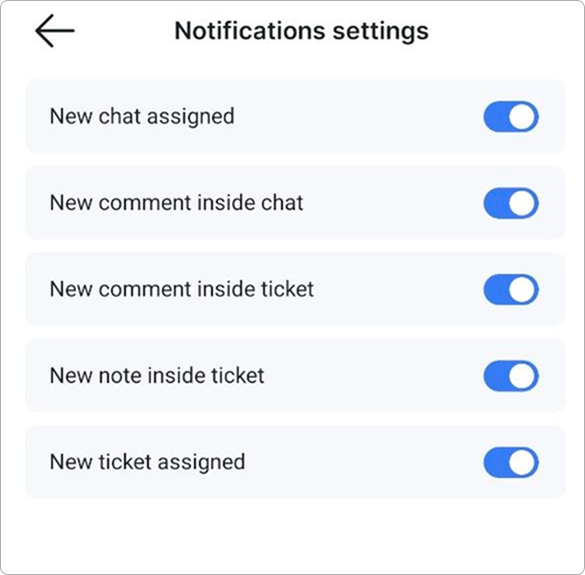
- New chat assigned — a WhatsApp chat has been routed to you
- New comment inside chat — a new message was posted in one of your active chats
- New comment inside ticket — a customer or colleague replied on one of your tickets
- New note inside ticket — an internal note was added to one of your tickets
- New ticket assigned — a ticket has just been assigned to you
Notifications are delivered to the device only while the agent is signed in. After logging out, the device stops receiving pushes for that account.
¶ Change password
To change the password of your administrator account, fill in Old password, New password, and Confirm password, then tap Save. Use the eye icon in each field to check what you have typed.
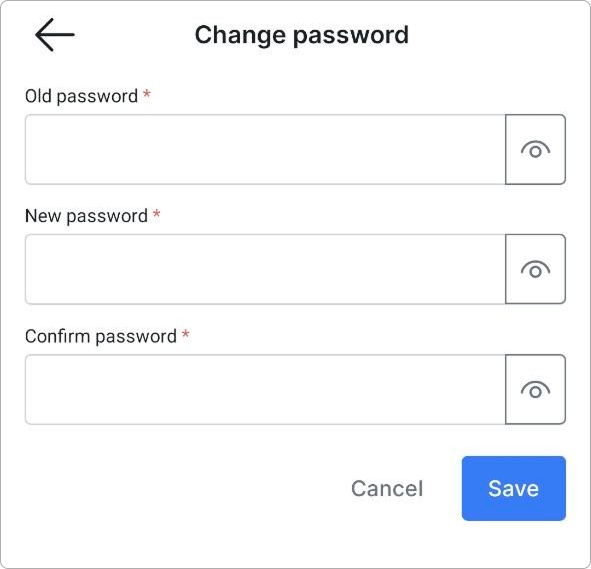
The password is changed for the Splynx administrator account itself, so the new password must also be used to sign in to Splynx web.
¶ Ticket signature
A signature is added to every message you send in tickets. Enter the text in the Signature field and tap Save:
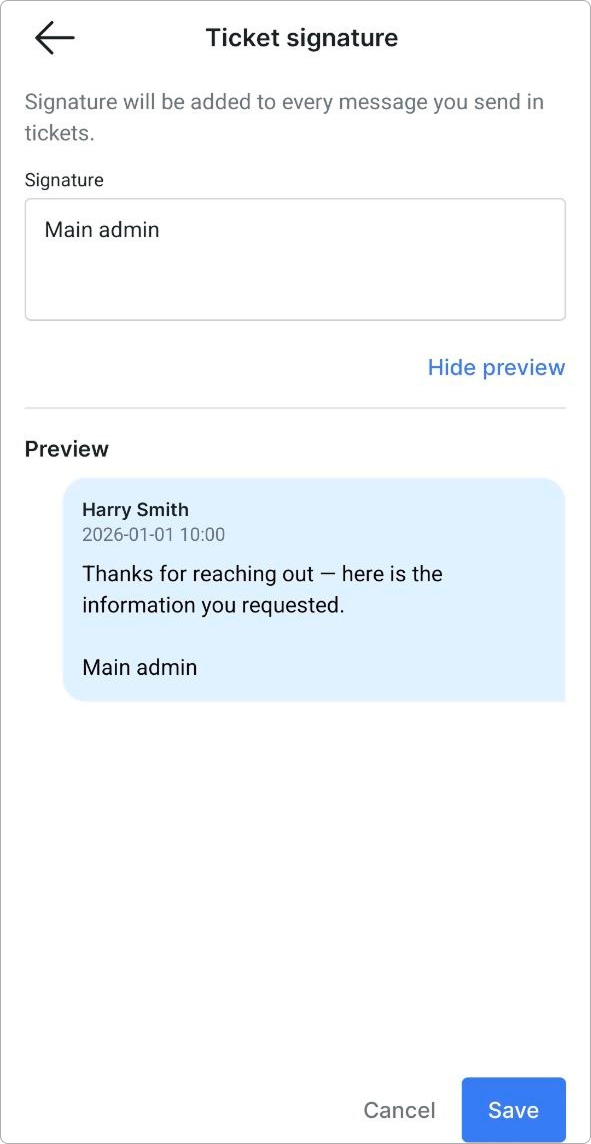
Tap Show preview to see how the signature looks at the end of a ticket message, and Hide preview to collapse it again. Leaving the field empty means no signature is added.
¶ Two-factor authentication
Two-factor authentication adds a one-time code from an authenticator app to the login. Enable it with the toggle in Account settings and follow the steps on the Enable two-factor verification screen:
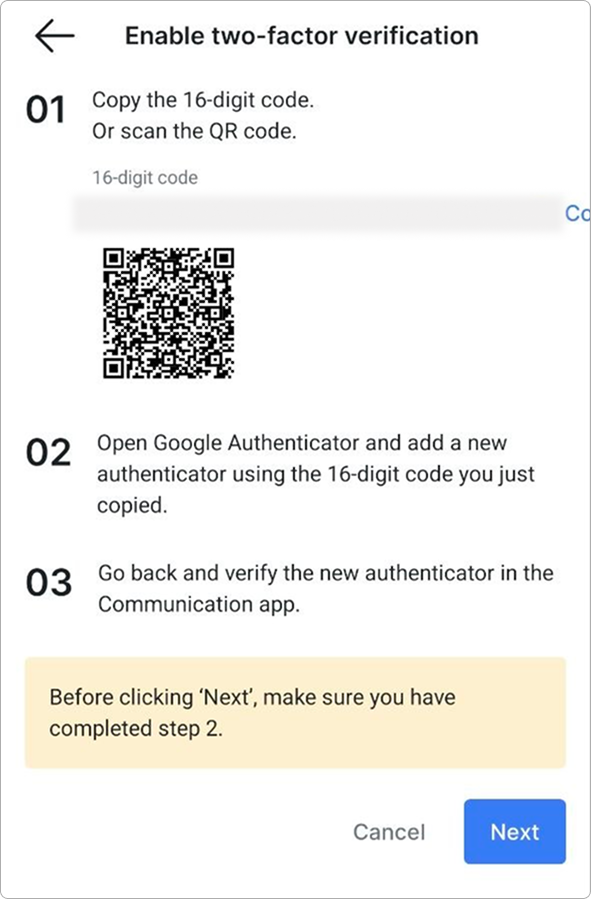
- Copy the 16-digit code, or scan the QR code with your authenticator app.
- Open the authenticator app (for example, Google Authenticator) and add a new authenticator using the code.
- Return to Splynx CommsApp, tap
Next, and enter the code generated by the authenticator to confirm.
Complete step 2 before tapping 'Next' — the app asks for a valid code straight away, and without the authenticator entry there is nothing to enter.
To turn two-factor authentication off, switch the toggle back in Account settings.
¶ Fields settings
Fields settings control which blocks of customer data are shown on the customer's page in the app. Turn off the blocks you do not need to keep the screen compact:
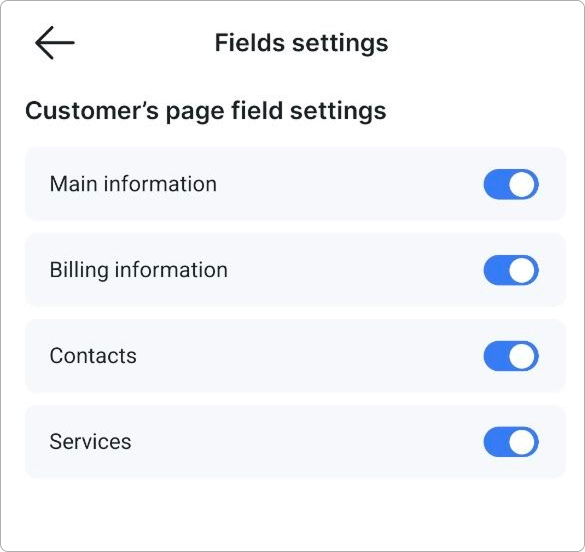
- Main information — name, status, portal login, labels, and custom fields
- Billing information — billing type and current balance
- Contacts — phone numbers, emails, and additional contacts
- Services — active services with login and IP address
The setting is personal — it affects only your own device and does not change what other agents see.