¶ Capped plans and top-ups
- Overview
- CAP configuration
- Top-ups
- Difference between auto top-ups and compensate overusage
- Notifications
- Preview and test
- Examples
- What the customer sees on the Customer portal
- Related pages
¶ Overview
CAP (data cap) lets ISPs provide internet services with a monthly data limit and charge customers for additional data in the form of top-ups.
For example, the monthly limit for an internet tariff plan in Splynx is 200 GB. Once a customer has used 200 GB, the connection can be blocked or the speed can be decreased. If the customer wants to keep using the connection without speed limitations, they can purchase a top-up (additional data pack). A top-up can be added by the customer on the Customer portal, by an administrator on the Admin portal, or automatically when the monthly limit is reached (auto top-up).
¶ CAP configuration
First, enable the CAP module in Config → Integrations → Main modules.
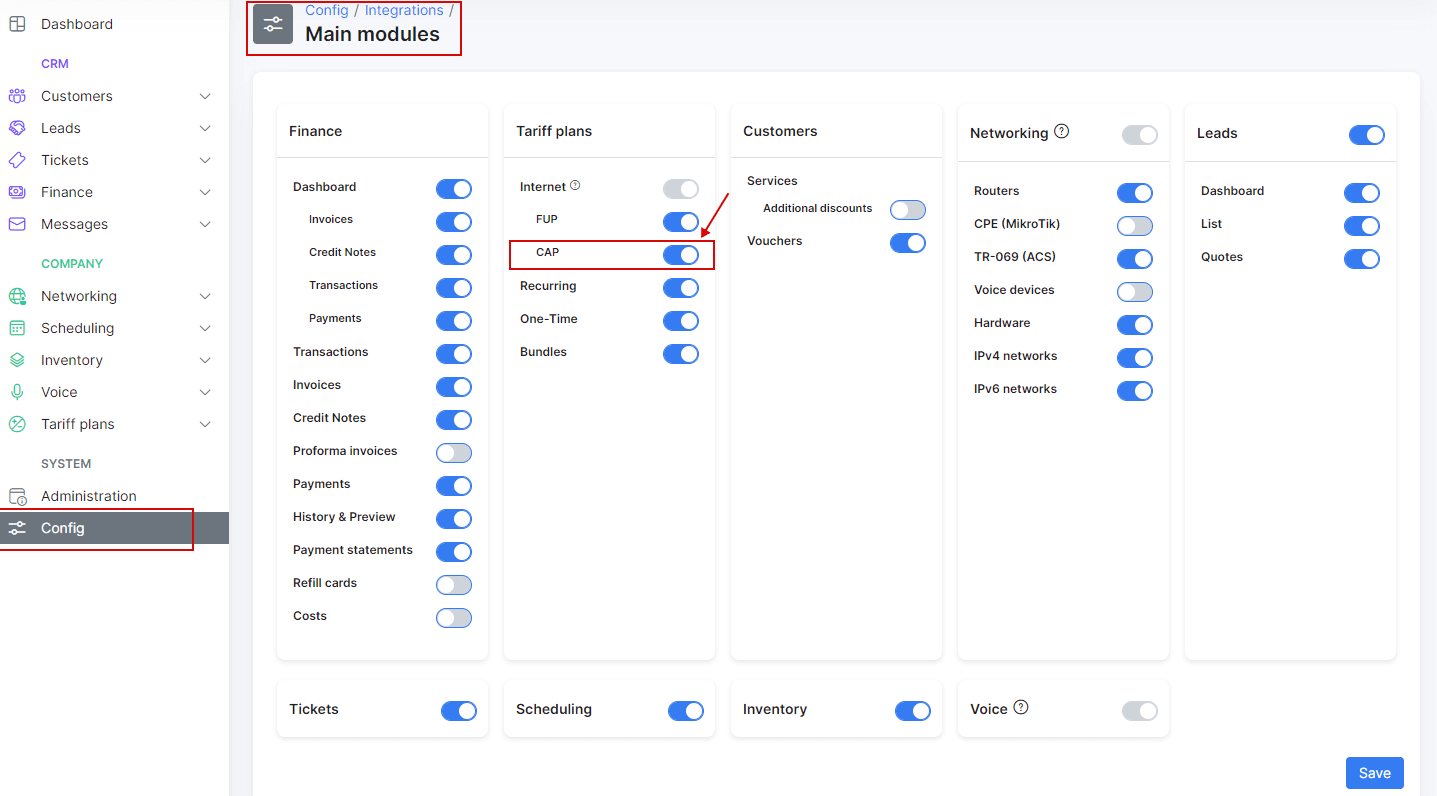
Once this is done, go to Tariff plans → Internet and click the CAP icon in the Actions column:
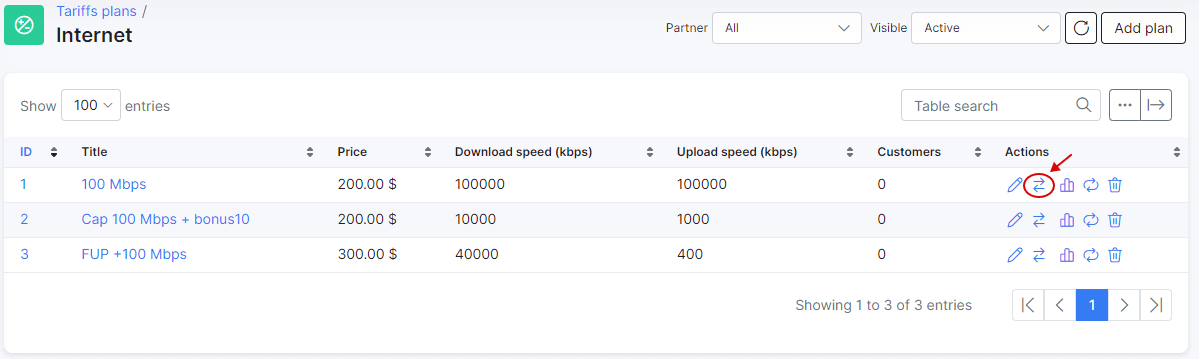
Here you can configure FUP policies and CAP, and simulate and test the behavior of the system on FUP and CAP rules. Do not mix FUP and CAP configurations, as this can cause conflicts on the router. To learn more about FUP rules, see Fair Usage Policy.
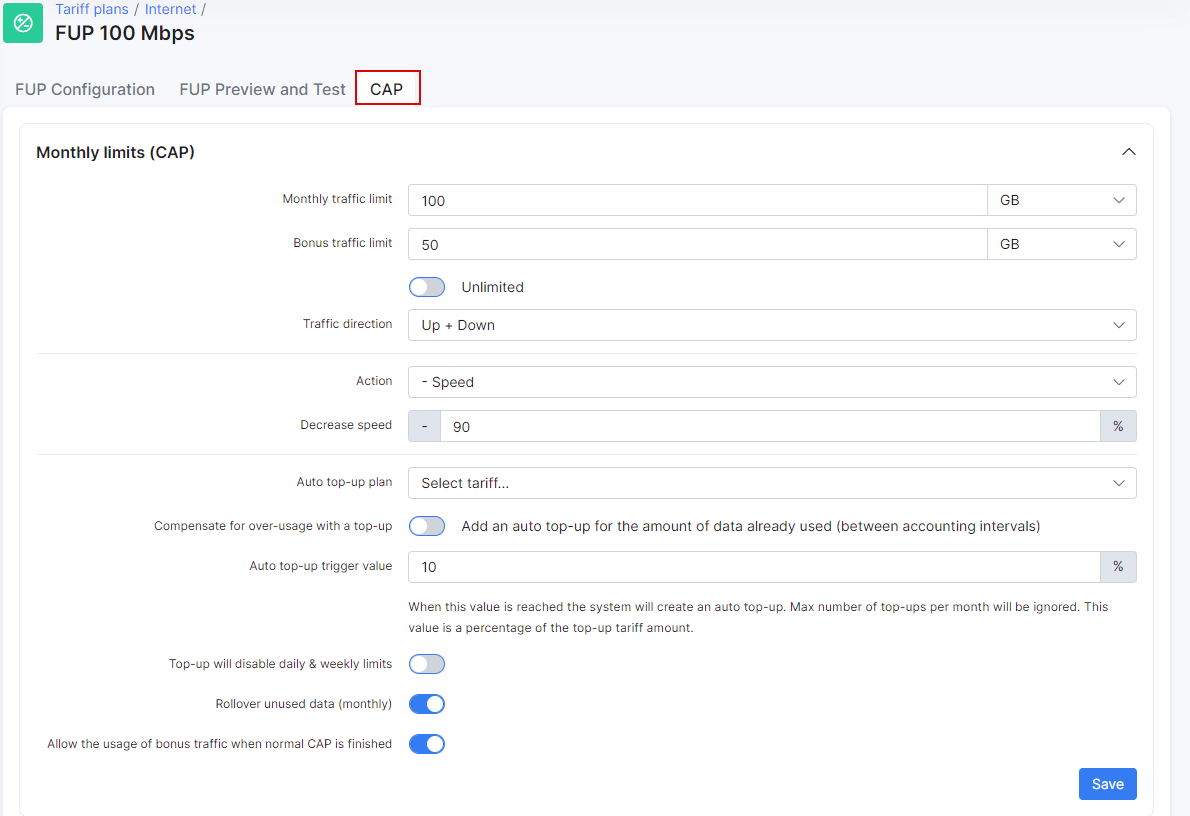
Configure the Monthly limits (CAP) tab:
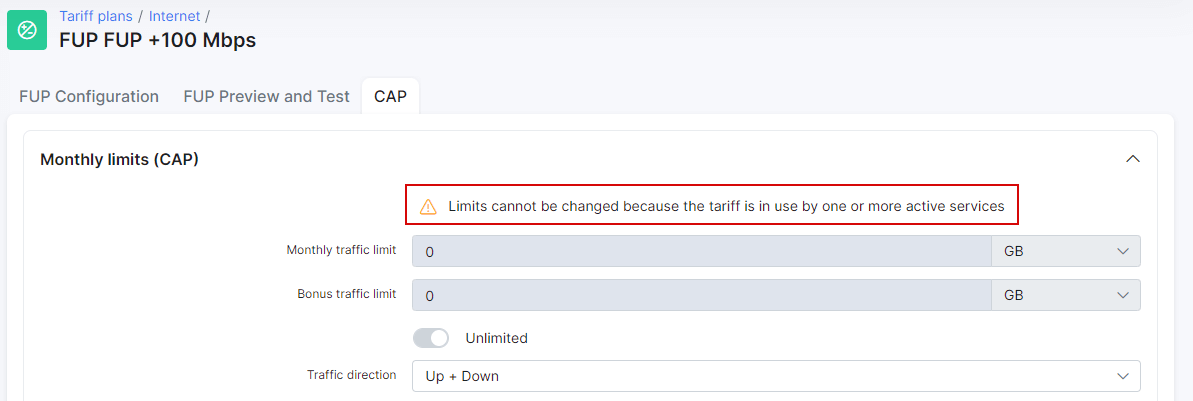
 If the tariff plan is already used by at least one active customer, the limit fields are disabled and a corresponding message appears above them:
¶ CAP options
The following options are available:
-
Monthly traffic limit — the amount of data a customer can consume per month.
-
Bonus traffic limit — this option only works if a time frame is specified on the FUP configuration tab:
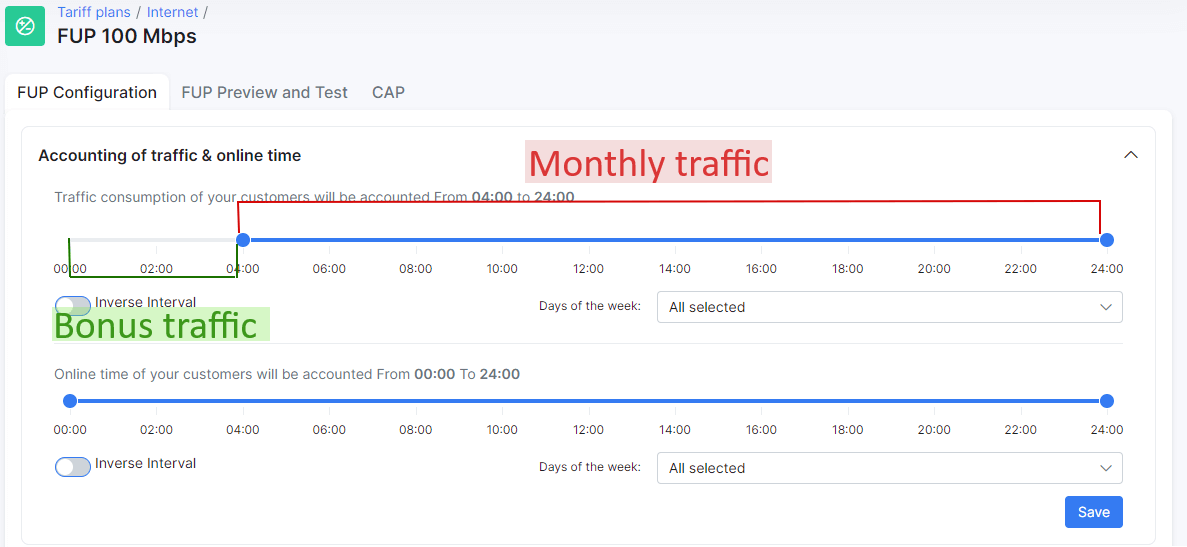
Based on the screenshots above, the customer can use 50 GB of bonus traffic only from 00:00 to 04:00 (the monthly limit of 100 GB is not used here).
If you account for traffic for a whole day (without FUP time frames), this option does not work.
On the CAP tab, you can set the bonus traffic amount or enable the Unlimited toggle to allow a customer to consume traffic without limits from 00:00 to 04:00.
-
Traffic direction — select the direction of traffic for accounting: Up + Down, Up, or Down.
-
Action — select what to do with the connection once the monthly limit is reached: Block, Set fixed speed, or - Speed. Then, in the field below, enter values for Set fixed speed or a percentage for - Speed.
-
Auto top-up plan — select one of the previously created top-ups that is automatically applied to the customer when the monthly limit is reached (auto top-ups must be enabled in the customer's settings as well).
-
Compensate for over-usage with top-up — use this option on high-speed plans so that customers are charged for traffic used beyond the cap between accounting intervals. For example, a customer has a plan with 1 Gbps speed, an accounting interval of 5 minutes, and a CAP limit of 500 GB. Splynx receives data that the customer has used 499.95 GB and does not block the connection, as the CAP limit is 500 GB. In another 5 minutes, Splynx receives data that the customer has used 502 GB. With this toggle enabled, Splynx charges for the over-used 2 GB according to the tariff price.
-
Auto top-up trigger value — the amount of data (in percent) that a connection can consume before an auto top-up is applied. For example, a top-up of 1 GB was applied and the customer has used it. If the value is set to 10% of 1 GB, once the customer uses another 100 MB, an auto top-up is applied.
-
Top-up will disable daily and weekly limits — enable or disable this option to ignore daily or weekly FUP limits (on the FUP configuration tab).
-
Rollover unused data (monthly) — enable or disable rolling over unused data to the next month.
-
Allow the usage of bonus traffic when normal CAP is finished — with this option enabled, customers can use bonus traffic even if the monthly limit is reached. In this example, bonus traffic can be used only from 00:00 to 04:00; at other times the customer is blocked.
¶ Top-ups
Top-up plans are used when monthly data caps are reached and the customer wants to extend their services. Customers pay for top-ups to regain access according to the data limits of the top-up plan.
Top-up plans create an additional source of income from existing customers using a capped service.
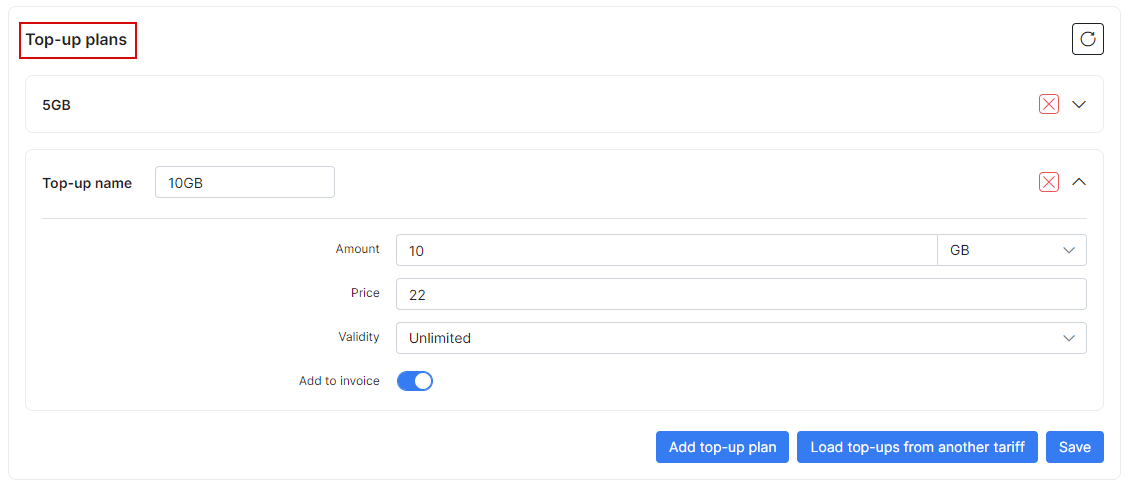
The screenshot shows two top-up plans: 5 GB and 10 GB. Click Add top-up plan to add a new top-up, Load top-ups from another tariff to load top-ups you previously created for another plan, and Save to save the changes.
To create a new top-up plan, specify the data amount, price, and validity, and enable or disable adding this transaction to the invoice.
¶ Difference between auto top-ups and compensate overusage
¶ Auto top-ups
-
If the customer has reached the top-up limit (Amount field), Splynx does not apply any new top-ups for this customer (the Auto top-up trigger value option is not used).
-
Auto top-ups do not cover overusage. Overused data is free for this customer. For example, the customer has a CAP limit of 1 GB, but for some reason uses 1.2 GB, so the service is blocked. Once it is blocked, the system applies a 100 MB auto top-up so the customer can use the internet. The customer can then use 100 MB, but the 200 MB of overusage is free.
-
The system can apply a top-up only once per 5 minutes.
¶ Compensate overusage
-
The Compensate for over-usage with a top-up option can ignore the maximum number of auto top-ups per month if the overusage is more than the Auto top-up trigger value.
-
This option covers overusage. The overused data is not free for this customer. For example, the customer has a CAP limit of 1 GB, but for some reason uses 1.2 GB, so the service is blocked. Once it is blocked, the system compensates with 10 MB top-ups (200 MB of overusage = 20 × 10 MB top-ups). Each top-up is added to the invoice, so the customer pays for the 200 MB of overused data.
¶ Notifications
Notify customers about their data usage so the service does not stop unexpectedly.
Splynx supports configurable CAP notifications:
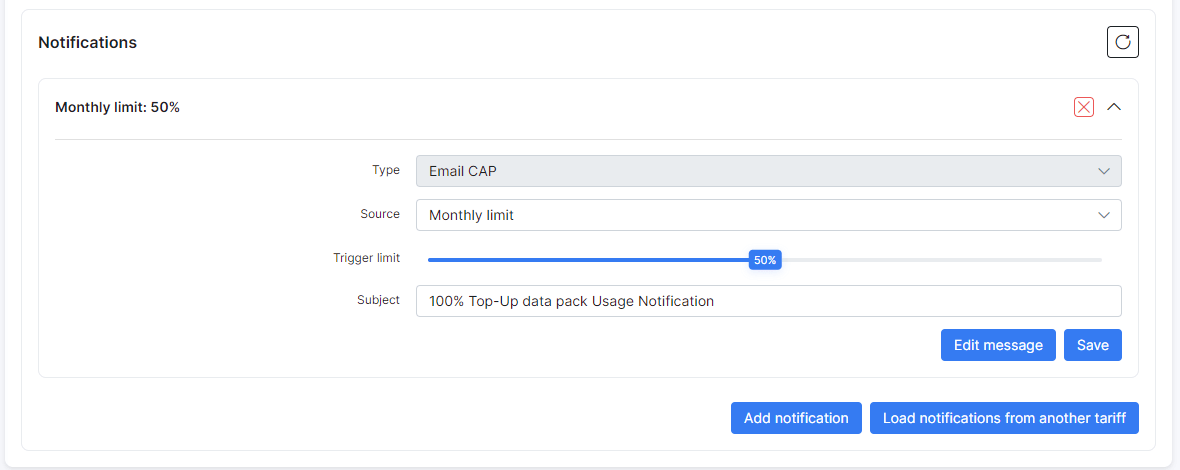
With the notification settings shown in the screenshot, Splynx sends an email when half of the monthly limit is used. You specify the subject in the Subject field and the message body by clicking the Edit message button.
In the Source field, select which data is used for the notification:
-
Monthly limit — the system checks only the monthly limit amount (CAP) to send the notification; top-ups and bonus data are ignored. For example, when the CAP is 100 GB and the customer has bought a 10 GB top-up, a notification is sent when the customer has used 50 GB, not 55 GB (50% of the available 100 GB + 10 GB).
-
Total usage — the system checks the total available data amount, including top-ups.
-
Top-up usage — the system checks only top-up data usage; the CAP limit is ignored.
-
Top-up action — the system informs the customer about any top-up applied.
-
Auto top-up action — the system informs the customer about the applied auto top-up.
Click the Add notification button to add a new notification, or Load notifications from another tariff to load notifications previously created for another tariff plan.
¶ Preview and test
Once CAP or FUP is configured, you can preview and test the settings on the FUP preview and test tab. Select the Day of the week and Time of the day (1), enter values for download/upload (2) and Online time, and click the Preview button (3) to view the result.
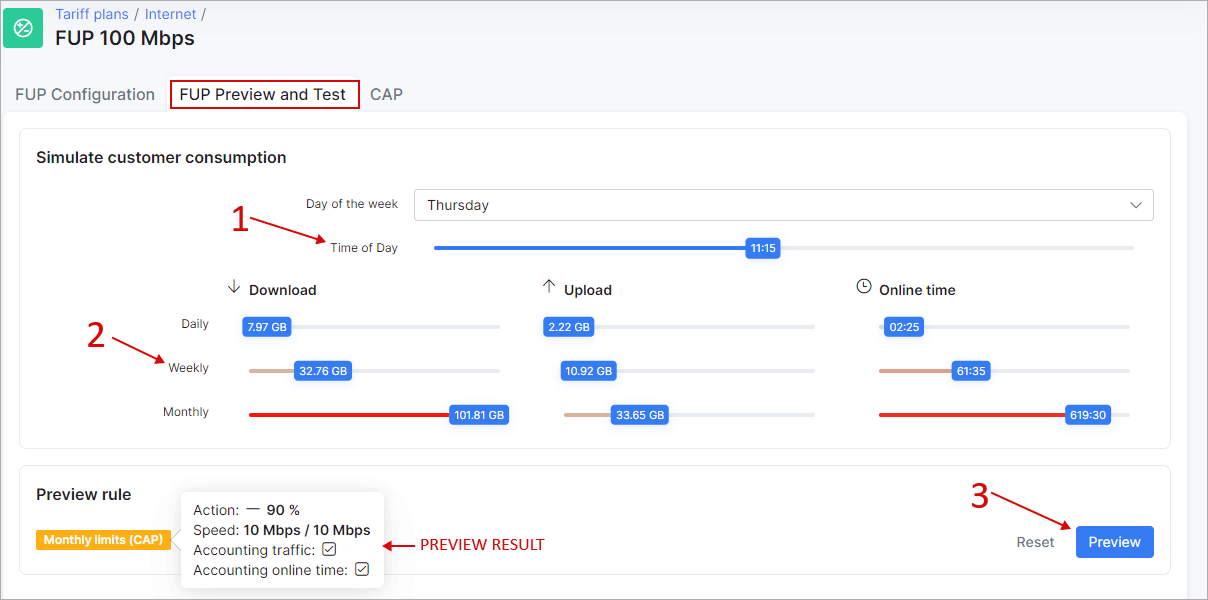
According to this CAP configuration (monthly limit of 100 GB), when a customer reaches the monthly limit, Splynx decreases the speed by 90% and the maximum speed is 10 Mbps / 10 Mbps.
¶ Examples
Examples
Add an internet service with a monthly limit for the customer:
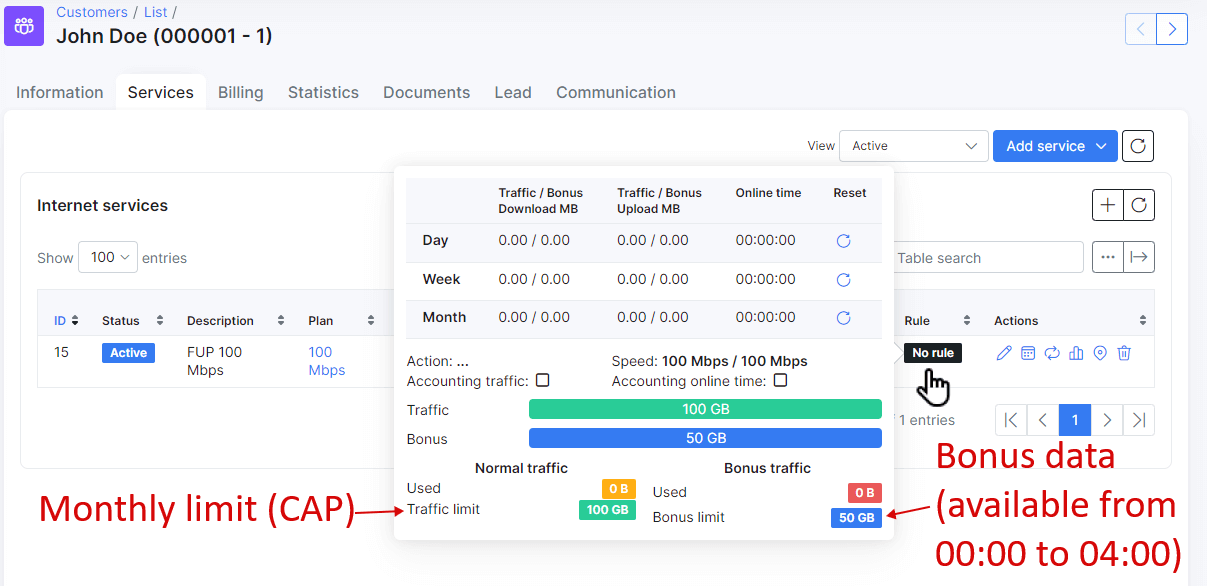
The customer has a 100 GB monthly limit + 50 GB bonus available only from 00:00 to 04:00, according to the tariff plan settings.
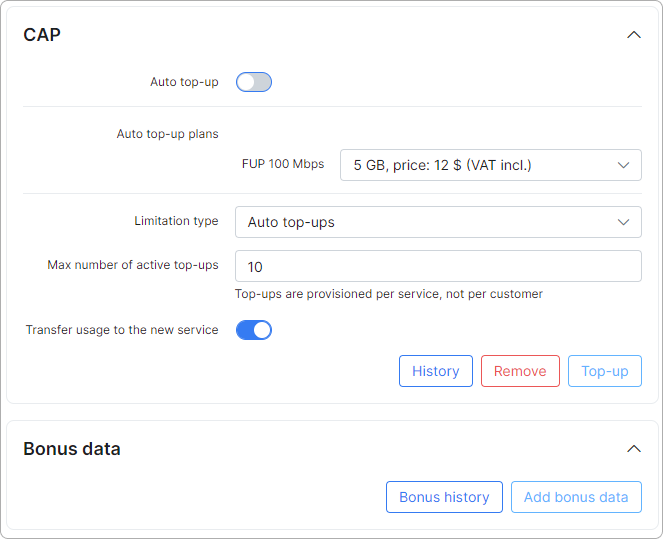
The customer's Information page now shows the personal CAP settings:
-
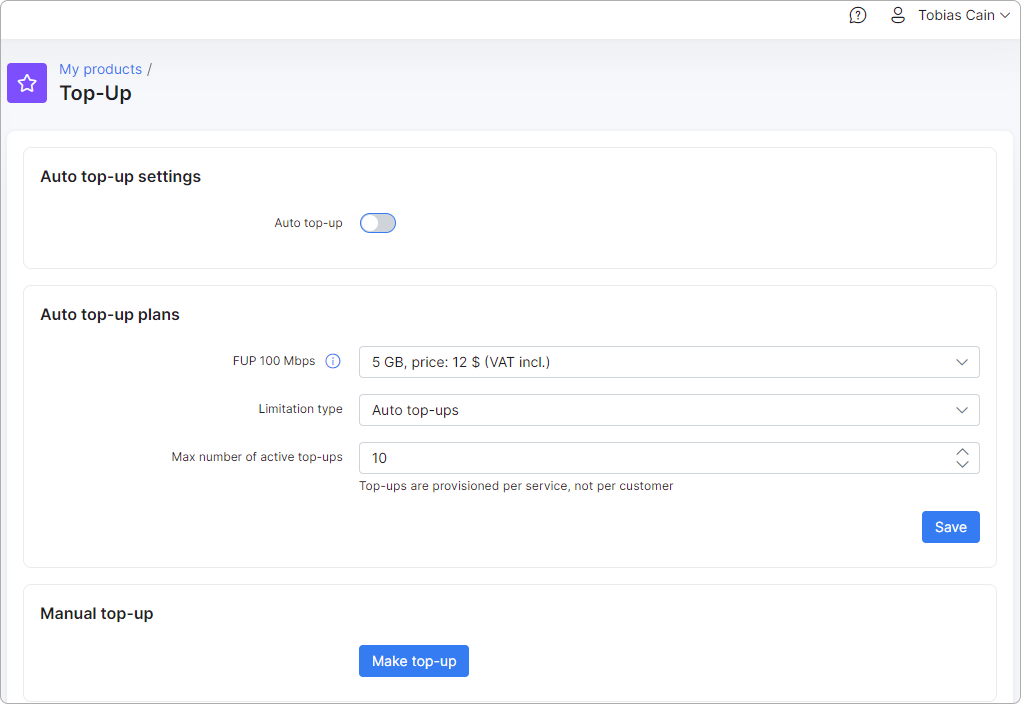
Auto top-up — enable or disable auto top-ups.
-
Auto top-up plans — select a top-up plan that is applied automatically (if auto top-up is enabled).
-
Limitation type — select the type of limitation to apply the number of top-ups per month to.
-
Max number of active top-ups — set the maximum number of active top-ups.
-
Transfer usage to the new service — enable or disable the transfer of unused top-up data to a new service in case of a plan change.
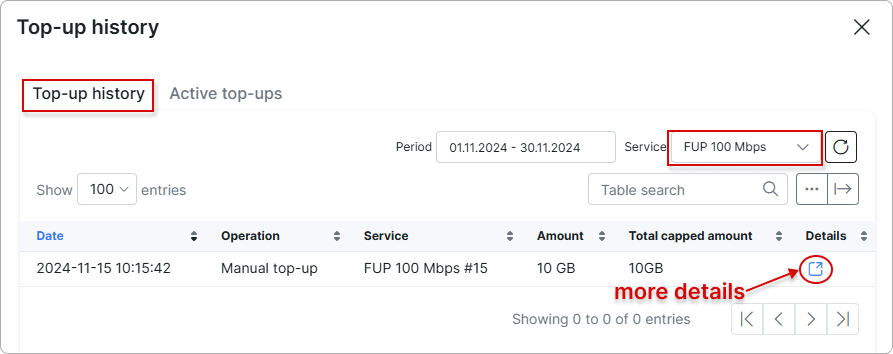
Click the Top-up history button to see the top-up data history (top-ups, rollover data, transfers of data) for a specific period of time:
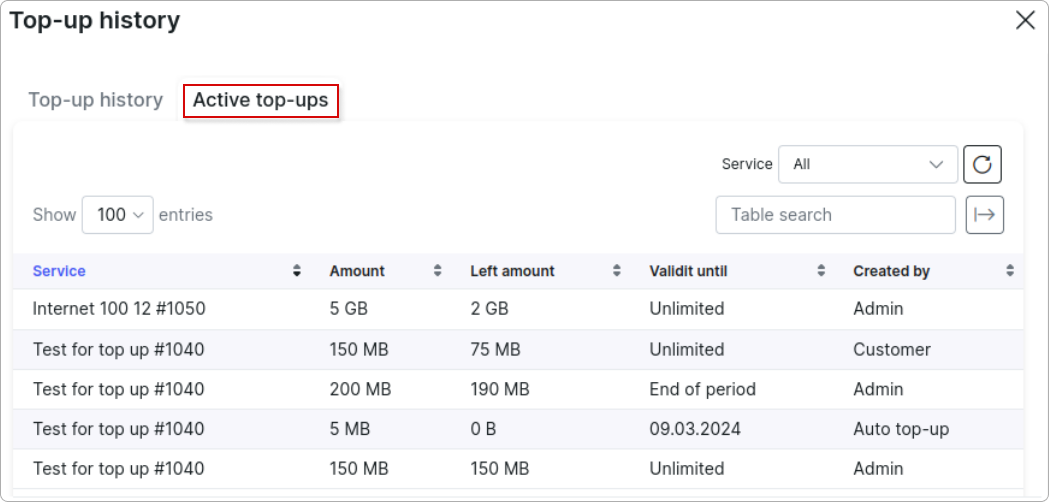
You can also view Active top-ups:
Click the Add top-up button to apply a top-up manually for a customer:
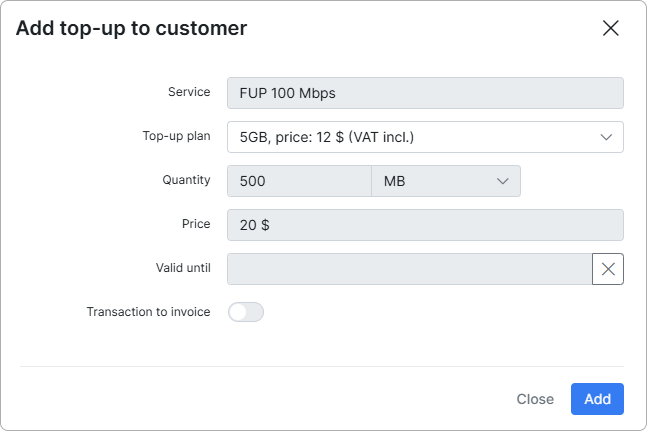
Here you can select one of the available top-up plans or set the amount (quantity), price, or validity period manually.
If Add to invoice is disabled, the top-up is added as a transaction and debited from the customer's account. If enabled, it is added to the customer's next invoice.
To remove data that was added by a top-up, use the Remove button.
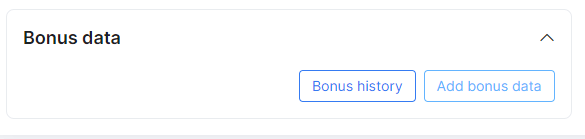
You can add bonus data with the Add bonus data button:
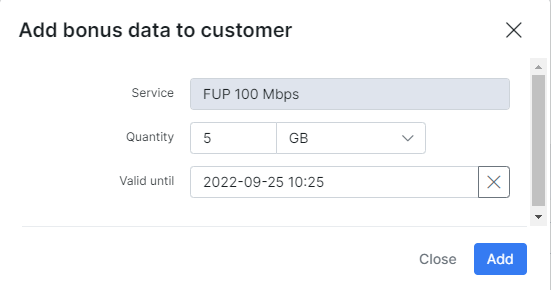
Select the service, the amount of data, and validity, and click the Add button.
You can track bonus data history by clicking the Bonus history button.
With a top-up and bonus data applied, the customer's service looks like this:
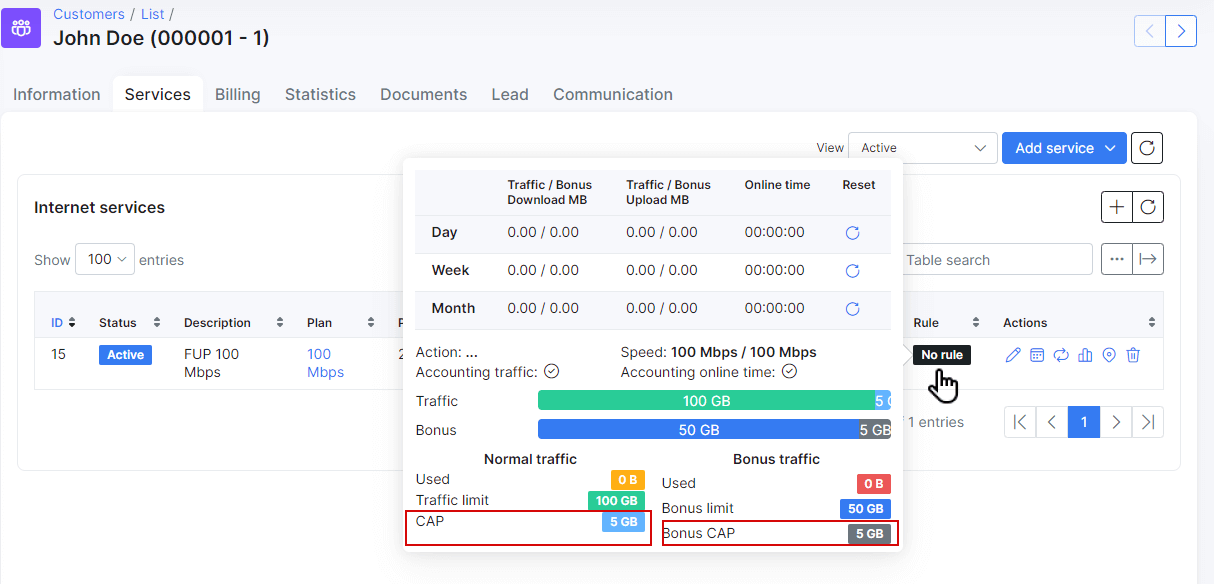
Bonus data is available only during off-peak hours (00:00–04:00, according to the tariff plan settings). If you want to bypass this, set the top-up price to 0.
¶ What the customer sees on the Customer portal
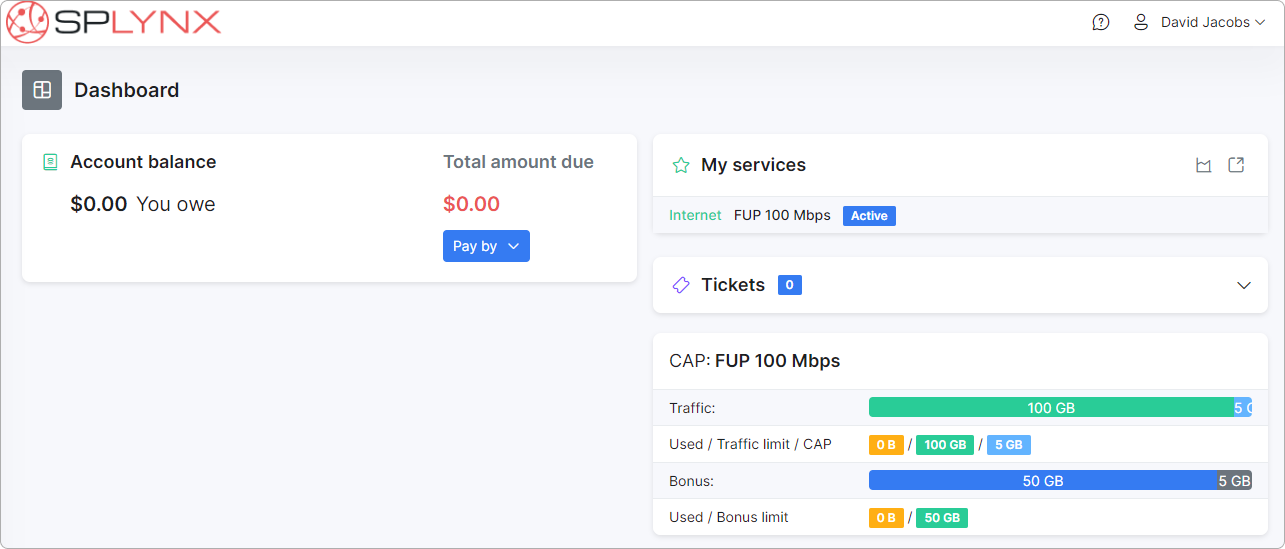
You can choose which items to display to the customer. In this example, all items related to traffic amount, CAP, and FUP are enabled, so the customer can see their available and used data directly on their dashboard:
In My products → Top-up, the customer can enable or disable auto top-ups, select an auto top-up plan, and add a top-up manually:
For this option to be available, customers need the corresponding permissions on the portal. To grant access, go to Config → Main → Portal (Per partner settings). Two sections grant customers access to top-ups:
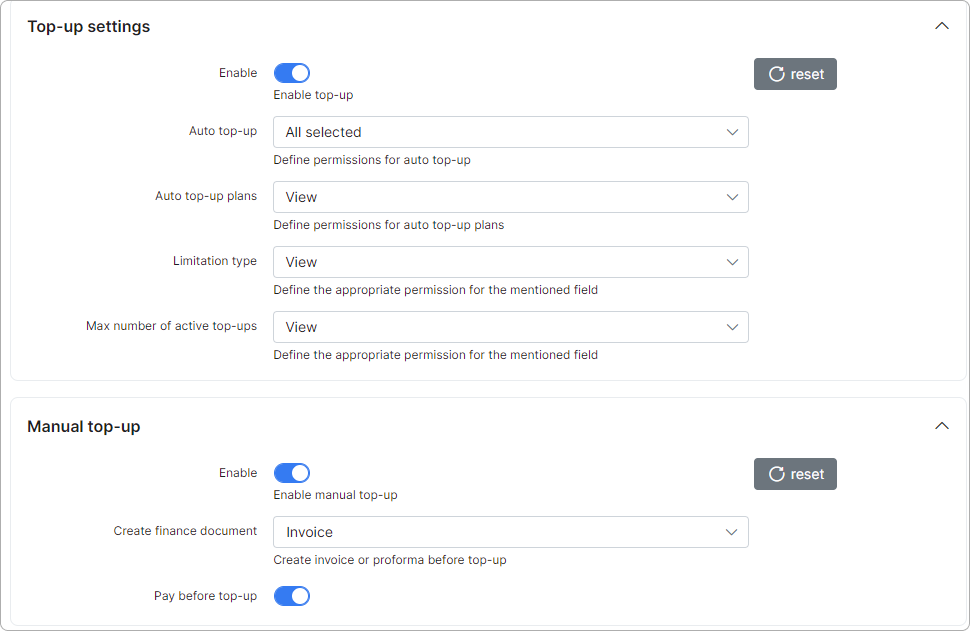
Top-up settings — permissions for auto top-up plans available for the customer's tariffs, and how customers can interact with these fields:
-
Enable — allow or deny auto top-ups.
-
Auto Top-up — select the level of access to the auto top-up feature (View, Edit, All selected).
-
Auto top-up plans — select the level of access to plans (View, Edit, All selected).
-
Limitation type — select the level of access to changing limitation types (View, Edit, All selected).
-
Max number of active top-ups — select the level of access to changing the maximum number of active top-ups (View, Edit, All selected).
Manual Top-up — permissions for customers to create top-ups manually:
-
Enable — allow or deny manual top-ups.
-
Create finance document — which type of document to create for the applied/requested top-up.
-
Pay before top-up — select whether the customer must pay for the top-up before the data can be used.
Global CAP settings can be adjusted in Config → Main → CAP.