¶ WhatsApp logs
¶ Overview
Splynx records every WhatsApp message — both incoming and outgoing — and exposes the full history under Administration → Logs → WhatsApp. Use the log to investigate failed deliveries, check read receipts, or trace a specific message back to a customer.

The page lists messages in chronological order, one row per message. It contains the following columns:
- ID — unique identifier of the log entry.
- Phone number — customer's phone number in E.164 format.
- Direction:
- Incoming — message sent by the customer to your WhatsApp business number.
- Outgoing — message sent from Splynx to the customer.
- Type — purpose of the message:
- Support — sent or received through an open chat or a ticket reply.
- Utility — outbound template marked as Utility (transactional notification — invoice, password reset, service update).
- Marketing (Promotions & Offers) — outbound template marked as Marketing, typically sent via Mass sending.
- Status — current delivery state (see Status values below).
- Added time — when Splynx recorded the message.
The example below shows a mix of outgoing and incoming WhatsApp messages in different statuses:
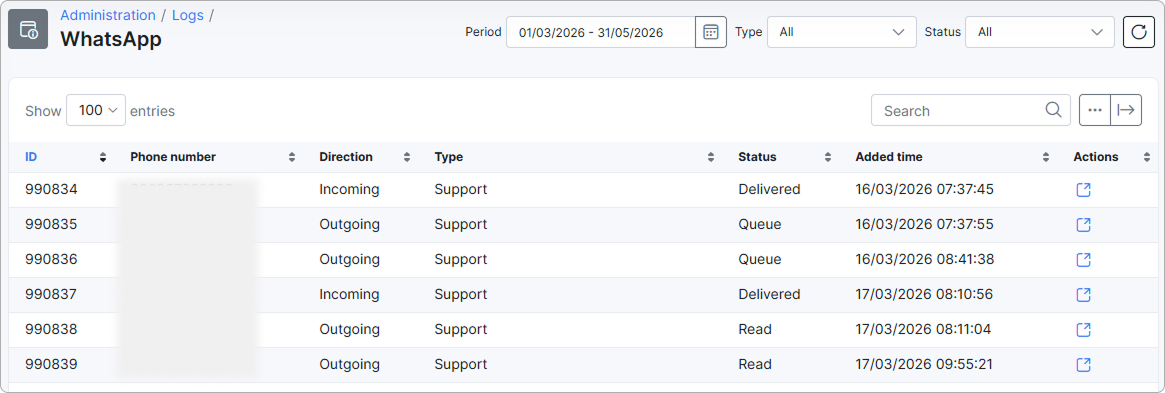
Click the View icon  in the Actions column to open the message Details modal, which shows the message content, direction, type, status, and timestamps.
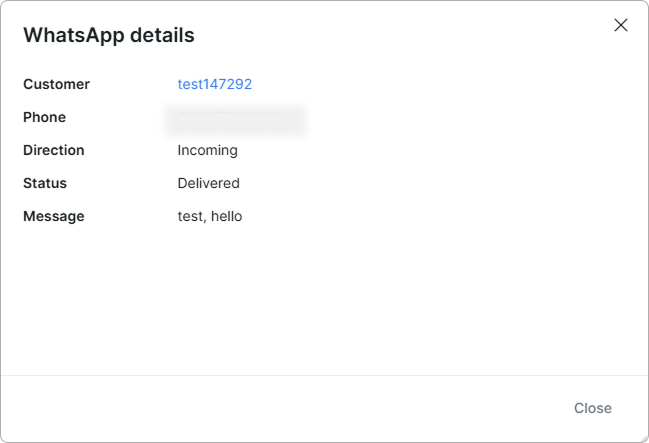
If the number is not linked to any customer or lead, the customer field is empty. Link the chat to a profile from Messages → Messengers to back-fill it for future log entries.
¶ Filter
Three filters at the top of the page narrow the list:

- Period — date range; defaults to the last three months.
- Type — restrict to a single message category (Support, Utility, or Marketing (Promotions & Offers)).
- Status — restrict to a single delivery state.
¶ Status values
- Queue — Splynx has accepted the message and is waiting to hand it over to Twilio.
- Sent — Twilio has accepted the message from Splynx and forwarded it to WhatsApp.
- Delivered — the message reached the customer's device.
- Read — the customer opened the message. Only set when the customer has read receipts enabled on their WhatsApp account.
- Failed — Twilio could not deliver the message. Common reasons: the number is not on WhatsApp, the customer has blocked your business number, the template was rejected, or the customer opted out via
STOP(see Unsubscribe and resubscribe (STOP / START)).
Statuses progress in order: Queue → Sent → Delivered → Read. A message can move to Failed from any earlier state.
¶ Export and table management
Use the Search box on the right to find messages by phone number or message text, and the column headers to sort the table.
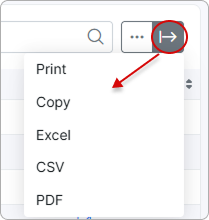
With the export  icon at the top-right corner of the page you can print or copy the list, or save it as a PDF or CSV file.
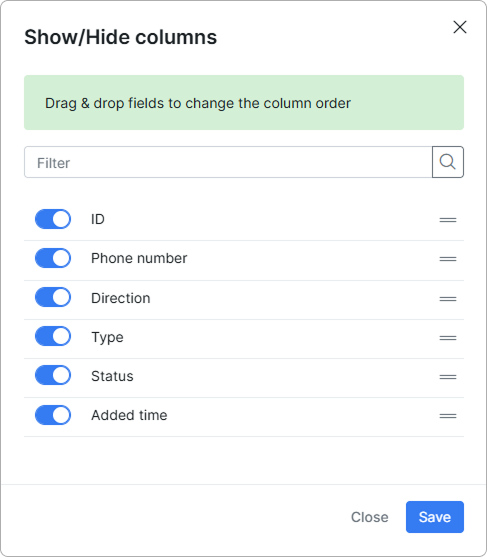
Click the breadcrumbs  icon to choose which columns are displayed by enabling or disabling each item, and drag and drop them to rearrange the order.