¶ AI features
¶ Overview
The AI features page is where you turn Splynx's AI integration on and connect it to a language model (LLM).
From here you enable individual AI-powered features and choose which provider processes the requests. You can reach it from Config → Main → AI:
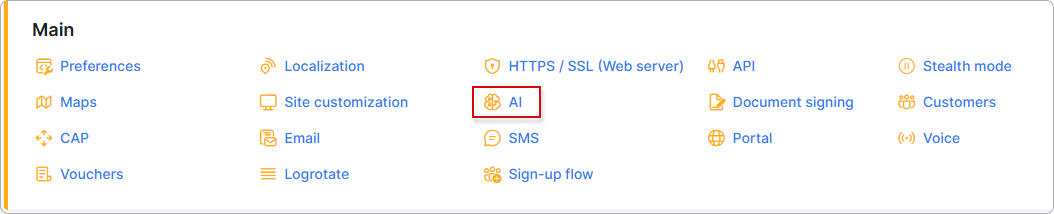
Before you configure AI features, make sure that you have the credentials (such as an API key) for any third-party provider you plan to use, if you are not using the managed Splynx AI provider.
¶ AI Features
The AI Features section controls which AI capabilities are active.
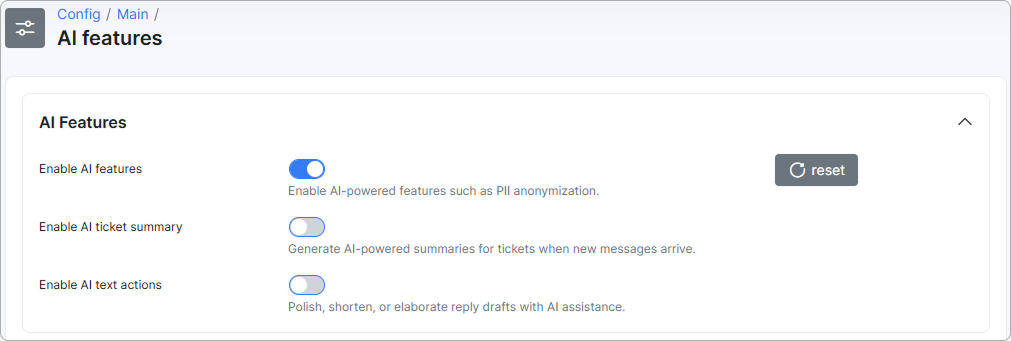
- Enable AI features — the master switch for all AI functionality. The other options on this page work only while this toggle is on. Use the
resetbutton next to it to return the AI settings to their defaults. - Enable AI ticket summary — generates AI-powered summaries for tickets when new messages arrive.
- Enable AI text actions — lets agents polish, shorten, or elaborate reply drafts with AI assistance.
After enabling AI features for the first time, the required AI components are prepared in the background. Give the system a moment to finish before the dependent features become available.
¶ LLM Provider
In the LLM Provider section you choose which language model processes AI requests. Open the Provider drop-down and select one of the available options:
- Splynx AI (managed) — the default, hosted and managed by Splynx. No extra credentials are required.
- OpenAI — connect any provider that works over the OpenAI API protocol. You can point Splynx at any OpenAI-compatible LLM provider by entering that provider's API key and its Base URL (OpenAI-compatible).
- Google Gemini — use your own Google Gemini account.
When you select OpenAI or Google Gemini, additional fields appear so you can enter the credentials for that provider:
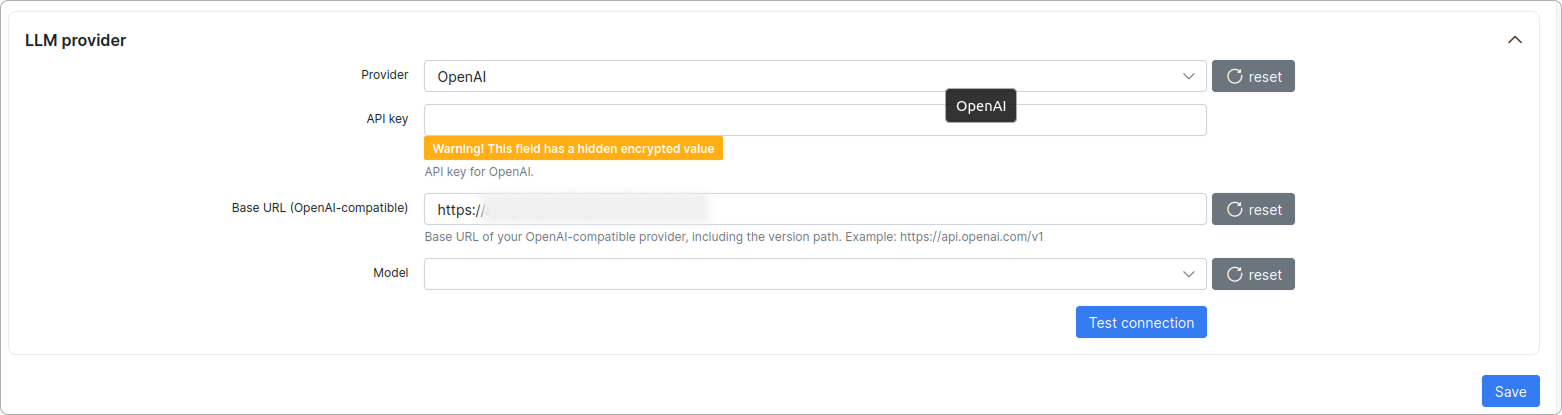
- API key — the API key for the selected provider. The value is stored encrypted, so after saving the field hides it and shows a "This field has a hidden encrypted value" notice instead of the key.
- Base URL (OpenAI-compatible) — the base URL of your OpenAI-compatible provider, including the version path (for example,
https://api.openai.com/v1). - Model — choose the model that processes your requests. If your API key has access to the provider's model list, select a model from the drop-down. Some keys grant chat access (all Splynx needs to work) but not access to the model list — in that case the drop-down is empty and you type the model name manually, for example
openai-gpt-oss-120b, or any other model you know the key can use.
After entering the name, click Test connection to confirm the key works with that model.
Click Save to apply your settings.
¶ AI text actions
AI text actions let you improve a reply before you send it. You write the draft in your own words, pick an action, and Splynx returns an AI-processed version of the same text — with the grammar fixed, the tone made more polite, the wording shortened, or a one-line answer expanded into a full message.
Three actions are available:
- Polish — an overall improvement: grammar, punctuation, polite tone, and readability. Use it when the message says what you want but the wording needs cleaning up.
- Shorten — makes a long draft more concise while keeping the meaning.
- Elaborate — expands a very short reply (for example, "done" or "fixed") into a complete message.
The result always comes back in the language you wrote in — if you type in German, the AI version is in German.
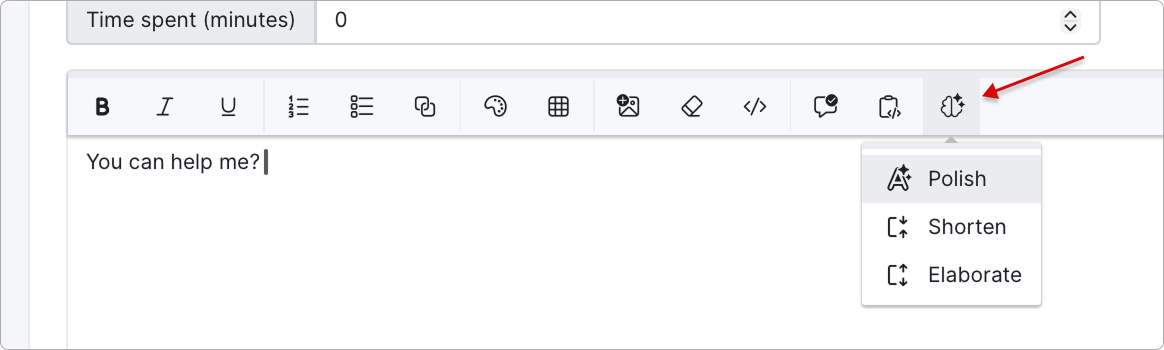
AI text actions work only while both toggles are on under Config → Main → AI:
- Enable AI features — the master switch for all AI functionality.
- Enable AI text actions — the switch for this feature specifically.
If either toggle is off, the AI control does not appear in the reply forms. The action is processed by the LLM provider selected in the LLM Provider section of the same page, so make sure a provider is configured and the connection is tested.
The same three actions, the same control, and the same behavior are available in every place listed below:
- Tickets — the reply form on the ticket page, both for replies to the customer and for internal notes.
- Messengers — the chat reply form for WhatsApp conversations.
- Chatbox — the chat reply form in the chatbox window.
¶ Important notes
Selecting a third-party provider (OpenAI or Google Gemini) means ticket and message content is sent to that external service for processing. Use the managed Splynx AI (managed) provider if you prefer to keep processing within Splynx's managed service.
The Enable AI features master toggle gates every other AI feature in Splynx. If AI-powered features such as ticket summaries or text actions are not working, check that this toggle is on first.