¶ Tarana add-on
- Overview
- How it works
- Prerequisites
- Installation
- First-time setup
- Add-on settings
- Tarana SLA profiles
- Tarana devices
- Linking radios to customers
- What Splynx sends to TCS
- Typical workflows
- Nightly reconciliation
- Receiving alerts from TCS
- Tarana logs
- Access permissions
- Troubleshooting
- Related pages
¶ Overview
The Tarana add-on connects Splynx to TCS (Tarana Cloud Suite) — the cloud console of a Tarana Wireless network — and keeps your subscribers' radios in line with billing. When you connect a customer, change their plan, block them for non-payment or deactivate them, Splynx applies the matching speed profile and data VLAN to the customer's Tarana radio automatically, so nobody has to repeat the change by hand in TCS.
Tarana Wireless makes fixed wireless access equipment:
- BN (Base Node) — the base station on a tower; it serves a sector with many subscribers.
- RN (Remote Node) — the radio installed at the subscriber's premises (the CPE). Every RN is identified by its serial number.
In a Tarana network, the subscriber's speed is set on the radio: each RN carries an SLA profile (a named download/upload speed template defined in TCS) and a Data VLAN (the VLAN that carries the subscriber's traffic).
¶ How it works
For every radio, the add-on answers two questions: what to apply and where to apply it.
Internet tariff plan ──linked to──► SLA profile (+ Data VLAN)       WHAT is applied
                                     (Tarana SLA profiles page)

Customer ──► Inventory item ──linked to──► Tarana radio (RN)       WHERE it is applied
             (assigned to the customer)    (Tarana devices page)
- What — you link each internet tariff plan to an SLA profile once, on the Tarana SLA profiles page.
- Where — a customer's radios are the radios linked to inventory items assigned to that customer. A customer without such an item has no Tarana radio as far as Splynx is concerned, and nothing is sent.
The profile a radio receives depends on the customer status:
| Customer status | SLA profile applied to the customer's radios |
|---|---|
| Active | The SLA profile (and Data VLAN) of the tariff plan of the customer's active internet service |
| Blocked | The Delinquent SLA profile from the add-on settings |
| Inactive | The Decommission SLA profile from the add-on settings |
| New | Nothing until the customer becomes Active (linking a radio still sets its host name) |
Before every change, the add-on reads the radio's current configuration from TCS and sends only the values that differ. If the radio already has the right configuration, nothing is written to it.
¶ Prerequisites
- The Networking module enabled — the add-on pages are placed under Config → Networking.
- A TCS API key for your Tarana tenant. TCS does not generate API keys in its interface — request one from Tarana support. The add-on changes radio configuration, so the key must not be limited to read-only access.
- SLA profiles for your plans defined in TCS (built-in or custom; custom profiles are under ADMIN → Custom SLA in TCS).
- Your radios onboarded in TCS.
- Recommended: add each Tarana radio to Splynx Inventory with its serial number as the barcode — Splynx then links the radio automatically (see Automatic linking by barcode).
- For TCS alerts only: Splynx reachable from the internet over HTTPS with a valid certificate.
¶ Installation
The add-on can be installed in two ways: through the Splynx Web UI or from the command line on the Splynx server.
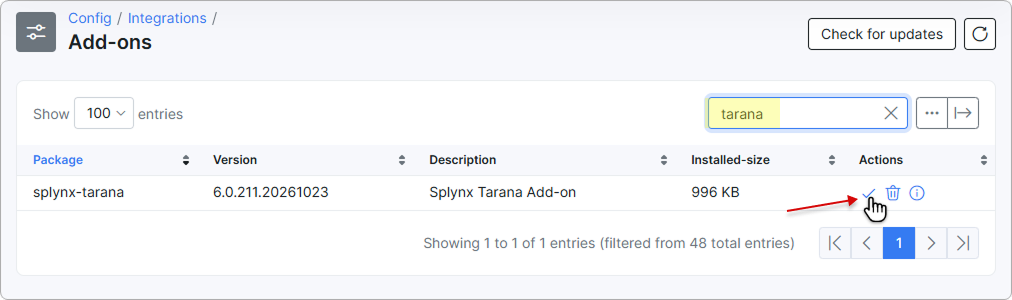
To install the add-on from the Web UI, navigate to Config → Integrations → Add-ons, and click the Install icon in the Actions column next to splynx-tarana:
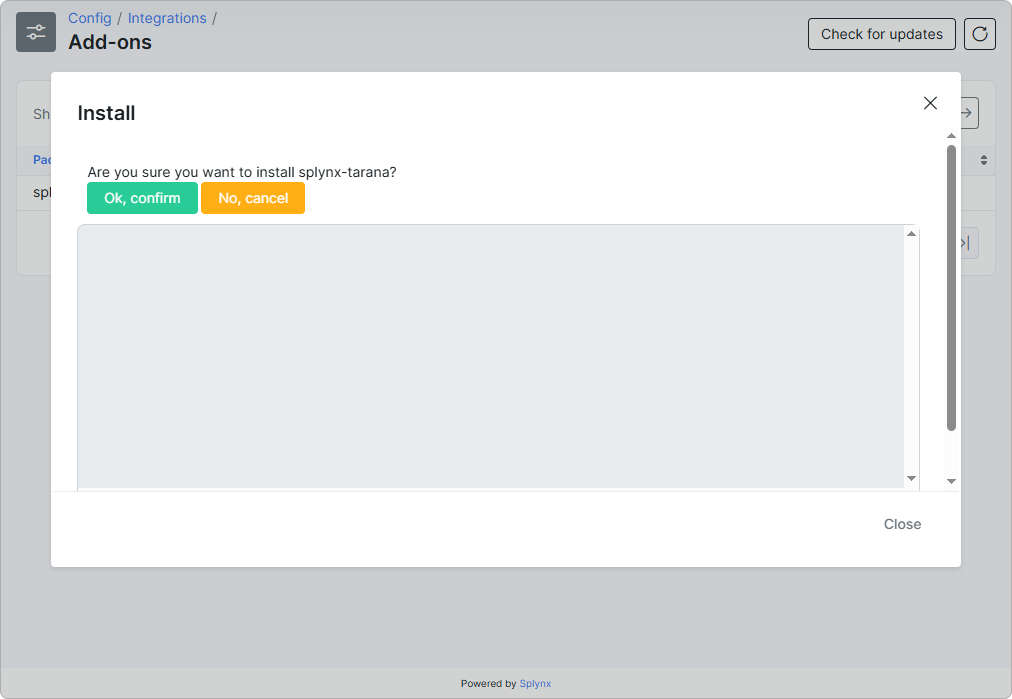
Confirm the installation by clicking Ok, confirm:
To install the add-on via CLI on the Splynx server:
apt-get update
apt-get install splynx-tarana
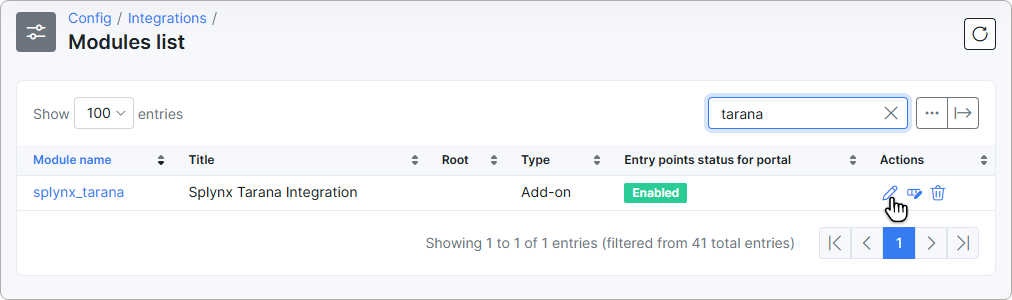
After installation, the add-on appears in Config → Integrations → Modules list:
The installation also adds the following to your system:
| What | Where |
|---|---|
| Tarana SLA profiles and Tarana devices pages | Config → Networking |
| Tarana logs page | Administration → Logs |
Tarana device field with a View / Set button |
The edit form of an inventory item |
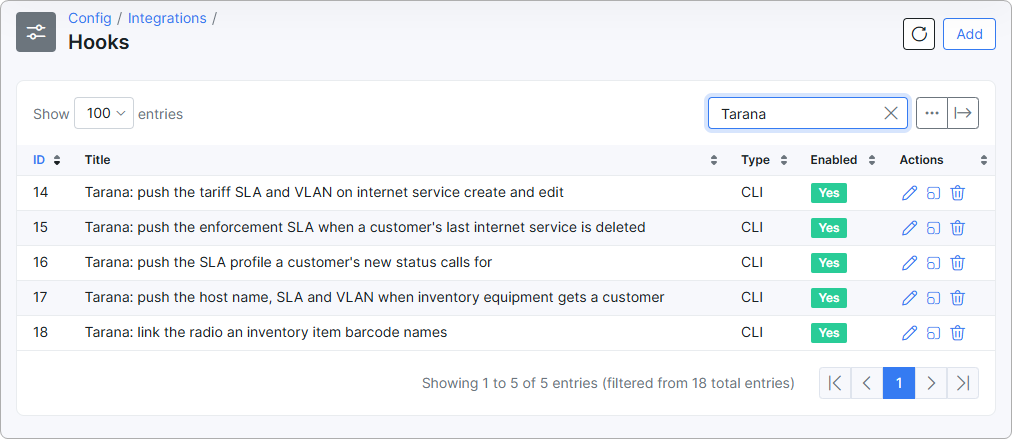
Five hooks whose titles start with Tarana: |
Config → Integrations → Hooks |
| An API key named Splynx Tarana Integration | Administration → Main → API keys |
| A notification banner for failed background jobs | Dashboard |
| A nightly reconciliation job (switched off by default) | Runs daily at 02:00 on the Splynx server |
The hooks deliver billing events to the add-on — keep them enabled:
The add-on works through its own API key: it reads administrators, customers, internet services and internet tariff plans, and reads and updates inventory items. Do not delete the Splynx Tarana Integration key or reduce its permissions.
¶ First-time setup
- Fill in TCS API host and TCS API key in the add-on settings and click
Save. - Go to Config → Networking → Tarana SLA profiles and click
Load SLA profiles. If the profiles appear, the connection to TCS works. - On the same page, link your internet tariff plans to SLA profiles and set the Data VLAN where needed (
Link tariffs). - Return to the add-on settings and fill in Delinquent SLA profile and Decommission SLA profile.
- Go to Config → Networking → Tarana devices and click
Export devicesto import your radios. - Link the radios to the inventory items of your customers — automatically by barcode, from the Tarana devices page or from the inventory item.
- Optionally, set up the nightly reconciliation and TCS alerts.
¶ Add-on settings
To open the settings, go to Config → Integrations → Modules list and click the Edit icon in the Actions column of the splynx_tarana row. The settings are in the Addon settings section:
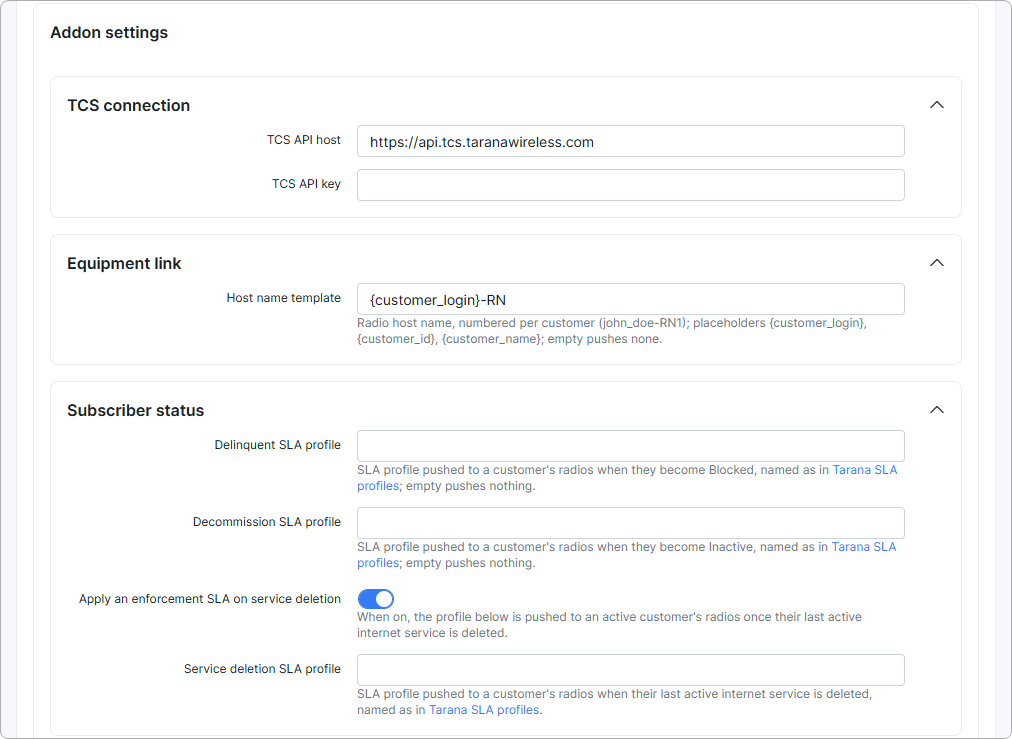
TCS connection
- TCS API host — the address of the TCS API. The default
https://api.tcs.taranawireless.comis correct for most installations. Only anhttp://orhttps://address is accepted. - TCS API key — the API key issued by Tarana. It is stored encrypted, so after saving, the field is shown empty. Saving the field empty keeps the stored key; to replace it, type the new key.
Until both fields are filled in, the add-on pages show a yellow warning, and their Load SLA profiles and Export devices buttons are inactive.
Equipment link
- Host name template — the host name given to a radio when it is linked to a customer. The default is
{customer_login}-RN. Supported placeholders:{customer_login},{customer_id},{customer_name}. A number is always appended, so the first radio of customerjohn_doeis namedjohn_doe-RN1. Leave the field empty if Splynx should not change host names (see Host names).
Subscriber status
- Delinquent SLA profile — the profile applied to all radios of a customer who becomes Blocked. Leave empty to keep the radios unchanged when a customer is blocked.
- Decommission SLA profile — the profile applied to all radios of a customer who becomes Inactive. Leave empty to keep the radios unchanged.
- Apply an enforcement SLA on service deletion — when on, the Service deletion SLA profile is applied once the last active internet service of an Active customer is deleted. Off by default.
- Service deletion SLA profile — shown when the toggle above is on.
In the SLA profile fields, enter the profile Name as it is shown on the Tarana SLA profiles page, for example Min SLA. A profile can be saved only after it has been loaded with Load SLA profiles — otherwise the error Invalid value for Delinquent SLA profile is shown. So load the profiles first, then fill in these fields.
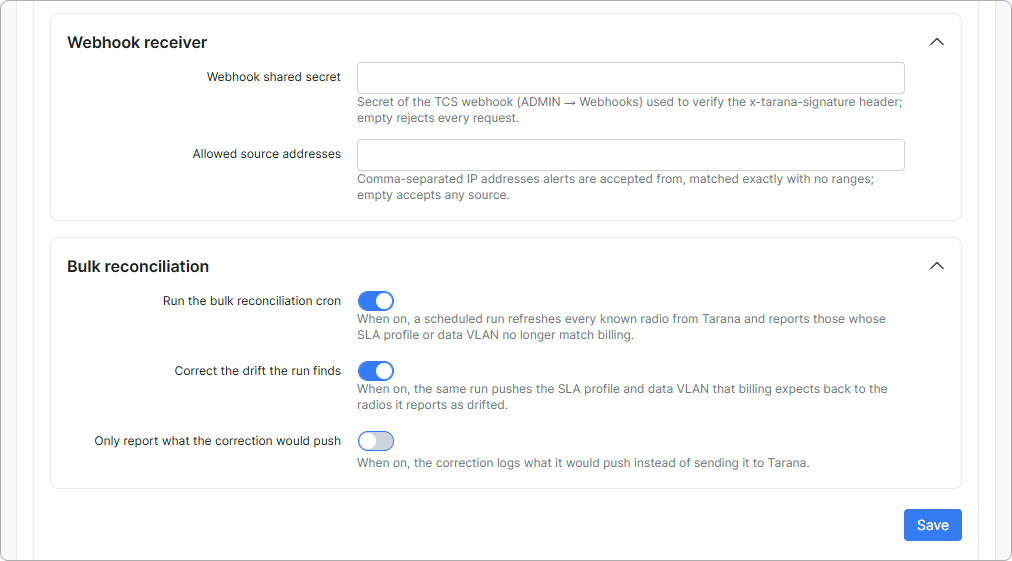
Webhook receiver — see Receiving alerts from TCS.
- Webhook shared secret — the secret configured on the webhook in TCS. Stored encrypted. While it is empty, every incoming request is rejected.
- Allowed source addresses — optional, comma-separated list of IP addresses alerts are accepted from (exact addresses, no ranges). Leave empty to accept any source. Values that are not IP addresses are rejected on save.
Bulk reconciliation — see Nightly reconciliation.
- Run the bulk reconciliation cron — turns the nightly check on. Off by default.
- Correct the drift the run finds — also applies the expected SLA profile and Data VLAN to the radios the check reports.
- Only report what the correction would push — shown when correction is on; logs what would be changed without changing it.
Click Save to apply the settings.
¶ Tarana SLA profiles
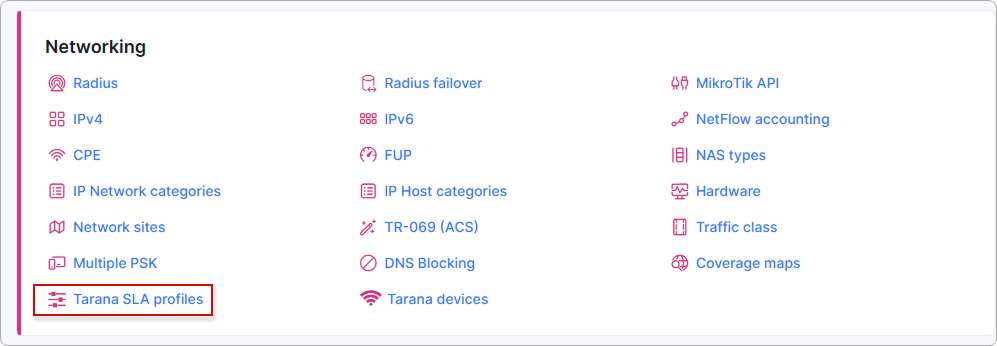
Config → Networking → Tarana SLA profiles lists the SLA profiles of your Tarana tenant and the tariff plans linked to each of them:
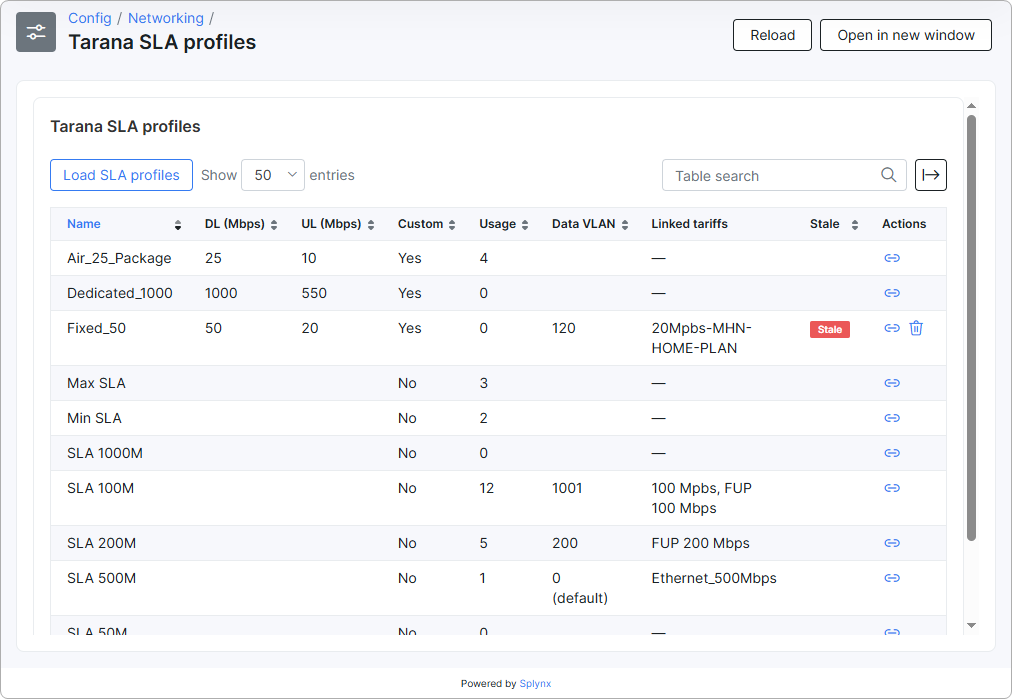
The table shows the columns Name, DL (Mbps), UL (Mbps), Custom, Usage (the number of radios using the profile in TCS), Data VLAN, Linked tariffs, Stale and Actions. Built-in TCS profiles (Min SLA, SLA 5M … SLA 1000M, Max SLA) show no speeds; custom profiles from ADMIN → Custom SLA in TCS show their download and upload speed and Custom = Yes. A Stale badge marks a profile that no longer exists in TCS.
¶ Loading profiles
Click Load SLA profiles to read the profiles from TCS. Profiles are matched by name: new ones are added and known ones are updated. A profile that disappeared from TCS is removed unless tariff plans are linked to it — then it is kept as Stale so that your links are not lost, and it cannot be applied to radios until it appears in TCS again. A stale profile can be deleted with the Delete icon in the Actions column. Loading never changes your tariff links or Data VLANs.
If TCS returns no profiles at all while Splynx already has profiles, nothing is changed and an error message is shown.
Automatic linking by speed. On every load, a tariff plan that is not linked yet is linked automatically when exactly one profile has the same download and upload speed (for example, a plan with 100000/20000 kbps and a profile with 100/20 Mbps). Built-in profiles have no speeds, so link them by hand.
TCS cannot rename a profile: if you delete a profile and create it under another name, the tariff plans stay on the old, now stale profile until you link them to the new one.
¶ Linking tariff plans
Click the Link tariffs icon in the Actions column of a profile:
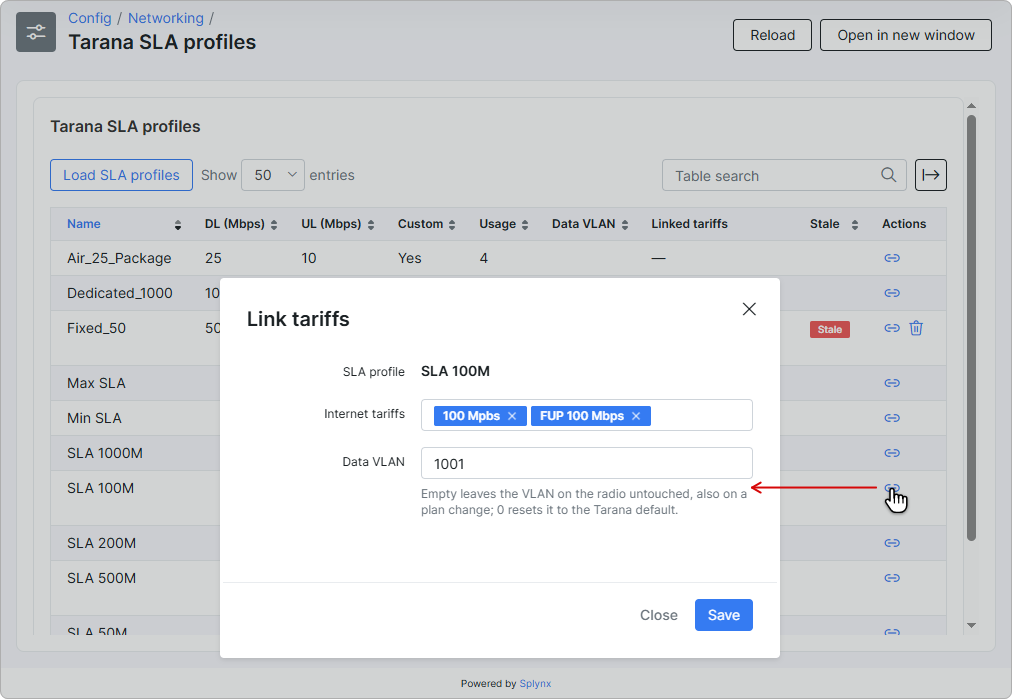
- Internet tariffs — the tariff plans that use this profile. One profile can serve many plans, but a plan can be linked to one profile only.
Savereplaces the whole list of the profile. - Data VLAN — leave empty to leave the radio's VLAN untouched (also when a customer changes plan);
0resets it to the Tarana default;1–4091sets that VLAN.
Changes on this page do not reach radios immediately — only with the next event of the customer (status, service or equipment change) or with the nightly reconciliation when correction is on.
¶ Tarana devices
Config → Networking → Tarana devices lists the radios of your Tarana tenant and the inventory items they are linked to:
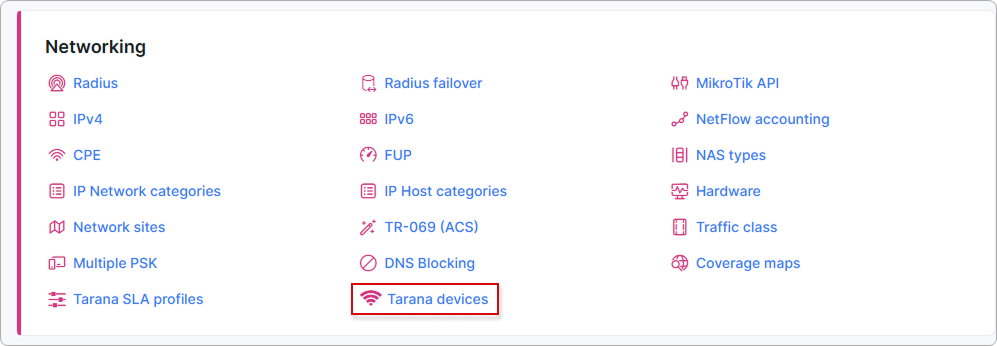
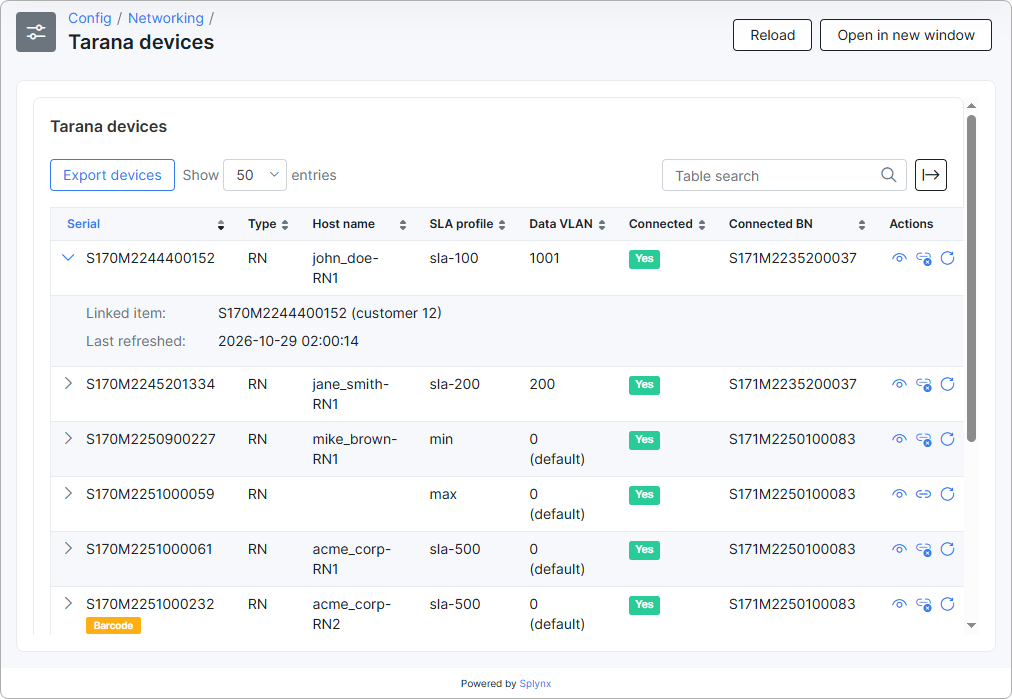
The table shows the columns Serial, Type (RN or BN), Host name, SLA profile, Data VLAN, Connected, Connected BN, Linked item (the barcode of the linked inventory item and the customer ID), Last refreshed and Actions. On narrow screens, the last columns are shown in an expandable row — click the arrow next to the serial.
Note that the SLA profile column shows the TCS identifier of the profile (for example sla-200 for the built-in SLA 200M), and Data VLAN 0 (default) is the Tarana default VLAN.
| Action | What it does | Changes the radio? |
|---|---|---|
Export devices |
Imports the radio list from TCS: adds new radios and removes the ones that disappeared. Data of radios already in the list is not overwritten. A new radio whose serial equals the barcode of a free inventory item is linked to it automatically | No |
| View | Shows the radio details: identity, topology, location, status, service settings and link | No |
| Link inventory item | Links the radio to an inventory item, found by its barcode | Yes, if the item belongs to a customer — see What Splynx sends to TCS |
| Unlink inventory item | Removes the link | No — the radio keeps its host name, SLA profile and VLAN |
| Refresh from Tarana | Reads this one radio from TCS again and updates its row | No |
| Delete | Removes an unlinked radio from the Splynx list; it returns with the next export. A linked radio has no Delete icon — unlink it first | No |
Export or Refresh? Export devices adds and removes radios but does not update the radios already in the list. If a radio was changed directly in TCS, click Refresh from Tarana on its row (or enable the nightly reconciliation, which refreshes all radios). Changes sent by Splynx itself appear in the table automatically.
If TCS returns an empty radio list while Splynx already has radios, the export changes nothing and shows an error message, so a temporary TCS problem cannot remove your radios or their links.
Badges
- Stale — the radio no longer exists in TCS but is kept because it is linked to an inventory item. Nothing is sent to it.
- Barcode — the barcode of the linked inventory item does not match the radio serial. The link is kept; correct the barcode or link the right item.
View shows the radio details as reported by TCS:
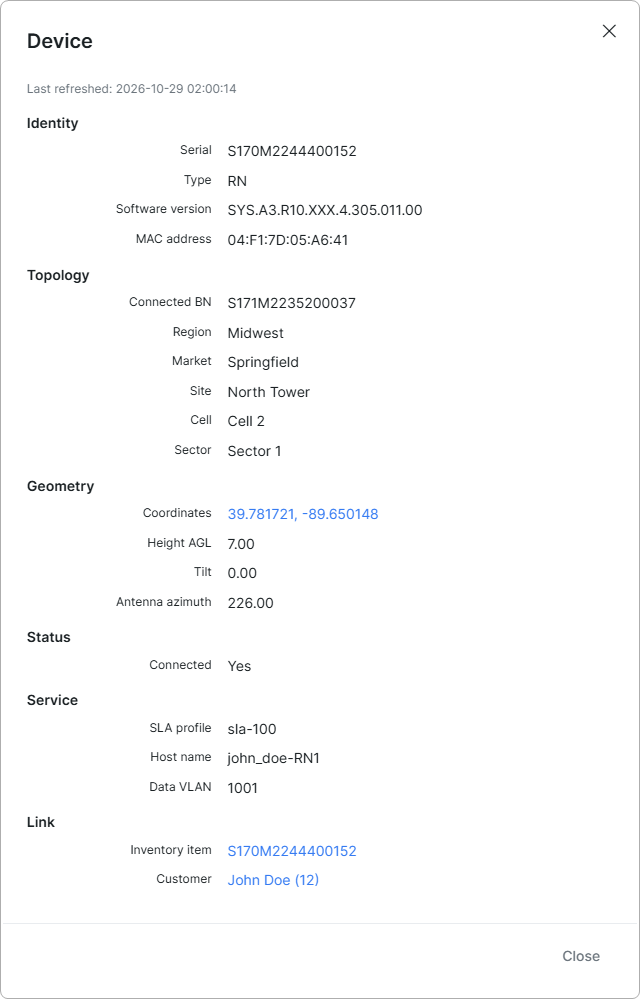
Link inventory item — find the item by its barcode and click Link. Items already linked to another radio are not offered:
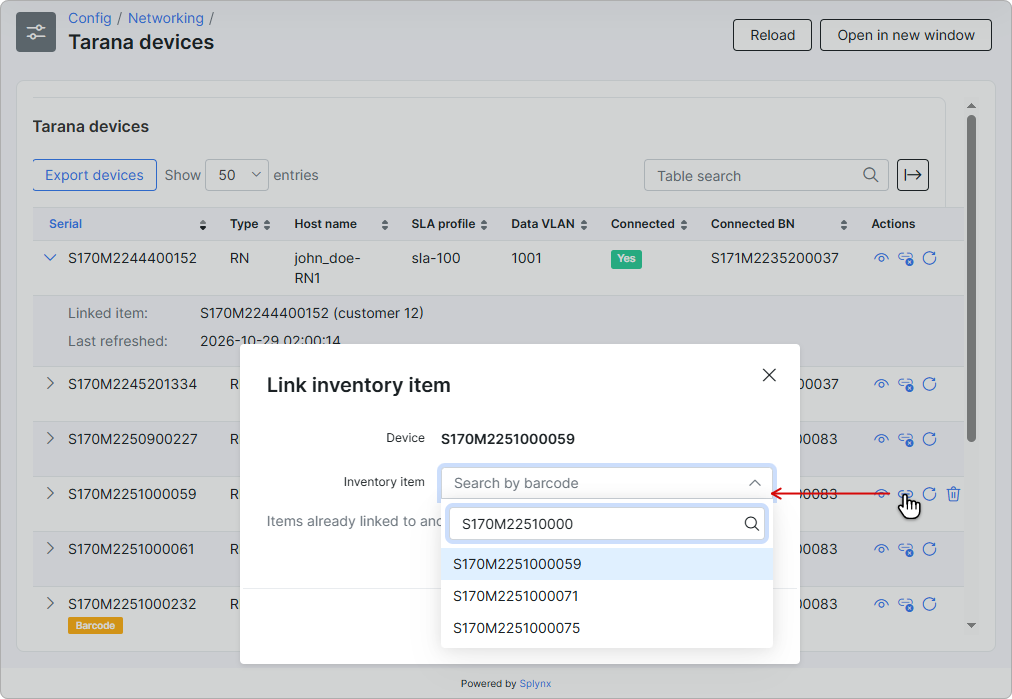
¶ Linking radios to customers
A radio is linked to a customer through an inventory item: automatically by barcode, with Link inventory item on the Tarana devices page, or from the inventory item itself.
¶ Automatic linking by barcode
Enter the radio serial number as the item barcode — when you add the item to inventory, or later by editing it. Splynx links the radio to the item by itself (letter case does not matter; it may take up to a minute). If the item already belongs to a customer, the radio is configured for that customer right away.
This is the recommended workflow: register radios in inventory with the serial as the barcode, and the radios link themselves.
¶ From the inventory item
Open Inventory → Items, open the item's Actions and click Edit. Click View / Set next to the Tarana device field:
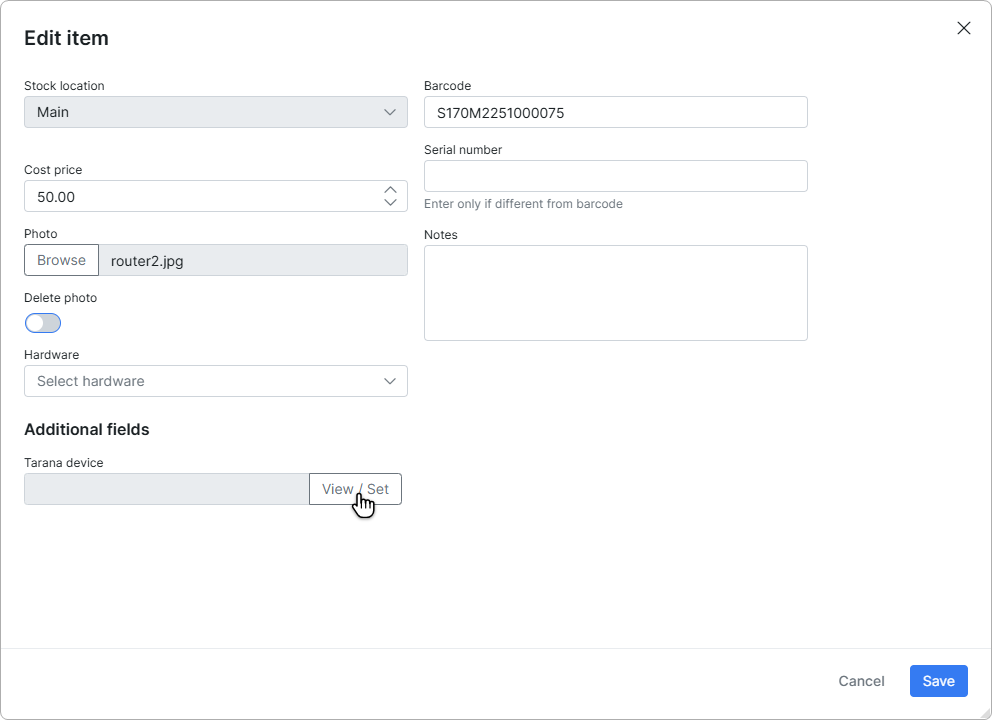
Select a free radio and click Link:
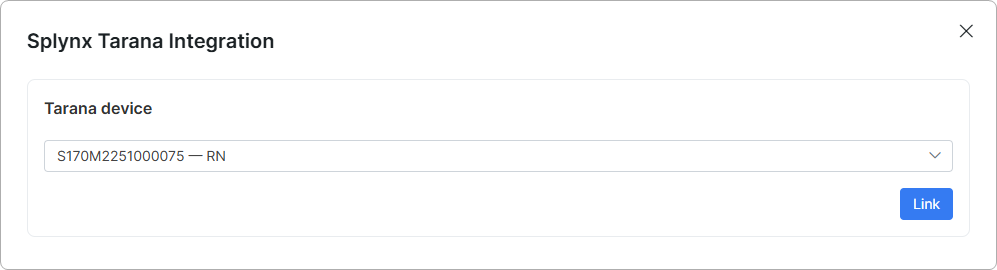
For an item that already has a radio, the field shows its serial; to unlink it, use the Tarana devices page. The field is available only when editing an existing item, not in the add item form.
¶ Host names
When a radio is linked to a customer, it gets a host name built from Host name template. The number counts the customer's radios — john_doe-RN1, john_doe-RN2 — and re-linking the same radio to the same customer keeps it.
- Characters other than Latin letters, digits,
.,_and-are removed (John Doe→JohnDoe). - Host names longer than 63 characters (the TCS limit) are shortened.
- If nothing that identifies the customer remains (for example, an empty login or a name written only in non-Latin letters), no host name is sent; the SLA profile and VLAN are still applied.
¶ What Splynx sends to TCS
Changes are sent in the background a few seconds after you save in Splynx; they never block or undo the billing action.
| Event in Splynx | What is applied | To which radios |
|---|---|---|
An internet service is created or edited — including Change plan — and is Active, for an Active customer |
SLA profile and Data VLAN of that service's tariff plan | All radios of the customer |
| The customer becomes Blocked | Delinquent SLA profile (and its Data VLAN) | All radios of the customer |
| The customer becomes Inactive | Decommission SLA profile | All radios of the customer |
| The customer becomes Active again | SLA profile and Data VLAN of the customer's tariff plan | All radios of the customer |
| The last active internet service of an Active customer is deleted | Service deletion SLA profile (if Apply an enforcement SLA on service deletion is on) | All radios of the customer |
| An inventory item with a linked radio is assigned to a customer (assign, rent, sale), or a radio is linked to such an item | Host name, plus the profile the customer's status calls for (host name only for a New customer) | That radio only |
| Nightly reconciliation with correction on | The expected profile and VLAN | Radios found out of line |
If a customer has several active internet services, the oldest one whose plan is linked to an SLA profile decides which profile is applied.
Nothing is sent for: loading SLA profiles, linking tariff plans or changing a Data VLAN, saving the add-on settings, unlinking or deleting a radio, exporting devices, returning an item to stock, services of a customer in status New, and services that are not active yet (for example, created as Pending). Also:
- a tariff plan not linked to an SLA profile leaves the radio unchanged;
- a profile marked Stale cannot be applied — the log says so;
- a profile without a Data VLAN leaves the radio's VLAN as it is;
- deleting a service of a Blocked or Inactive customer does not replace their delinquent or decommission profile.
When TCS is unavailable, Splynx retries the change automatically for about an hour. Changes TCS refuses (for example, because of a wrong API key) and changes made with Link are not retried — see Troubleshooting. Every change and its result is recorded in Tarana logs.
To see what a radio carries in TCS, open Devices → Device List, select the radio and open the Configuration tab. The Network Configuration block shows its Hostname, SLA Profile and Data VLANю
¶ Typical workflows
Connecting a new subscriber
- Add the radio to Inventory with its serial as the barcode — the radio is linked automatically.
- Assign the item to the customer (or sell or rent it).
- Add an internet service on a plan linked to an SLA profile.
The order of steps 2 and 3 does not matter: whichever comes last applies the host name, SLA profile and VLAN.
Changing a plan — use Change plan (effective now) or edit the service. The SLA profile of the new plan is applied.
Blocking for non-payment and restoring — when the customer becomes Blocked, the Delinquent SLA profile is applied (for example, Min SLA). When the customer becomes Active again, the plan's profile is restored.
Disconnecting a subscriber — set the customer to Inactive: the Decommission SLA profile is applied. Returning the equipment to stock does not change the radio, so deactivate the customer first.
Replacing a radio — unlink the old radio (it keeps its configuration) and link the new radio to the customer's item, or register the new radio with its serial as the barcode and assign it to the customer. The new radio gets the host name and the plan's profile.
Moving equipment to another customer — return the item to stock, then assign it to the new customer. The radio is renamed after the new customer and gets their plan's profile.
¶ Nightly reconciliation
The nightly reconciliation runs every day at 02:00 and is switched off by default. It reads all radios from TCS, refreshes their data on the Tarana devices page and compares the SLA profile and Data VLAN of every linked radio with what billing expects for its customer. Host names are not compared.
Configure it in the Bulk reconciliation block of the add-on settings:
| Run the bulk reconciliation cron | Correct the drift the run finds | Only report what the correction would push | Result |
|---|---|---|---|
| Off | — | — | The run is skipped |
| On | Off | — | Radios out of line are reported in Tarana logs; nothing is changed in TCS |
| On | On | On | The log shows what would be sent to each radio; nothing is changed in TCS |
| On | On | Off | The expected SLA profile and VLAN are applied to the radios out of line |
Start with correction off, check what the run reports in Tarana logs, and switch correction on once the results look right.
If the last run failed or found radios out of line, the Dashboard shows a notification until the next clean run. Switching the reconciliation off does not remove the notification:
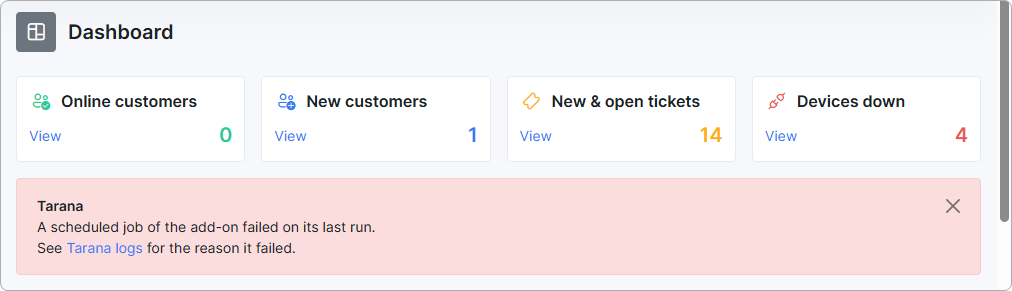
To run the reconciliation now instead of waiting for the night, run on the Splynx server:
sudo -u splynx /var/www/splynx/addons/splynx-tarana/yii cron/reconcile
¶ Receiving alerts from TCS
TCS can send its alerts (for example, a disconnected radio) to Splynx. The add-on records each alert in Tarana logs against the radio it concerns — nothing else in Splynx changes. This step is optional.
The webhook address is https://<your-splynx-domain>/splynx-tarana/webhook. To check that it is reachable from outside, open https://<your-splynx-domain>/splynx-tarana/webhook/health — it answers {"status":"ok"}.
- Splynx. In the add-on settings, enter a Webhook shared secret (any strong random string) and click
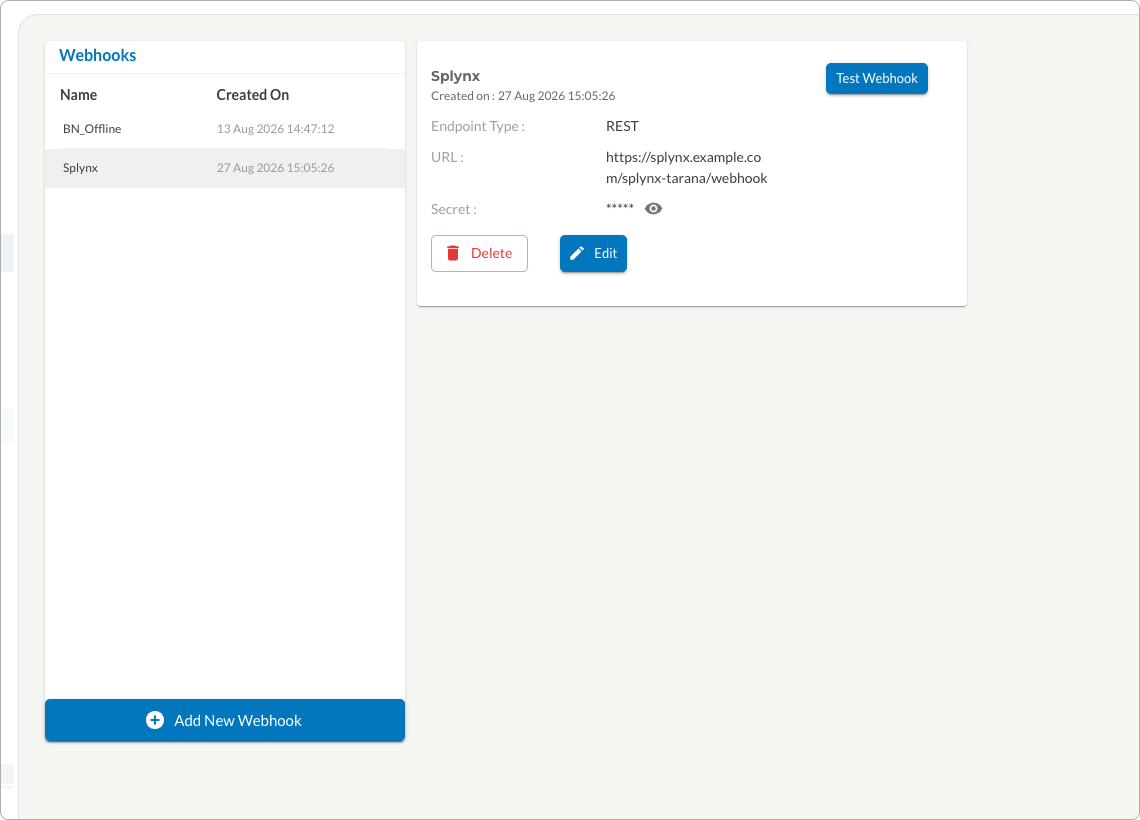
Save. Optionally, list the TCS addresses in Allowed source addresses; if Splynx is behind a reverse proxy or CDN, list the proxy's address. - Webhook in TCS. In TCS, go to ADMIN → Webhooks and click
Add New Webhook. Enter a Webhook Name and the webhook address, enable Use custom secret key and enter the same secret as in Splynx. TCS saves the webhook only if Splynx accepts its test request.
- Alert configuration in TCS. In ADMIN → Alerts Configuration, click
Add New Alert. Select the Alert Type, Alert Name, Device Type and Alert Scope, keep Notification Format set to Default, tick Receive Webhook Notifications, select the webhook from step 2 and save. Create one configuration for every alert type you want to receive.
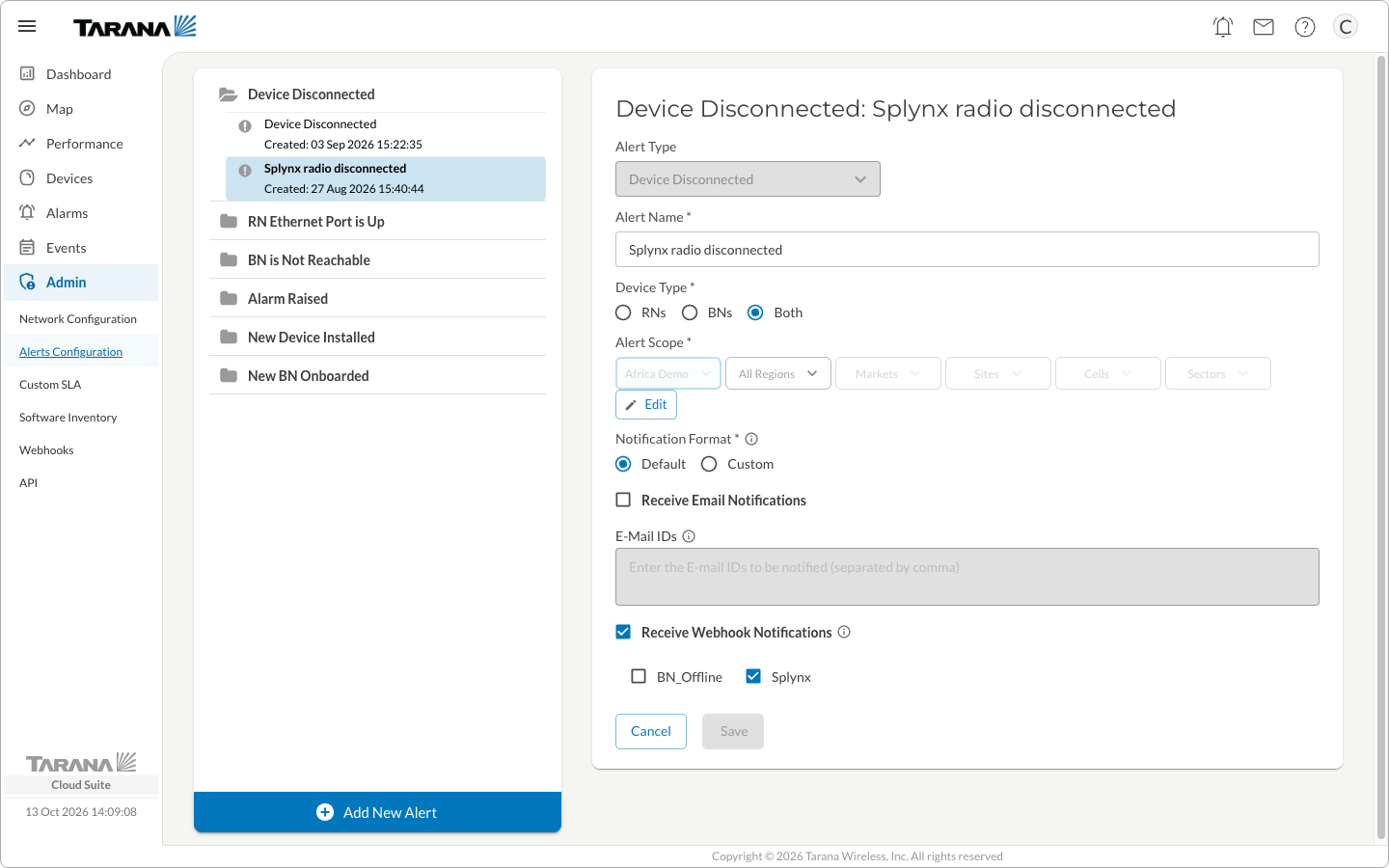
A webhook on its own delivers nothing — TCS sends alerts only through an alert configuration. The Custom notification format is not supported.
Received alerts appear in Tarana logs as Alert "<name>" RAISED for <serial>. (or CLEARED). If the webhook receiver fails to process a delivery, the Dashboard shows the notification The webhook receiver failed to process its last delivery. until the next accepted delivery.
¶ Tarana logs
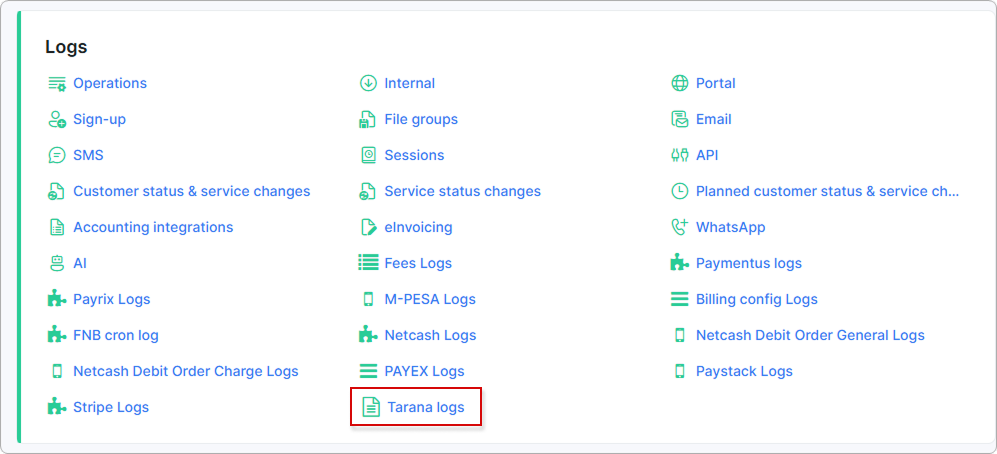
Administration → Logs → Tarana logs records everything the add-on does: actions on its pages, changes sent to radios, billing events, the nightly reconciliation and incoming alerts. Records are kept for six months.
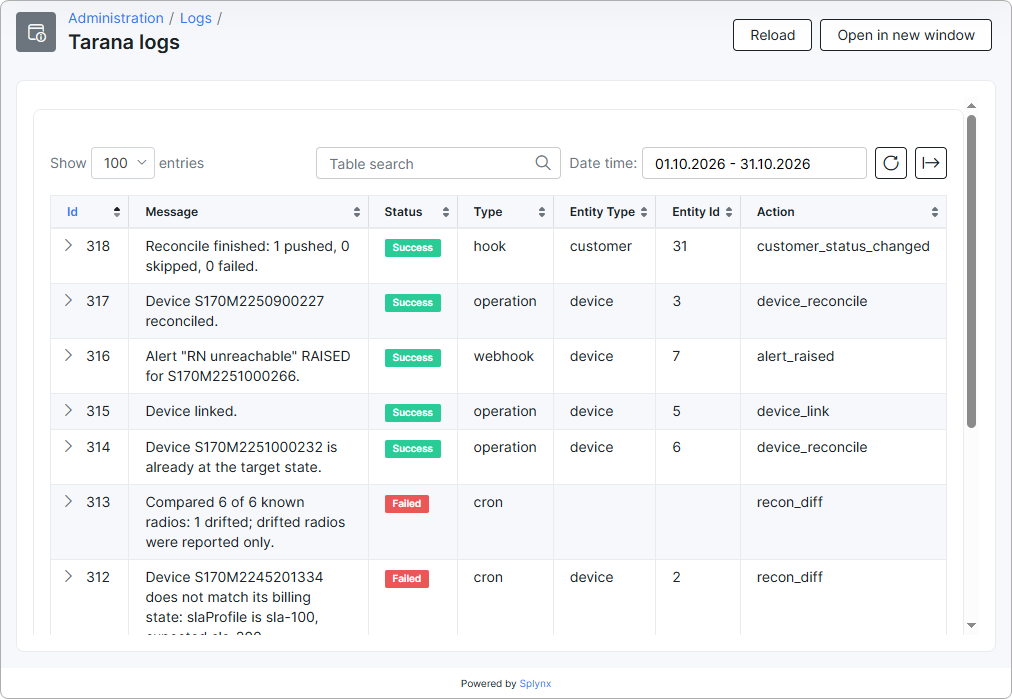
- Status is Success or Failed. Failed does not always mean an error — it also marks findings that need your attention, such as a radio out of line or a barcode mismatch.
- Type shows the source: operation (actions and changes sent to a radio), hook (billing events), cron (nightly reconciliation), webhook (TCS alerts).
- Every radio a change concerns gets its own row; when nothing had to be sent, the row says why (for example,
Customer is not active, nothing pushed.). - Use the search field and the Date time filter to find records.
- Click the details icon of a row to see its payload — for a change sent to a radio, Response Payload lists exactly what was sent:
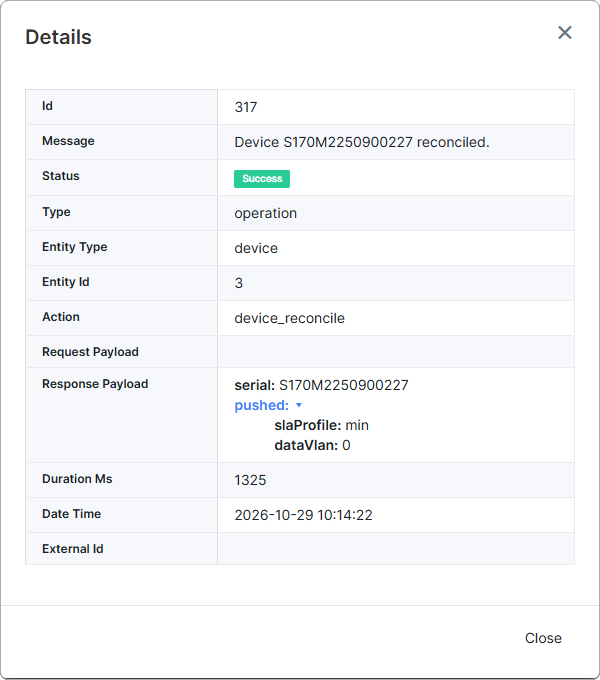
API keys and secrets are never written to the log.
¶ Access permissions
- The add-on pages and actions are available to administrators with the Super administrator and Administrator roles. Other roles, such as Manager, cannot open them.
- An administrator assigned to a partner sees only the tariff plans and radios of that partner.
Load SLA profiles,Export devices, Data VLAN changes and Tarana logs are available only to administrators who are not assigned to a partner.
¶ Troubleshooting
| Symptom | Cause and solution |
|---|---|
Yellow warning Set the TCS API host and key in the addon configuration …, buttons inactive |
Fill in TCS API host and TCS API key in the add-on settings |
Invalid API Key. or TCS auth failed. Check the API key. |
The API key is wrong or revoked — enter a valid key |
Tarana request failed: cURL error … |
Splynx cannot reach TCS API host — check the address and the server's outgoing connection |
Invalid value for Delinquent SLA profile when saving the settings |
Load the SLA profiles first and enter the profile Name as shown on Tarana SLA profiles |
| A radio did not change after a billing action | Check Tarana logs: is the radio linked to an item of this customer, is the plan linked to a non-stale SLA profile, are the customer and the service Active? |
| A change failed and you have fixed the cause (for example, the API key) | A refused change is not resent automatically. Unlink the radio and link it again to resend it, or let the nightly reconciliation with correction restore the SLA profile and VLAN |
Device linked, but it could not be provisioned. See the add-on log. |
The link is saved but TCS was not updated — see the Failed row in Tarana logs, fix the cause, then unlink and link the radio again |
Delinquent SLA profile "…" is not a loaded TCS profile, nothing pushed. |
The profile in the settings no longer exists in TCS — choose another profile in the settings |
| Host name on Tarana devices differs from TCS | The radio was changed directly in TCS — click Refresh from Tarana |
| A radio shows the Barcode badge | The item's barcode no longer matches the radio serial — correct the barcode or re-link the radio |
| A radio shows Stale | The radio is no longer in TCS. If it was replaced, unlink it and link the new radio |
Dashboard: A scheduled job of the add-on failed on its last run. |
Open Tarana logs, search for type cron and see what the last nightly run reported |
Dashboard: The webhook receiver failed to process its last delivery. |
See the last Failed webhook row in Tarana logs; most often the alert configuration uses the Custom format |
TCS shows Test Webhook Failed, or the log shows Signature verification failed. / Source address is not allowed. |
Check that the secret in TCS matches Webhook shared secret, and that Allowed source addresses includes the address Splynx sees |