¶ Leads fields
¶ Overview
The Leads fields tab controls how the lead creation and edit forms look for you. The layout is personal — each administrator arranges the lead form to suit their own work, and your changes are not visible to your colleagues.
To open the tab, navigate to My Profile → Leads fields:
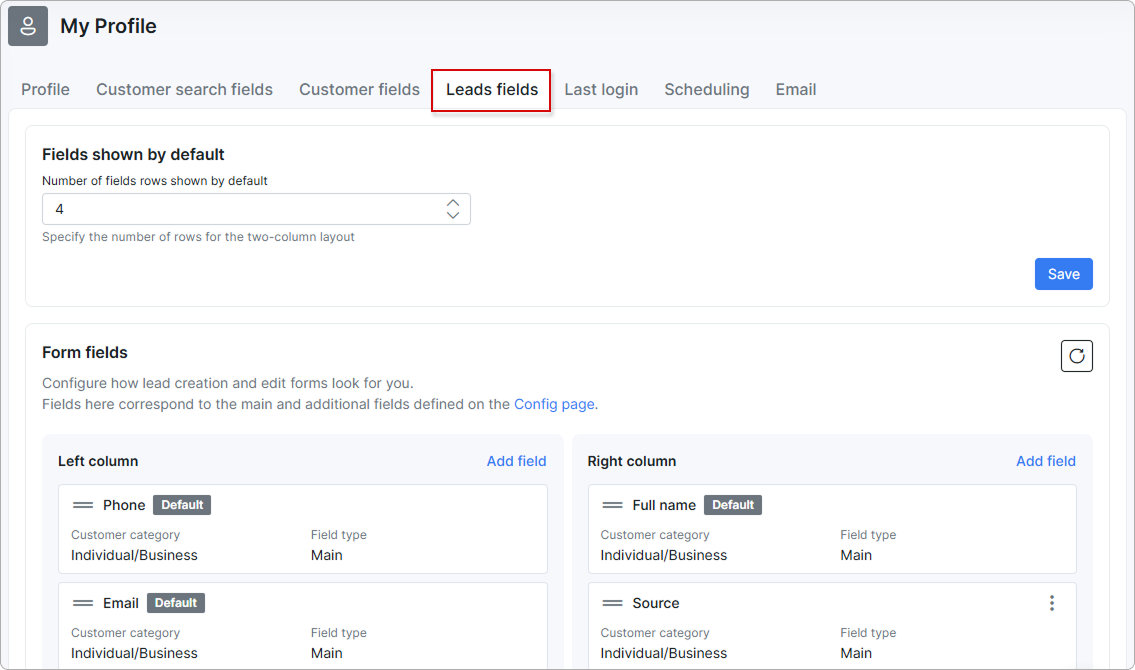
The tab is split into two blocks: Default fields and Form fields. All settings are kept separately for Individual and Business lead types.
Until Splynx 6.0 these settings were located in Config → CRM → Leads fields. (v6.0) They are now part of your administrator profile: no permission is needed to use them, every administrator can arrange their own lead form, and the layout you set up before the move is kept as it was.
The system-wide Default layout is applied to every administrator who has no personal setup. It comes from the base server settings and cannot be edited from the interface.
¶ Default fields
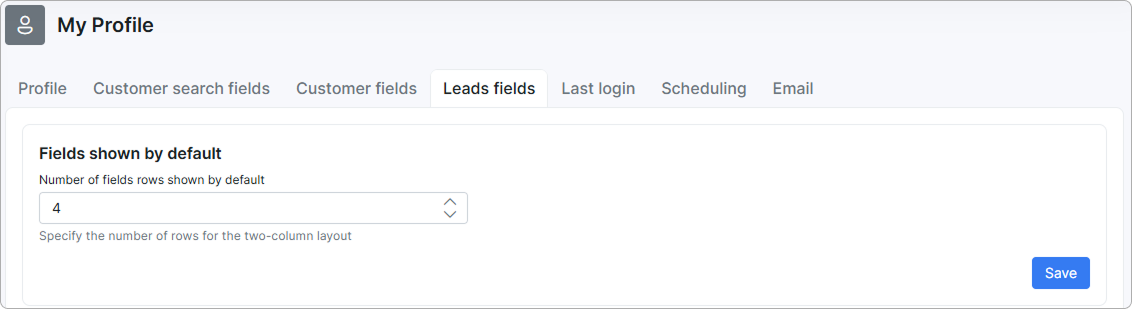
- Number of fields rows shown by default — specifies the number of rows shown for the two-column layout. The remaining fields stay hidden until you click
Show more fieldson the lead form. The default value is5.
Click Save to apply.
The value is saved for your own account only.
¶ Form fields
The Form fields block arranges the lead form as two columns — Left column and Right column.
Fields here correspond to the main and additional fields defined on the Additional fields page.
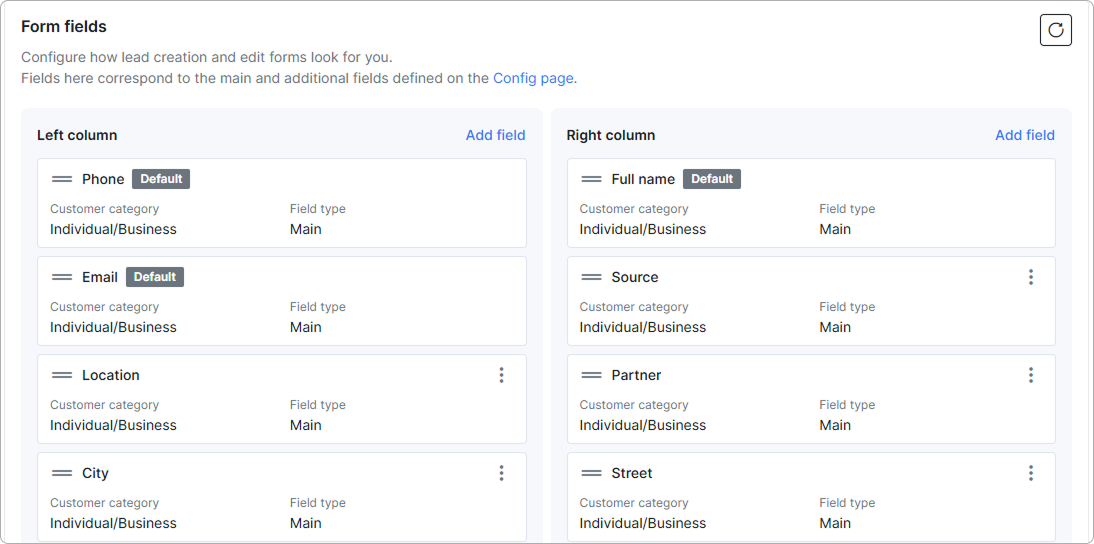
Each field card shows:
- Customer category — the lead type the field applies to (Individual/Business, Individual, or Business).
- Field type — Main for a built-in Splynx field, Additional for a custom field created under Config → System → Additional fields.
Fields marked with the Default badge (Full name, Email, and Phone) are mandatory for every lead. They can be reordered, but they have no ⋮ menu and cannot be removed from the form.
The ⋮ menu on any other field opens its actions:

Use the refresh button in the top-right corner of the block to reset the layout to its current saved state.
¶ Adding a field
Each column has its own Add field button. Clicking it opens the Add field dialog:
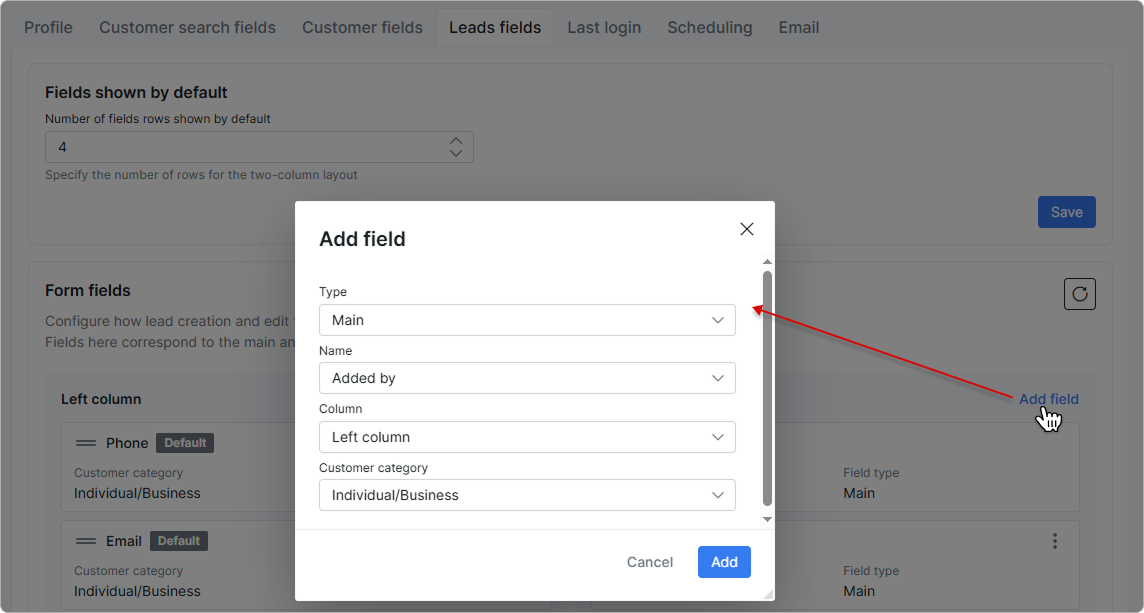
- Type — the field type, Main or Additional.
- Name — select the field to add.
- Column — the column the field is placed in (Left column or Right column).
- Customer category — the lead type the field applies to.
Click Add to place the field, or Cancel to close the dialog.
¶ Reordering and moving fields
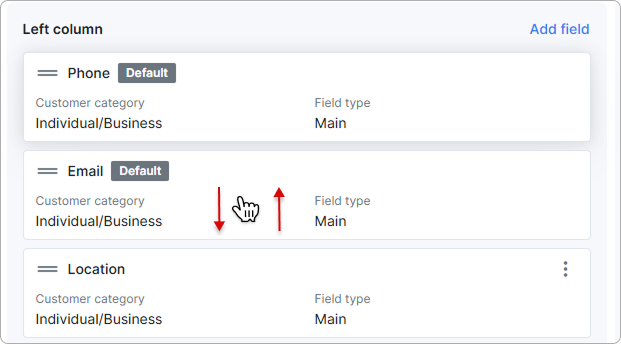
Use the handle on a field card to drag it to a new position within a column, or to move it between the Left column and the Right column. The order of the cards is the order of the fields on the lead form.
¶ Reset to default
Click Reset to default to discard your personal layout — both the field order and Number of fields rows shown by default return to the Default layout. Confirm the action in the modal.
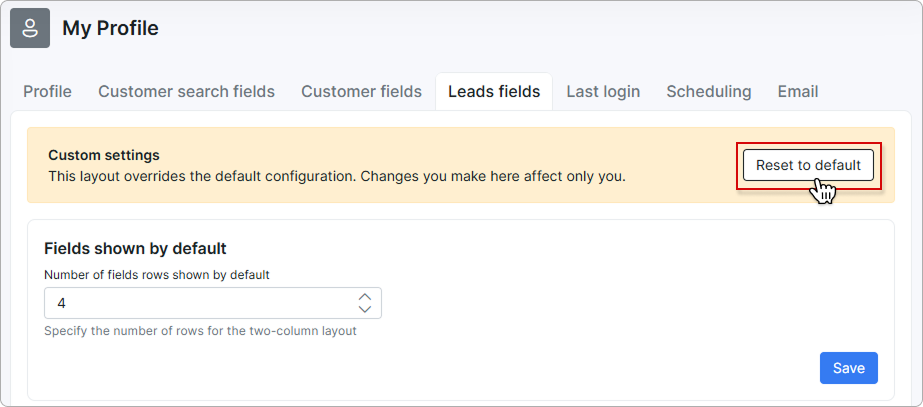
After the reset, your lead form follows the Default layout again.
The reset applies only to the currently selected lead type — reset Individual and Business separately.
¶ Related pages
- Adding a new lead
- Information (Leads)
- Customer fields — the same settings for customer forms
- Additional fields
- My Profile