¶ Fees add-on
- Overview
- Installation
- Configuration
- Fee type
- Minimum value
- Tax
- Restrictions and applying method
- Exclusion labels
- Logs
- Report
- Important notes
¶ Overview
Using this feature, you can automate the process of applying different types of fees, including blocking fees when the customer's account is blocked, reactivation fees when the customer's account is unblocked, overdue invoice penalties, and invoice unpaid for N days penalties. Each type of fee can be configured flexibly, and you can also set different fees for different partners.
Fee rules also support label-based exclusions, allowing specific customers to be skipped when a rule is applied.
¶ Installation
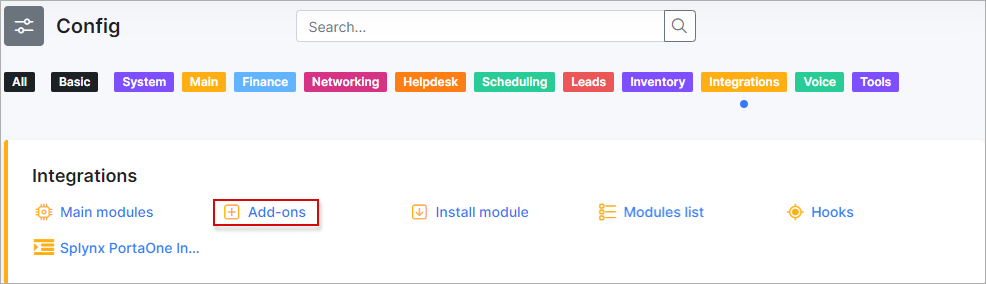
To install the Fees add-on, navigate to Config → Integrations → Add-ons:
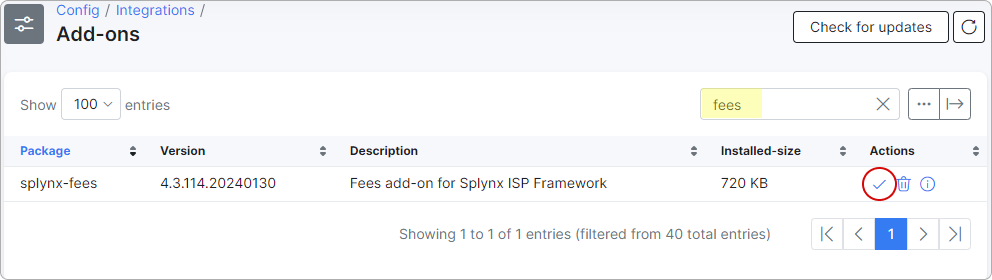
Search the splynx-fees add-on item and click on the Install icon located in the Actions column. Click on the OK, confirm button to begin the installation process.
Also, this add-on can be installed via CLI of your Splynx server using these commands:
apt-get update
apt-get install splynx-fees
¶ Configuration
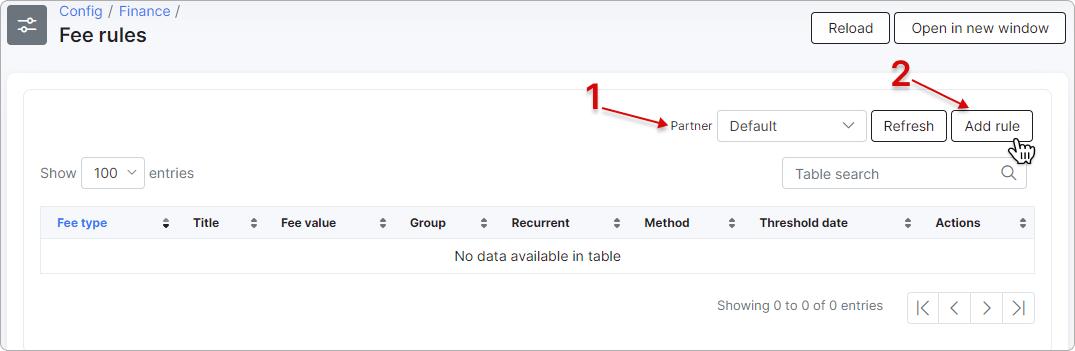
Once installed, navigate to Config → Finance → Fee rules:

In the new window, you can create fee rules for specific partners by selecting them in the dropdown menu #1. If the 'Default' partner is chosen, the fee rule applies to all customers. To create a new rule, click the Add rule button (#2 in the screenshot).
¶ Fee type
The available configuration fields depend on the selected 'Fee type' value:
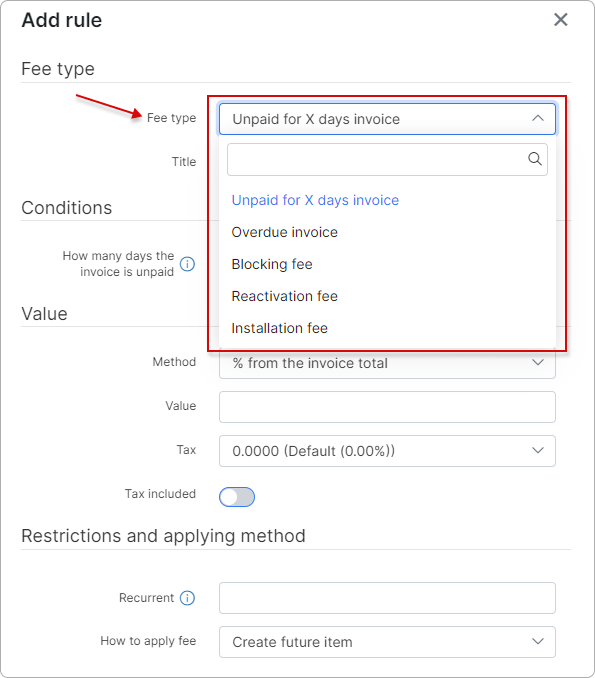
The sections below describe the most common configurations for each fee type.
¶ Unpaid for X days invoice
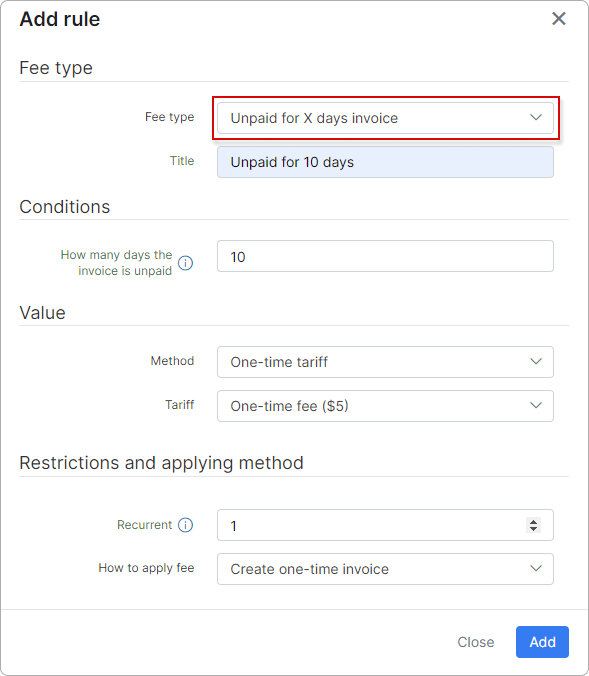
If an invoice remains unpaid for X days, the fee rule is applied. Set the number of days under the 'Conditions' section in the 'How many days the invoice is unpaid' field. The days are counted from the document date.
The following example creates a one-time invoice for the customer from a one-time tariff plan called 'One-time fee' with an amount of $5 if the invoice is unpaid for more than 10 days. In this case, 'Recurrent = 1' means that this is a one-time action, and the rule is applied only once per invoice.
 When How to apply fee is set to Create one-time invoice, the Apply to partially-paid invoices toggle appears. If it is enabled, the fee rule also applies to partially-paid one-time invoices.
¶ Overdue invoice
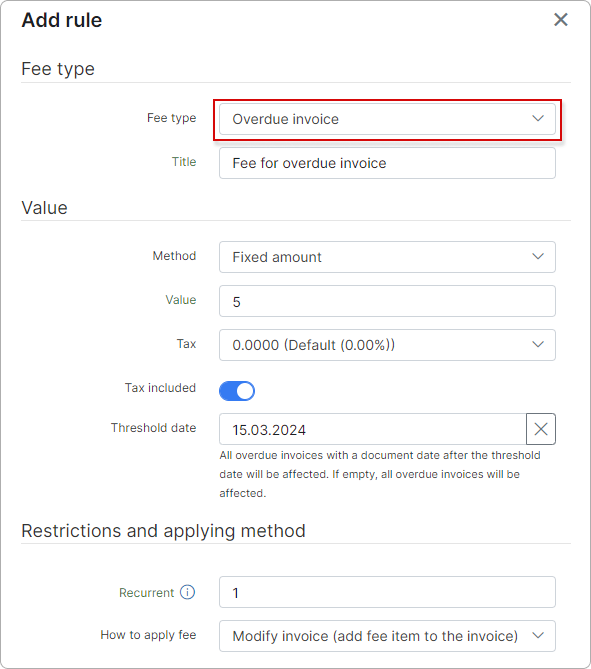
This fee type applies a fee when the invoice becomes overdue, based on the due date of the invoice.
For example, if a customer has a 50$ invoice that becomes overdue, the system adds a new 5$ item to the invoice. The invoice remains overdue, but the total amount due increases to 55$.
You can also set the Threshold date for overdue invoices, which determines the point at which all overdue invoices with a document date after the threshold date are affected. If left empty, all overdue invoices are affected.
Avoid the Modify invoice (add fee item to the invoice) option in the How to apply fee field unless you understand the risks of changing an existing invoice and its amount. Use Create future item or Create one-time invoice instead.
¶ Blocking fee
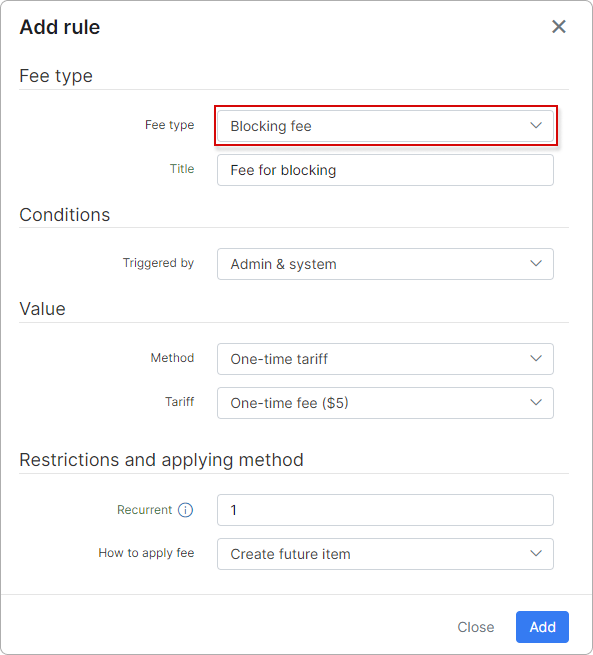
This fee type applies a fee when the customer's status changes to Blocked.
For example, if a customer was active and becomes blocked, this rule creates a future item with an amount of 5$ from the one-time tariff plan. The future item is included in the next recurring invoice.
You can choose when to trigger this rule (using the Triggered by option): when the status was changed by the admin (Admin), when the customer was blocked automatically by the system, or when the action was done in both cases (Admin & system).
Alternatively, you can change the type of how to apply the fee to Create one-time invoice, and it creates a separate one-time invoice with an amount of 5$ from the one-time tariff plan.
¶ Reactivation fee
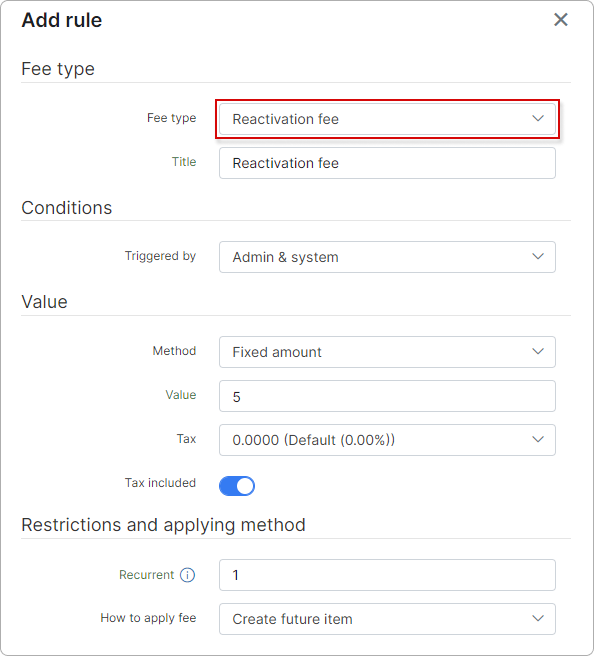
This fee type applies a fee when the customer's status changes from Blocked to Active or from Inactive to Active.
For example, if a customer was blocked/deactivated and becomes active, this rule creates a future item with an amount of 5$ as per the rule config. The future item is included in the next recurring invoice.
You can choose when to trigger this rule (using the Triggered by option): when the status was changed by the admin (Admin), when the customer was reactivated automatically by the system, or when the action was done in both cases (Admin & system).
Alternatively, you can change the type of how to apply the fee to Create one-time invoice, and it creates a separate one-time invoice with an amount of 5$ from the rule config.
¶ Installation fee
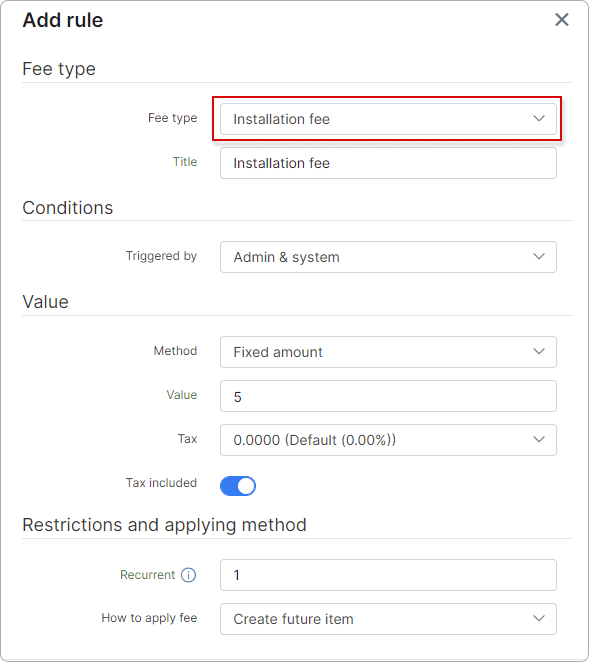
This fee type applies a fee when the customer's status changes from New to Active.
For example, if a new customer becomes active, this rule creates a future item with an amount of 5$ as per the rule config. The future item is included in the next recurring invoice.
You can choose when to trigger this rule (using the Triggered by option): when the status was changed by the admin (Admin), by the system, or when the action was done in both cases (Admin & system).
Alternatively, you can change the type of how to apply the fee to Create one-time invoice, and it creates a separate one-time invoice with an amount of 5$ from the rule config.
¶ Recurring fee
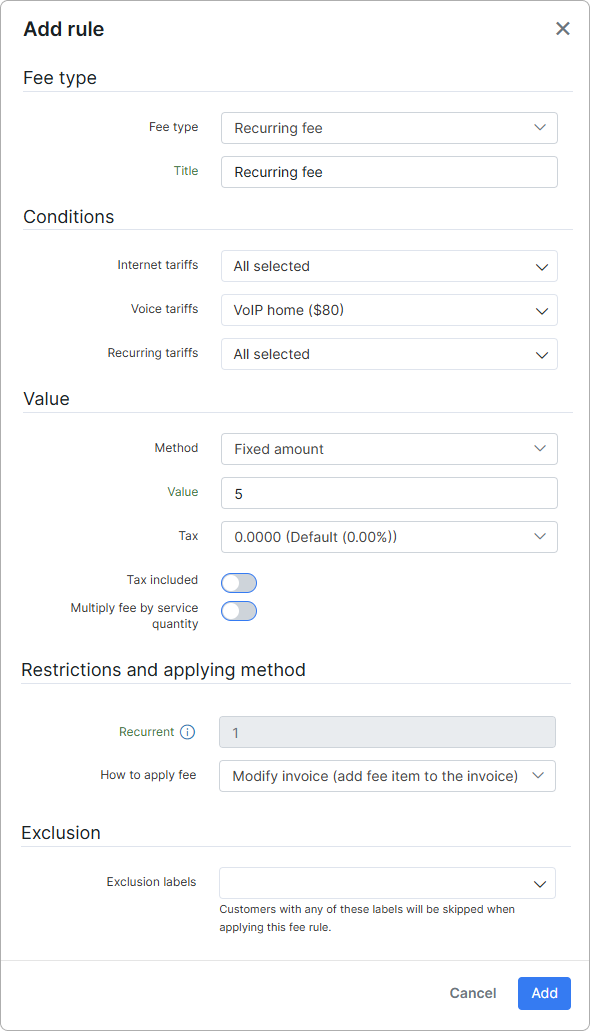
The Recurring fee type applies a periodic charge to services associated with selected tariffs.
For example, if a customer has an active service under an applicable tariff, this rule adds a recurring fee item of $5 (as per the rule configuration) to the invoice. The fee is included in every recurring billing cycle.
Recurring fee rules support only the Modify invoice (add fee item to the invoice) method, so the fee is added directly to the invoice.
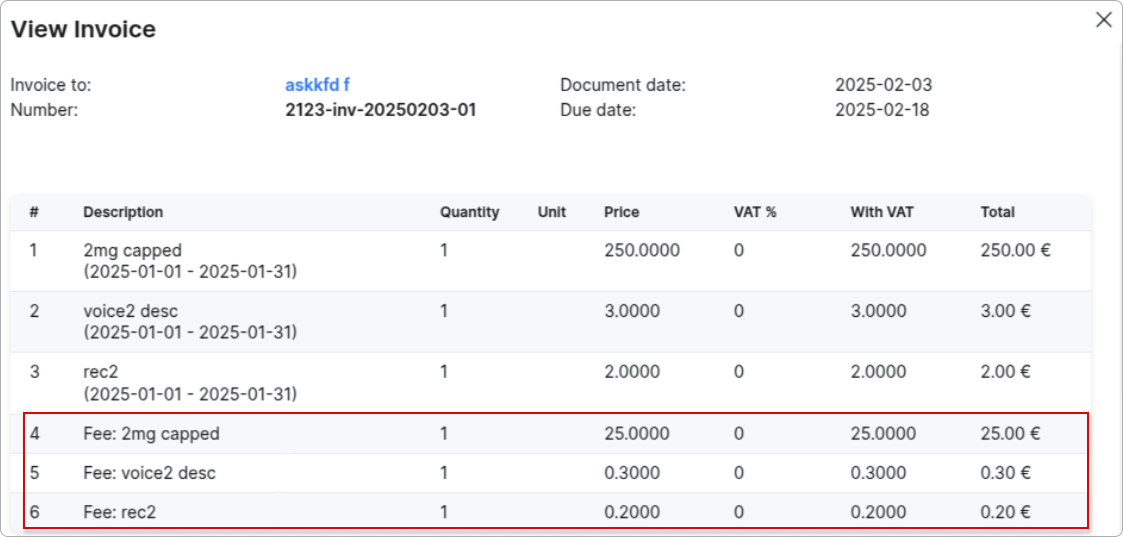
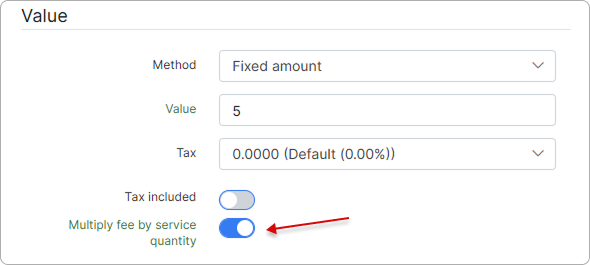
With the Fixed amount method, a Recurring fee rule charges the fee once per service, regardless of the service quantity. To charge the fee for every unit of the service, enable the Multiply fee by service quantity toggle in the Value section of the rule. The fee then equals the Value multiplied by the service quantity.
For example, an E911 fee of $2.99 per line applied to a voice service with a quantity of 9 equals $26.91 (2.99 × 9) per billing cycle. With the toggle disabled, the same service gets a single $2.99 fee.
On the invoice, the fee appears as one item named after the rule title, with the service quantity in the Quantity column and the Value in the Price column.
The Multiply fee by service quantity toggle is available only for the Recurring fee type with the Fixed amount method. It is disabled by default, so existing fee rules keep charging the fee once per service.
¶ Minimum value
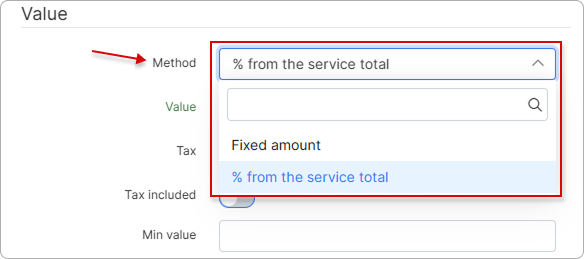
You can apply either a fixed amount as the value method or a percentage of the service total when calculating the invoice total that includes fee rules.
For the Recurring fee type, the Fixed amount method also shows the Multiply fee by service quantity toggle. For details, see Recurring fee.
If you choose % from the service total, the Min value field appears, requiring you to enter the minimum fee amount. In this case, when the invoice total, including the fee, is calculated, if the minimum value is greater than the amount derived from the percentage, the minimum value is applied.
¶ Tax
With the Fixed amount and percentage methods, the Value section also contains the tax settings of the fee:
- Tax — the tax rate applied to the fee. The list shows the tax rates configured under Config → Finance → Taxes. The default is the Default tax rate.
- Tax included — when enabled, the Value already includes tax, and the tax is calculated from it. When disabled, the tax is added on top of the Value.
For example, with a Value of $10 and a 20% tax rate, the customer pays $10 in total ($8.33 + $1.67 tax) when Tax included is enabled, and $12 ($10 + $2 tax) when it is disabled.
The Tax and Tax included fields are hidden for the One-time tariff method — the fee uses the price and tax of the selected one-time plan.
¶ Restrictions and applying method
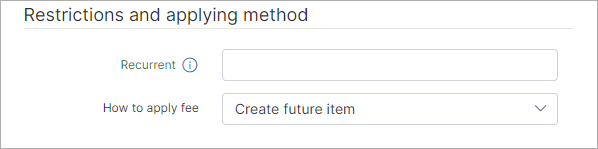
- Recurrent - specify how many times this rule can be applied for each Customer/Invoice (depending on the chosen Fee type). If left empty, no restrictions are applied. Be careful with this option as it can apply fees multiple times if the value is left empty;
- How to apply fee:
- Create future item - this method creates a future item that is included in the next recurring invoice. This option is available for all fee types except Recurring fee;
- Create one-time invoice - this method creates a one-time invoice. This option is available for all fee types except Recurring fee;
- Modify invoice (add fee item to the invoice) - this option adds a new transaction item to the invoice. This option is only available for the Unpaid for X days invoice, Overdue invoice, and Recurring fee types.
¶ Exclusion labels
The Exclusion labels field allows you to prevent specific customers from being charged by this fee rule. Enter one or more customer labels in this field. When the fee rule runs, any customer whose profile contains a matching label is skipped — the fee is not applied to them.
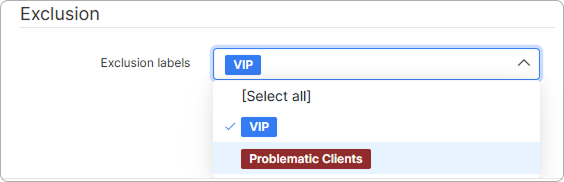
Customer labels are created and managed under Config → System → Labels with the Leads/Customers module selected.
This is useful for exempting VIP clients, government accounts, or customers with disputed balances from automated fees without disabling the rule globally.
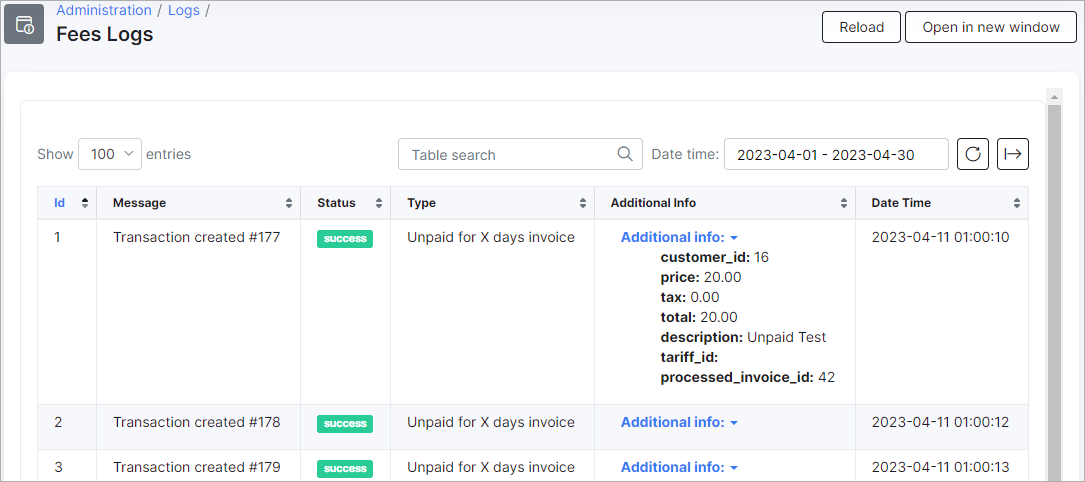
Customers skipped due to an exclusion label are recorded in the add-on logs under Administration → Logs → Fees Logs.
¶ Logs
You can see the Fees logs under Administration → Logs → Fees Logs:

¶ Report
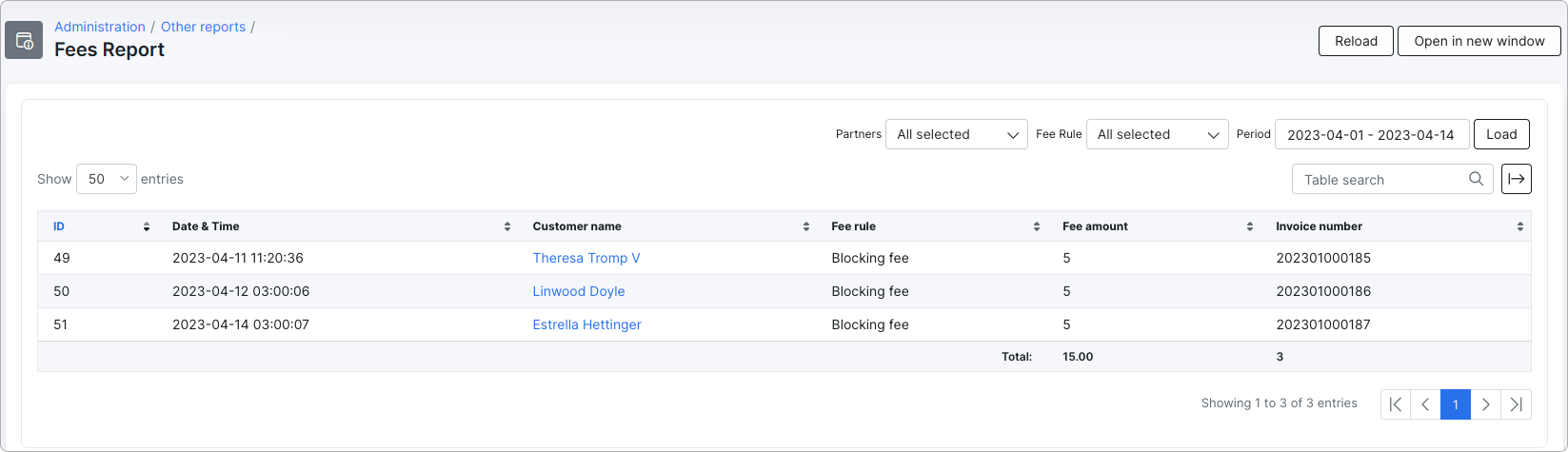
After a fees rule is applied, reports are generated under Administration → Other reports → Fees Report:

To view a specific report, select Partner, Fee Rule, and Period, and then click the Load button to display the results in the fees report table.

¶ Important notes
-
This feature does not update invoices (if there is a fee rule that updates invoices) if they are synchronized with any available accounting integration. If the invoice was synced to the accounting system, this feature does not update it. A log message indicates that the update was not performed.
-
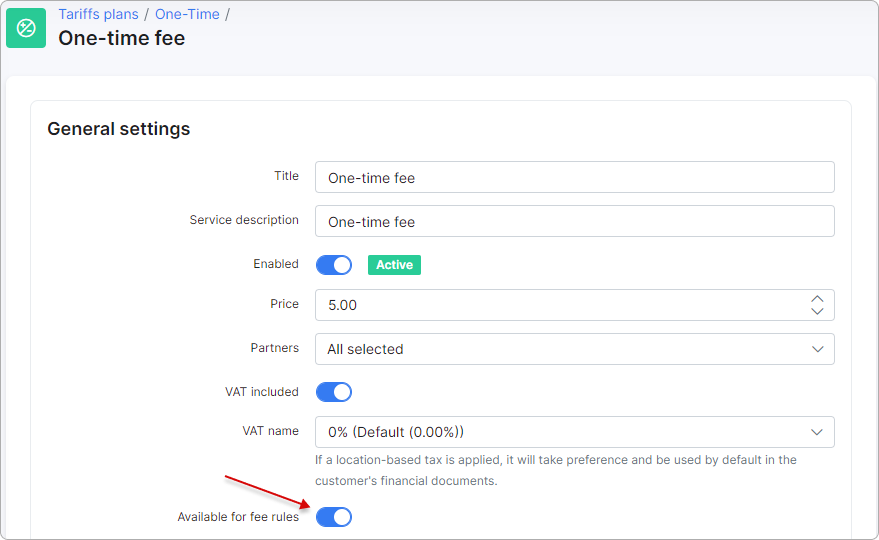
To use one-time plans (for creating invoices or future items), enable this option for the desired one-time plan:
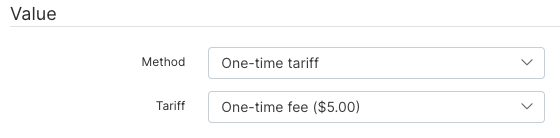
The plan then appears in the fee rule builder:
- For easier reporting, create a separate category for fees under Config → Finance → Transaction categories:
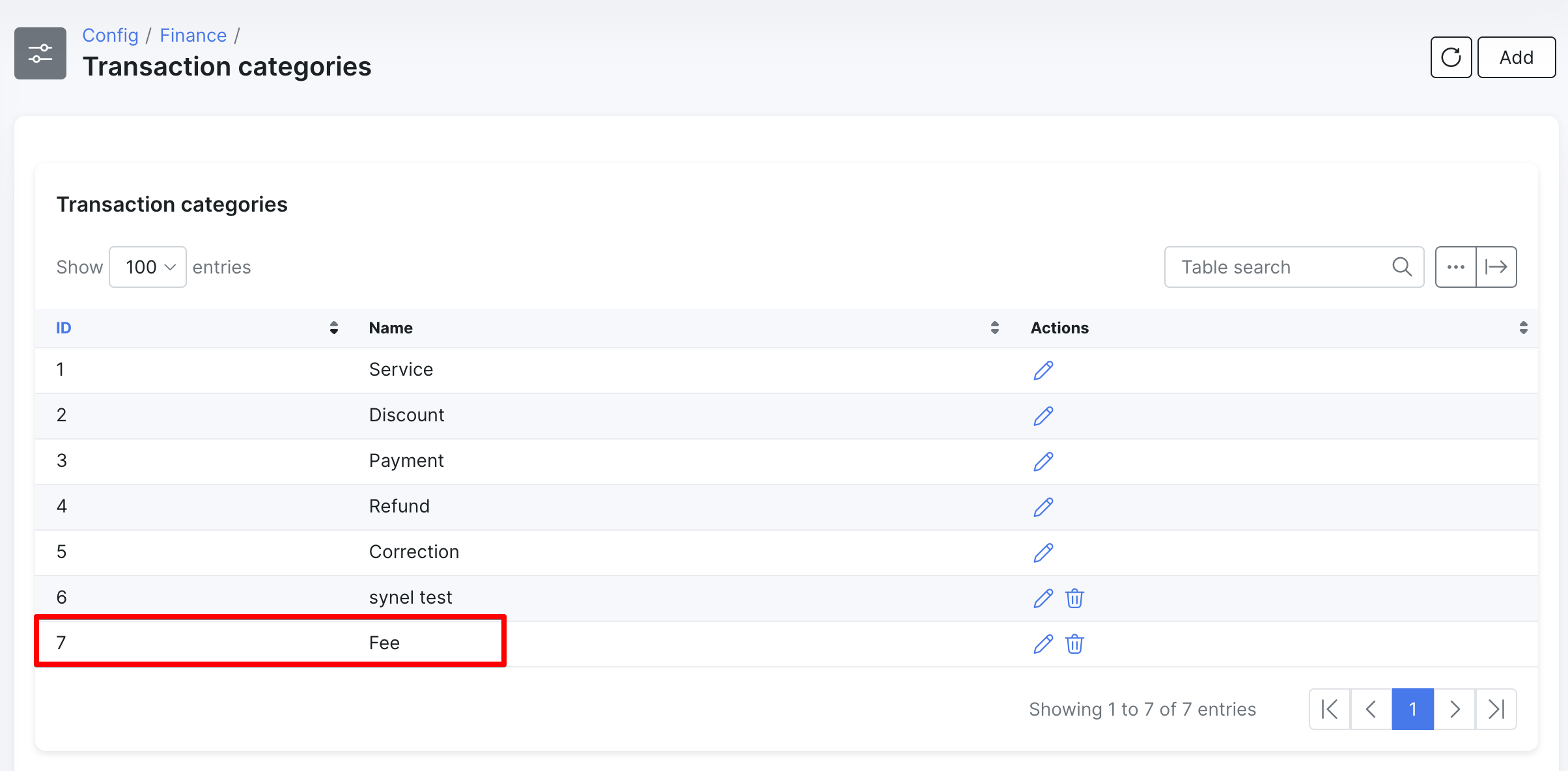
Then select it in the fee add-on settings:
